Quick answer: Open Contacts and groups at /groups, press + New group, give it a Group name and paste people one per line (name, email, mobile, roll number) or Import a CSV. To email files, choose Send by email and press Pick from contacts & groups under Their email address. To share one link only the group can open, press More settings, set Who can open the link to Only emails or domains I list, and use Pick from contacts & groups there. Groups stay in your browser, or with your account when signed in.
What it does and when to use it
A group is a saved list of people. It saves typing when you send, and it lets you limit a link to exactly those people.
- A teacher or coaching class sends notes and recordings to the same 40 parents every week. See sharing exam papers and notes.
- A studio or agency keeps one group per client, so every stakeholder gets each delivery.
- A club or family shares event photos and videos with everyone at once, in original quality.
Create a group step by step
- Open Contacts and groups (also linked from the Transfers page) and press + New group.
- Type a Group name, such as "Class 10-B parents".
- Under People, one per line, paste name, email, mobile and roll number, whichever you have. Each person needs an email or a mobile number. The page counts how many people it recognised.
- Or press Import a CSV and choose a file saved from Excel or Google Sheets with columns like Name, Email, Mobile or Phone and Roll no, in any order.
- Press Save group.
Everyone you have emailed a transfer to is also listed under Saved contacts; Make a group from these turns them into a group.
Two ways to send to a group
| Send by email | Link only the group can open | |
|---|---|---|
| Where | Pick from contacts & groups under Their email address | More settings, Who can open, Only emails or domains I list, then Pick from contacts & groups |
| What people get | An email with the download link | A link you share anywhere; they confirm their email with a 6-digit code |
| Size | Up to the site's recipient limit per transfer and per day | Suits large groups |
| Forwarded link | Works for others unless you tick Only recipients can download | Refused for anyone not on the list |
In the Contacts & groups window, tick one or more groups or contacts and press Add; the button shows how many people will be added. Only members with an email address are added. Already made a link? On the finished screen, Send to contacts opens your own email app with the chosen people in BCC, so nobody sees the others' addresses.
A worked example
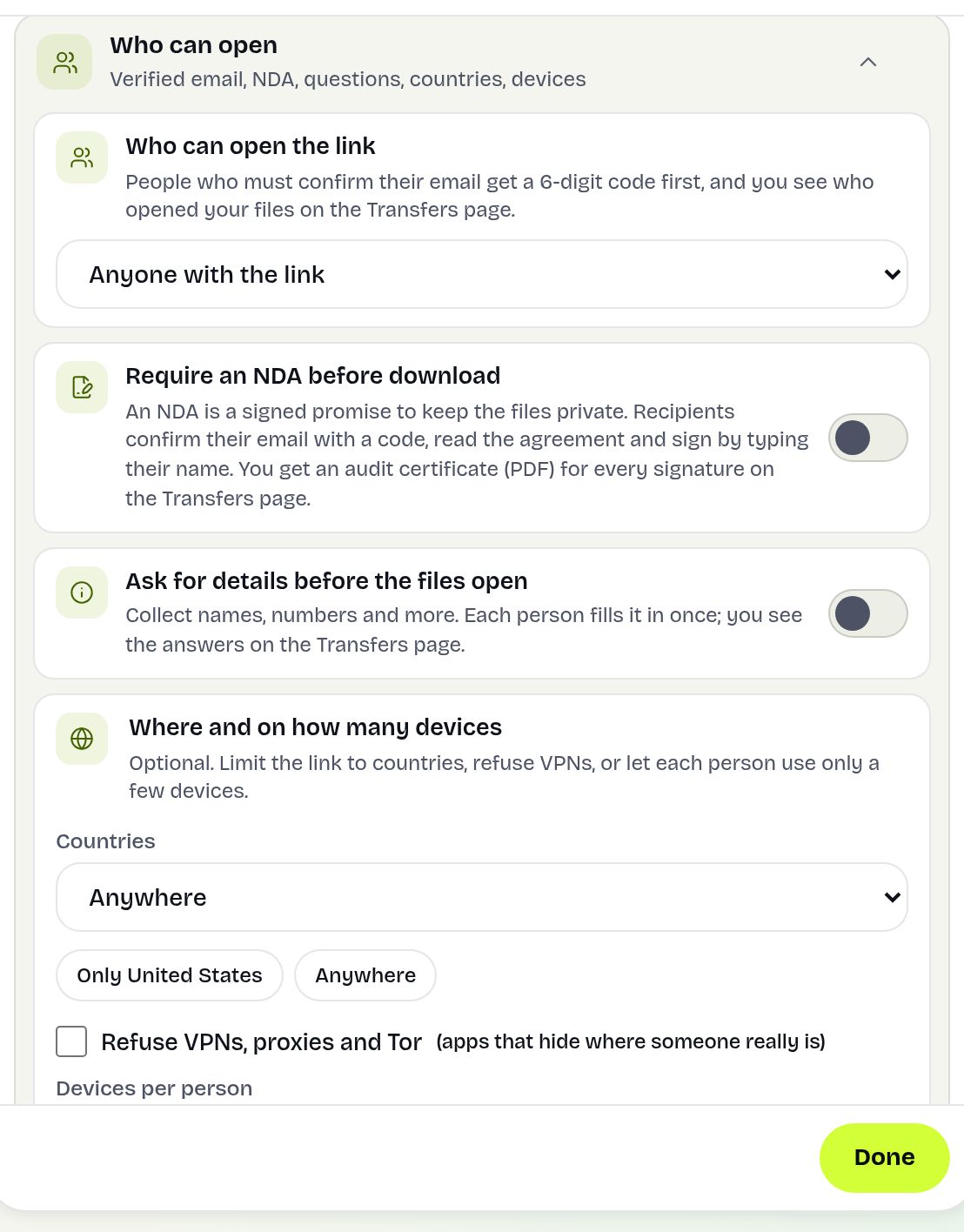
Mrs Iyer imports her class list (38 rows: name, parent email, roll number) as "Class 7-A". Each Friday she uploads the week's worksheets, opens Who can open, chooses Only emails or domains I list, picks "Class 7-A" and posts the link in the class WhatsApp group. Parents confirm their email and download. On Monday, Who opened it shows 31 names; she presses Send a reminder and emails the other seven.
See who has the files and remind the rest
On your Transfers page, Who opened it and Stats show who opened and downloaded, by name or email. Send a reminder lists people who have not downloaded yet: tick them and press Email the selected people (at most three reminders per person, one per 12 hours), or send a ready-made WhatsApp message yourself. Tick Email me updates under Tracking when sending to hear about downloads. More in download tracking.
Limits and what it does not do
- Without an account, groups and contacts are saved in this browser only. Sign in and they are copied to your account for every device.
- A group can hold up to the number shown on the groups page (1,000 people by default).
- Email transfers follow the site's recipient limits. For a big group, share a link limited to the group instead.
- Mobile numbers are kept for reminders, but an allow list works on email addresses, because people confirm with an emailed code.
- Groups are for your own lists. Do not import people who did not agree to hear from you.
Troubleshooting
- "A group can have at most…": split the list into two groups.
- Fewer people imported than rows: rows with neither an email nor a mobile number are skipped; check the column headings.
- Groups missing on another device: they were saved as a guest. Sign in on the first browser so they move to your account.
- "Only emails or domains I list" not shown: it is for links; switch from Send by email to Get a link.
Frequently asked questions
How do I send a large file to many people at once?
Save them as a contact group, then add the group as email recipients, or share one link that only the group can open.
Can I import contacts from Excel?
Yes. Save the sheet as CSV and press Import a CSV. Columns such as Name, Email, Mobile and Roll no are recognised in any order.
Where are my groups stored?
In your browser, or with your account when you are signed in.
Can I see which group members downloaded?
Yes. Who opened it on your Transfers page lists who opened and downloaded, and Send a reminder emails the rest.
Is there a limit on group size?
Yes, shown on the groups page. Email transfers also follow the site's recipient limits, so share a group-only link for very large groups.
Is it free?
Yes, including CSV import and reminders.
Ready to send?
Drop your files, get a link, done. Free up to 20 GB — no account needed.
Send files free