Quick answer: To move files between an iPad and Android, open sharelargefilesfree.com/send-via-wifi on both on the same Wi-Fi and send directly, in either direction. Alternatively use Google Drive or Google Photos, copy through a USB-C flash drive, or share a download link. Files land in Files > Downloads on the iPad and in Downloads on Android.
Why there is no built-in way
Apple's AirDrop works only between Apple devices, and Google's Quick Share is built for Android, ChromeOS and Windows. Some recent Android phones have added limited AirDrop compatibility, but support depends on the model and software version, so do not count on it. Bluetooth file sending between the two is not supported on iPad. That leaves the browser, the cloud, a drive, or a link.
For phones, see iPhone to Android and Android to iPhone; most of it applies to an iPad too.
Methods compared
| Method | Best for | Size | Needs |
|---|---|---|---|
| Send via Wi-Fi (browser) | Devices in the same room | No limit on our side; iPad memory note | Same network, both pages open |
| Google Drive or Google Photos | Keeping copies in the cloud | Your Google storage | Google app on the iPad |
| USB-C flash drive | Very large files, no network | Size of the drive | USB-C iPad; Android with USB OTG |
| Download link | Devices in different places | Up to 20 GB per transfer | Only a browser |
| Chat apps | Quick photos | Often compressed | The same app on both |
Send via Wi-Fi, either direction
- On the iPad, open sharelargefilesfree.com/send-via-wifi in Safari. On Android, open the same page in Chrome, Firefox or Samsung Internet.
- Connect both to the same Wi-Fi, or put the iPad on the Android phone's hotspot with mobile data on.
- Each device shows the other with a name, an animal avatar and details such as "Android · Chrome".
- On the sender, tap the other device and pick files. On Android choose from the file picker or Photos; on iPad use Photo Library or Browse.
- The receiver taps Accept.
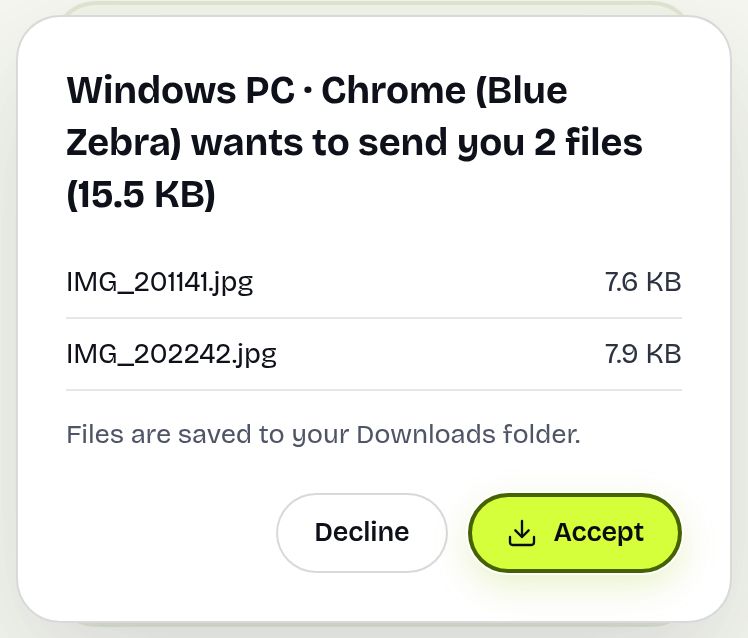
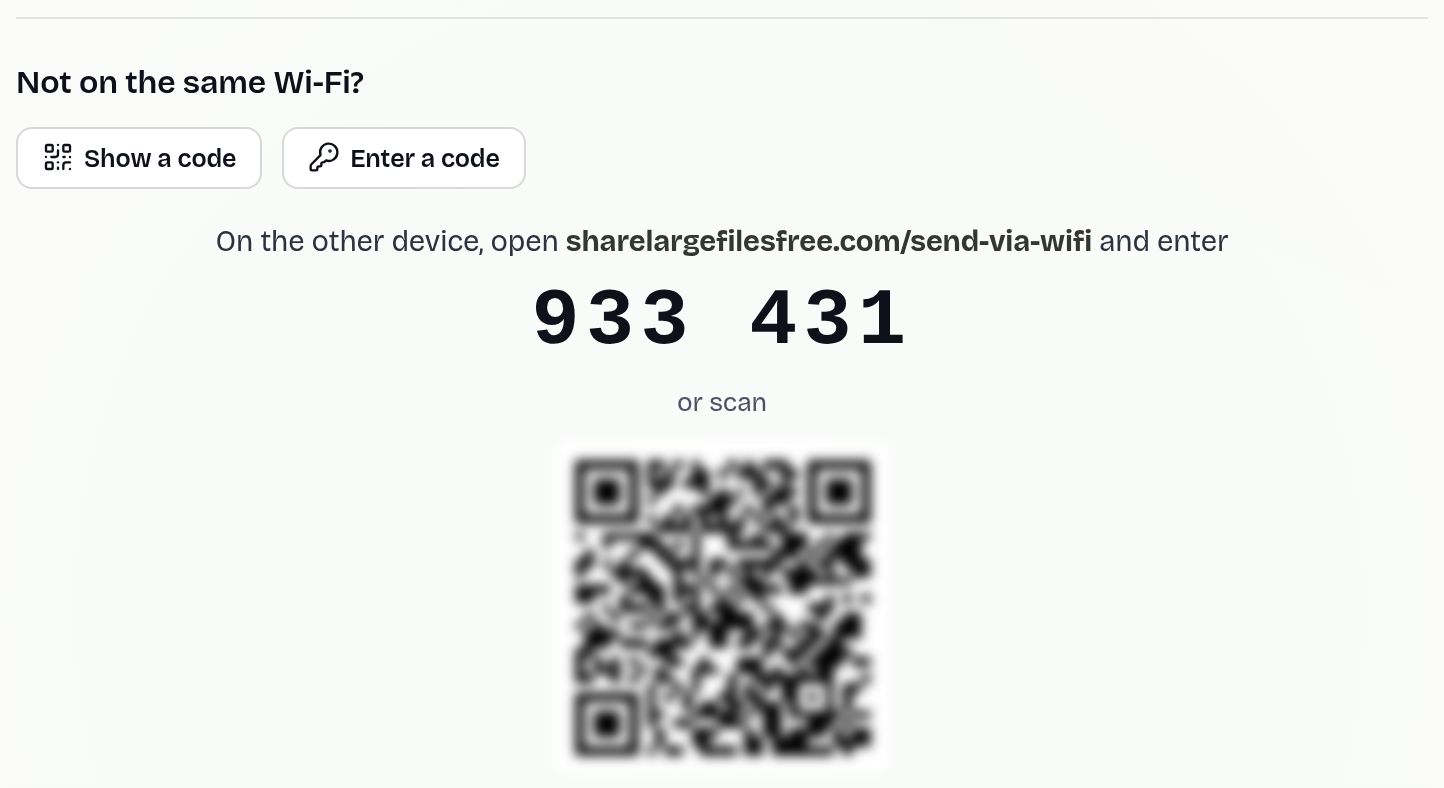
Files go directly between the two browsers, encrypted, and are not stored on a server. On Android they land in Downloads; on the iPad, in Files > Downloads, and you can open a video and tap Save Video to add it to Photos. Keep both screens on until it finishes. Because an iPad holds an incoming file in memory until it is complete, a single file of several gigabytes going to the iPad may fail; Android to iPad for those works better with a USB drive or link. iPad to Android has no such limit. If they cannot see each other, tap Show a code on one and Enter a code on the other.
USB-C flash drive
Most Android phones and tablets can read a USB-C flash drive through their Files app (this is called USB OTG; check your device's settings or manual). iPads with USB-C can read the same drive in the Files app, under Locations. Format the drive as exFAT so files over 4 GB fit and both sides can use it, copy the files on one device, then plug the drive into the other and copy them off. It is slower to set up but works with no Wi-Fi at all and has no memory limit.
Google Drive and Google Photos
- Install Google Drive (or Google Photos) on the iPad and sign in with the same Google account as the Android device.
- Upload the files from whichever device has them.
- On the other device, open the file and download it, or in Google Photos tap the item and save it.
This suits people who already use Google storage. The free allowance is shared with Gmail, and the upload then download makes it slower than a direct transfer for big videos.
Which should you use?
In the same room, use Send via Wi-Fi; it works the same in both directions and needs no account. For a film or a huge folder onto the iPad, a USB-C drive is the safest route. If you already keep everything in Google Drive, carry on. If the devices are in different places, upload on the homepage and send the link or a QR code; it lasts 1 day and downloads in original quality. See also sending video from Android.
Share Large Files Free is independent and is not affiliated with Apple or Google. iPad, AirDrop and Safari are trademarks of Apple Inc.; Android, Google Drive, Google Photos and Quick Share are trademarks of Google LLC.
Troubleshooting
- The devices do not see each other. Check both pages are open, on the same network, and not on guest Wi-Fi with device isolation. Use a code or a hotspot.
- The iPad cannot read the drive. Reformat it as exFAT; some drives draw too much power without a hub.
- The Android phone does not see the drive. Some phones need USB OTG enabled in settings.
- A video will not play on the iPad. Formats like MKV need a player app such as VLC.
- Photos look smaller than the original. A chat app compressed them. Resend with Send via Wi-Fi or a link.
- iPad photos will not open on Android. They may be HEIC. Most recent Android galleries open HEIC; if yours does not, pick the photos from the Photos app in the browser, which usually converts them to JPEG, or set Settings > Camera > Formats on the iPad to Most Compatible for future shots.
Frequently asked questions
Can I AirDrop from an iPad to Android?
Generally no. Use Send via Wi-Fi in the browser, Google Drive, a USB drive or a download link.
Does Quick Share work on iPad?
No. Quick Share is not available on iPadOS.
Where do files from Android go on the iPad?
Browser transfers land in Files > Downloads. Use Save Video or Save Image to add them to Photos.
Can I use one flash drive for both?
Yes. A USB-C drive formatted as exFAT works on USB-C iPads and most Android devices.
Ready to send?
Drop your files, get a link, done. Free up to 20 GB — no account needed.
Send files free