Quick answer: The simplest free way to send a large file is usually a transfer link: upload the file and share the link, so the recipient needs only a browser. Share Large Files Free does this with no account, up to 20 GB per transfer, while cloud storage, nearby sharing, chat apps and USB drives fit more specific situations.
How we ranked them
We ranked the methods by how well they handle the most common case: one person sending a large file to someone else, possibly far away, who may not use the same apps. We looked at four things: how much you can send free, whether anyone needs an account, whether the file stays in original quality, and how many steps it takes.
We run one of the services in method 1, so we have tried to be fair and to say clearly where other methods are better. Limits for other services change often, so check their own sites for current figures.
The ranking at a glance
| Rank | Method | Free size | Distance | Account | Quality |
|---|---|---|---|---|---|
| 1 | File transfer link | Varies; 20 GB here | Anywhere | Often none | Original |
| 2 | Cloud storage link | Your free storage quota | Anywhere | Sender needs one | Original |
| 3 | Email with a cloud link | Attachments small; link for more | Anywhere | Email account | Original |
| 4 | AirDrop or Quick Share | Large files are fine | Same room | None for basic use | Original |
| 5 | Chat app, sent as a file | Capped by each app | Anywhere | Both in the same app | Original if sent as a file |
| 6 | Compress or split first | Makes other methods fit | Any | None | Lossy for video; lossless for ZIP |
| 7 | USB drive or external disk | Size of the drive | Hand delivery or post | None | Original |
1. A file transfer link
Upload the file to a transfer service, get a link, and send it in any app. The recipient opens it in a browser and downloads the original. This works over any distance and on any device, which is why it ranks first.
With Share Large Files Free you can send up to 20 GB per transfer and up to 1000 files, with no account for you or the recipient. Links last 1 day, and you can add a password. Other free services include WeTransfer, SwissTransfer, Smash, TransferNow and Filemail, each with its own limits; our fair comparison of transfer services covers them.
2. A cloud storage link
Google Drive, OneDrive, Dropbox and iCloud Drive let you upload a file and share a link. This is the best choice when the file should stay available, or when you will keep updating it. The downsides for one-off sending are that you need an account, uploads use your free storage quota, and you have to remember to delete files later. Recipients may need to request access if the sharing settings are restricted. See the Google Drive alternative page.
3. Email, with a link for big files
Email attachments are small, so big files bounce. Most email services now work around this by offering a cloud link instead: Gmail suggests Google Drive, Outlook suggests OneDrive, and Apple Mail offers Mail Drop. That is free and familiar, but it brings the storage and sharing points from method 2. You can also paste a transfer link into any email. See what to do when an attachment is too large.
4. AirDrop or Quick Share
For someone in the same room, nearby sharing is hard to beat. AirDrop works between Apple devices, and Quick Share works between Android phones, Chromebooks and Windows PCs with Google's Quick Share app. Files go directly between devices in original quality, without using mobile data. It ranks lower only because both people must be close together and on supported devices. Guides: sending from a Mac and the best way to send from Android.
5. A chat app, sent as a file
WhatsApp, Telegram, Discord and Slack can all send files. They are convenient when the person is already in the chat, but each app has its own size cap, and photos and videos sent from the gallery are often compressed. Sending as a document or file usually keeps the original. Check the file size limits reference before you try a big file.
6. Compress or split the file first
Sometimes the easiest fix is a smaller file. Zipping a folder of documents makes it one tidy download, and a free ZIP tool can do it in your browser. For video, the video compressor can shrink a clip enough for email or chat, but it lowers quality, so send the original by link if quality matters. The file splitter cuts a file into parts that the recipient joins again.
7. A USB drive or external disk
For hundreds of gigabytes, or when the internet connection is slow, copying files to a drive and handing it over is still a reliable choice. It is free if you already own the drive, needs no account, and keeps files in original quality. It ranks last because it only works in person or by post, and drives can be lost, so encrypt sensitive data first.
How to send a large file by link in four steps
- Open the homepage in any browser, on a phone or a computer.
- Add your files or a folder, up to 20 GB in total.
- Get a link, or send by email after confirming your address with a 6-digit code. Add a password if you want one.
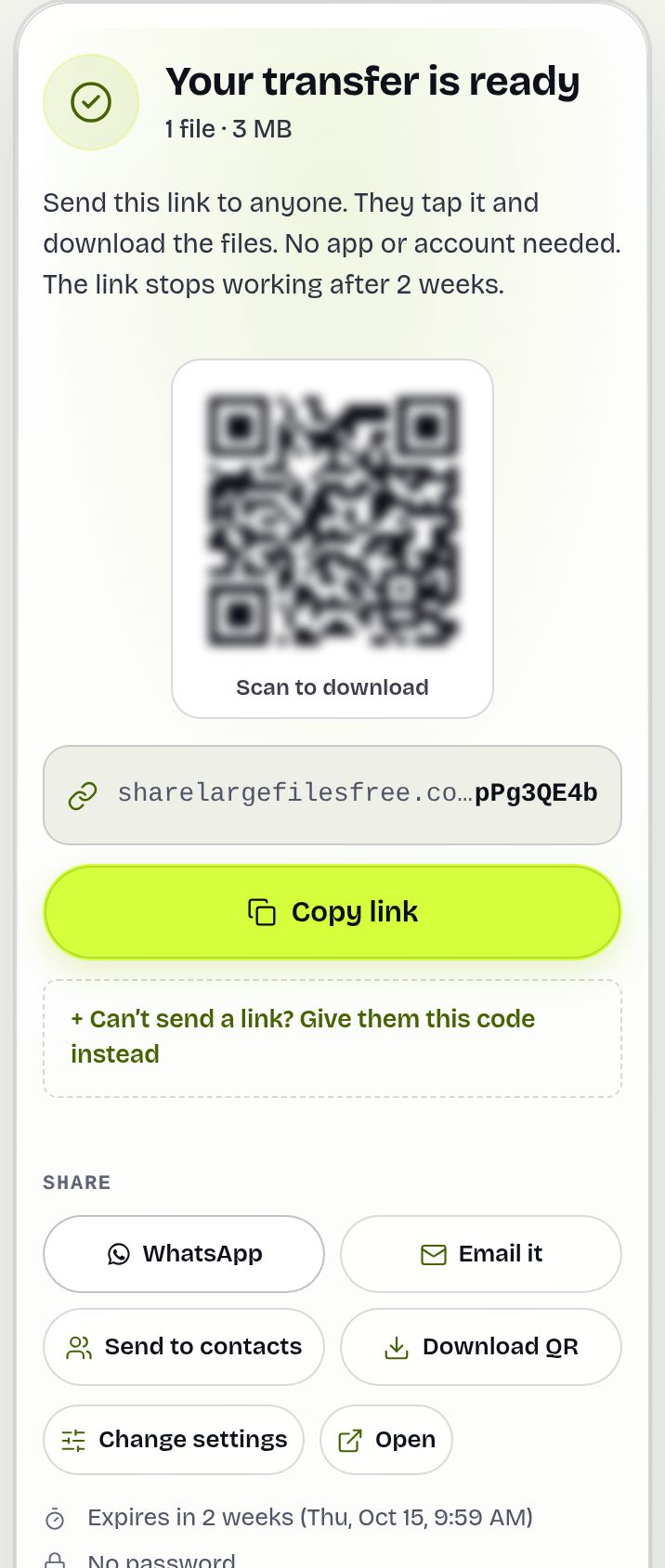
- Keep the tab open until the upload finishes, then share the link, QR code or download code.
Share Large Files Free is independent and not affiliated with any service named here. All product names are trademarks of their respective owners.
Quick picks for common situations
- Sending a long video to family abroad: method 1, a transfer link. It works on any phone and keeps the original quality.
- Moving files between your own phone and laptop: method 4 if both support it, otherwise a cable or a transfer link to yourself.
- Sharing a folder a team will keep updating: method 2, cloud storage.
- Replying to an email with a big attachment: method 3, or paste a transfer link into your reply.
- Archiving a whole project for a client: method 1 for anything that fits, method 7 for the rest.
Whichever you choose, send the original file when quality matters, and add a password when the content is private.
Frequently asked questions
What is the best free way to send a large file?
For most people, a file transfer link: upload the file and share the link. The recipient needs only a browser, and the file arrives in original quality.
How can I send a file that is too big for email?
Upload it to a transfer service or cloud storage and paste the link into your email. Share Large Files Free takes up to 20 GB per transfer with no account.
Is there a free way to send files over 10 GB?
Yes. Some transfer services accept very large files free, a USB drive has no size limit beyond its capacity, and here you can send up to 20 GB per transfer.
Does sending a large file reduce its quality?
Not with a transfer link, cloud storage, nearby sharing or a USB drive. Chat apps may compress media unless you send it as a file, and compressing video always lowers quality.
Ready to send?
Drop your files, get a link, done. Free up to 20 GB — no account needed.
Send files free