Quick answer: Under each file on the download page you see "SHA-256:" with a short form of its checksum, plus Copy and Check it. After downloading, press Check it: the free file hash checker opens with the expected value filled in; add your downloaded file, press Calculate hashes and it says "The hash matches." or "The hash does not match." The browser checker handles files up to 2 GB; for bigger files, copy the checksum and compare it with a one-line command on Windows, Mac or Linux.
What it does and when it is worth using
A SHA-256 checksum is a 64-character fingerprint worked out from every byte of a file. Change one byte, or lose the last few megabytes, and the fingerprint is completely different. Our server works out the checksum of each uploaded file and prints it on the download page, so whoever downloads can compare their copy against it.
- An editor receiving a master file before a deadline wants to know the 2 GB export is whole before starting a render that takes an hour.
- Someone downloading on hotel Wi-Fi or a mobile connection that dropped twice wants to be sure the browser did not save a cut-off file.
- A lawyer, accountant or researcher keeping files as evidence or records wants proof the copy on their drive matches what was sent.
- Software, firmware or disk images, where a damaged file fails in odd ways instead of refusing to open.
Check a file in your browser, step by step
- Open the link and download the file as usual. If the link has a password, a form or an NDA, the checksums appear once you are through.
- Under the file name, find SHA-256: followed by a shortened value such as 3f2a91c0…b1e7d4, and the buttons Copy and Check it.
- Press Check it. The file hash checker opens in a new tab with the full value already in Compare with (optional); it says "SHA-256 from the download page filled in".
- Add the file you downloaded. It is read on your device and never uploaded.
- Press Calculate hashes. You get "The hash matches." or "The hash does not match."
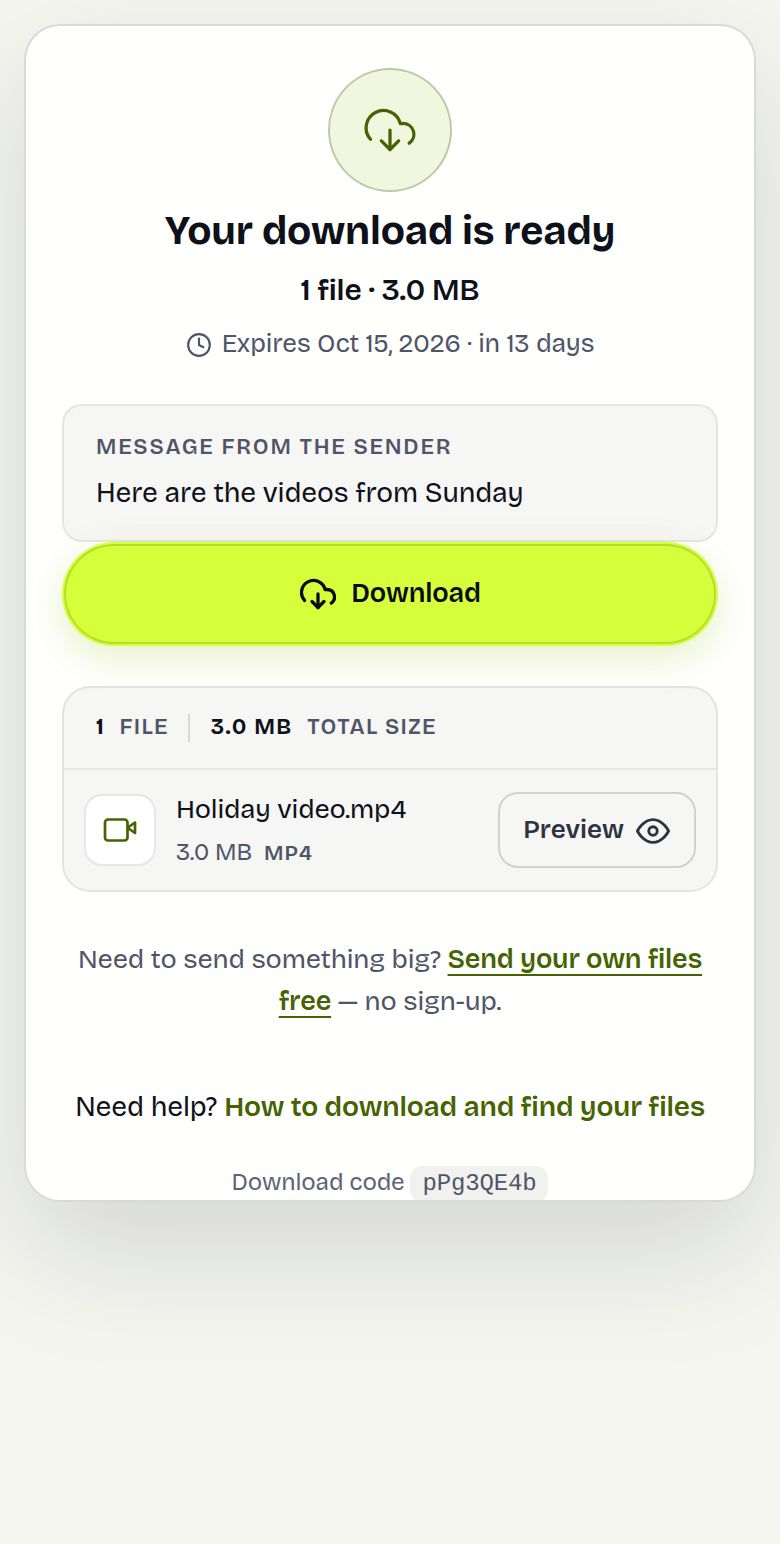
Downloaded everything as one ZIP? Unzip it first and check the files inside: the checksums belong to the individual files, not to the ZIP that is built for the download.
A worked example
Priya sends a 1.8 GB interview recording, interview-final.mov, to an editor in another city. The editor downloads it on a shaky connection, presses Check it, adds the file and gets "The hash matches." in about half a minute on a laptop. She can start cutting knowing the file is whole.
Later the same day a second file, broll.mp4, shows "The hash does not match." She deletes her copy, downloads it again on a wired connection, checks once more and gets a match. Without the check she would have found out only when the timeline froze at minute 40.
Or compare it on the command line
For files over 2 GB, or if you prefer a terminal, press Copy to copy the full checksum and run:
| System | Command |
|---|---|
| Windows (PowerShell) | Get-FileHash .\file.mov -Algorithm SHA256 |
| Windows (Command Prompt) | certutil -hashfile file.mov SHA256 |
| Mac (Terminal) | shasum -a 256 file.mov |
| Linux | sha256sum file.mov |
Capital or small letters do not matter; all 64 characters must be the same.
What the sender and recipient see
The sender does nothing: there is no option to switch on. Checksums are worked out in the background a little after the upload finishes, and the download page shows them from then on. The recipient sees the short value, Copy and Check it under each file in the list, next to its size and type. Hover over or copy the short value to get all 64 characters. Senders who want to tell a recipient about the check can simply say "press Check it under the file after downloading".
Limits and what it does not do
- A brand-new transfer may show no checksum yet. They are worked out a few files at a time after upload, never while you wait.
- Very large files are skipped, as are encrypted transfers, files kept on external storage and transfers stored only as one ZIP. Those files simply show no checksum.
- The in-browser checker reads files up to 2 GB. Use the commands above for anything bigger.
- A match proves your copy is identical to what was uploaded. It does not prove the file is safe, virus-free or what the sender meant to send.
- The ZIP from Download all has no published checksum.
Splitting a huge file yourself? The split file tool writes checksums for the parts.
Troubleshooting
- No SHA-256 line under the file: wait a few minutes and reload, or the file is one of the skipped kinds above.
- "No match" on a file that opens fine: make sure you added the right file, not an older copy with the same name in your Downloads folder.
- "No match" again after downloading twice: try another browser or network, then ask the sender whether they changed the file.
- "That does not look like a SHA-256": the pasted value was cut short. Press Copy on the download page again.
- Checker says the file is too big: use the command for your system instead.
Frequently asked questions
What is a SHA-256 checksum?
A 64-character fingerprint calculated from every byte of a file. If a single byte differs, the checksum is completely different.
Where do I find the checksum of my download?
On the download page, under each file, after "SHA-256:". Press Copy for the full value or Check it to compare.
The checksum does not match. What now?
Download the file again, ideally on a stable connection, and check again. A mismatch means your copy is incomplete or different.
Is my file uploaded when I check it?
No. The file hash checker reads the file on your own device.
Why is there no checksum under my file?
It may not be calculated yet on a new transfer, or the file is very large, encrypted or stored in a way that is skipped.
Can I check a file bigger than 2 GB?
Yes, with the built-in command on your computer: Get-FileHash on Windows, shasum -a 256 on Mac or sha256sum on Linux.
Ready to send?
Drop your files, get a link, done. Free up to 20 GB — no account needed.
Send files free