Quick answer: Nearby: open Send via Wi-Fi on every device, create a private room, share its link, and tap Send to everyone; each device accepts on its own and there is no size limit. Not nearby or not online at once: upload once on the homepage and share one link (up to 20 GB), email it to several people, or pick a saved contact group.
Two ways, depending on where people are
| Question | Private room + Send to everyone | One link or email to a group |
|---|---|---|
| Best for | People in the same room, now | People anywhere, any time |
| Everyone online at once | Yes, with the page open | No |
| Size limit | None beyond each device's free space | Up to 20 GB per transfer |
| Stored on a server | No, direct and encrypted | Yes, until it expires after 1 day |
| See who downloaded | You see each transfer finish | Yes, on your Transfers page |
| Who can join | Only people with the room link; you can lock it | Anyone with the link, or only people you list |
Nearby: a private room and Send to everyone
This is the quickest way to hand the same files to a class, a team or a family in one place, without uploading anything.
- Open sharelargefilesfree.com/send-via-wifi on the sending device.
- Tap Create a private room. You get a room link to share; until someone joins, the page also shows a QR code for it.
- Invite people. Use Invite people or Copy link to share it in a chat, or let people scan the QR code. Only those who open the link see the room, even on a busy shared Wi-Fi.
- Lock the room once everyone is in: turn on Lock room (no one new can join). You can also remove a device that should not be there.
- Tap Send to everyone (it shows the number of devices) and pick the files.
- Each person taps Accept on their own device. Keep your page open until every transfer has finished.
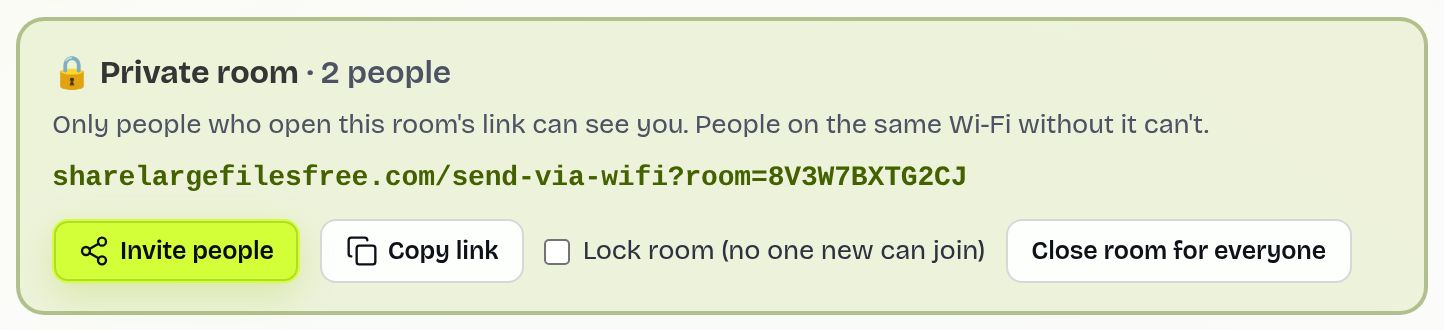
Each device receives its own direct, encrypted copy, so one slow phone does not stop the others from accepting. Files land in each device's Downloads folder. When you are done, use Close room for everyone.
Tips for a room full of devices
- Tell people apart. Every device shows a name, an animal avatar and details such as "iPhone · Safari". Ask people to use Change name to set their own name.
- Your upload speed is shared. Sending to ten devices at once sends ten copies from your device. For a very large file to many people, a download link can be kinder to your connection.
- Keep screens on. Phones that lock or switch apps can drop out mid-transfer.
- iPhones and huge files. Safari keeps an incoming file in memory until it is complete, so send very large videos to iPhones as a link.
Not nearby: one link for everyone
- Open the homepage, keep Get a link chosen and add your files, up to 1000 files or a folder.
- Optionally tap More settings to add a password or limits in the More options panel.
- Share the link in a group chat, show the QR code, or read out the short download code.
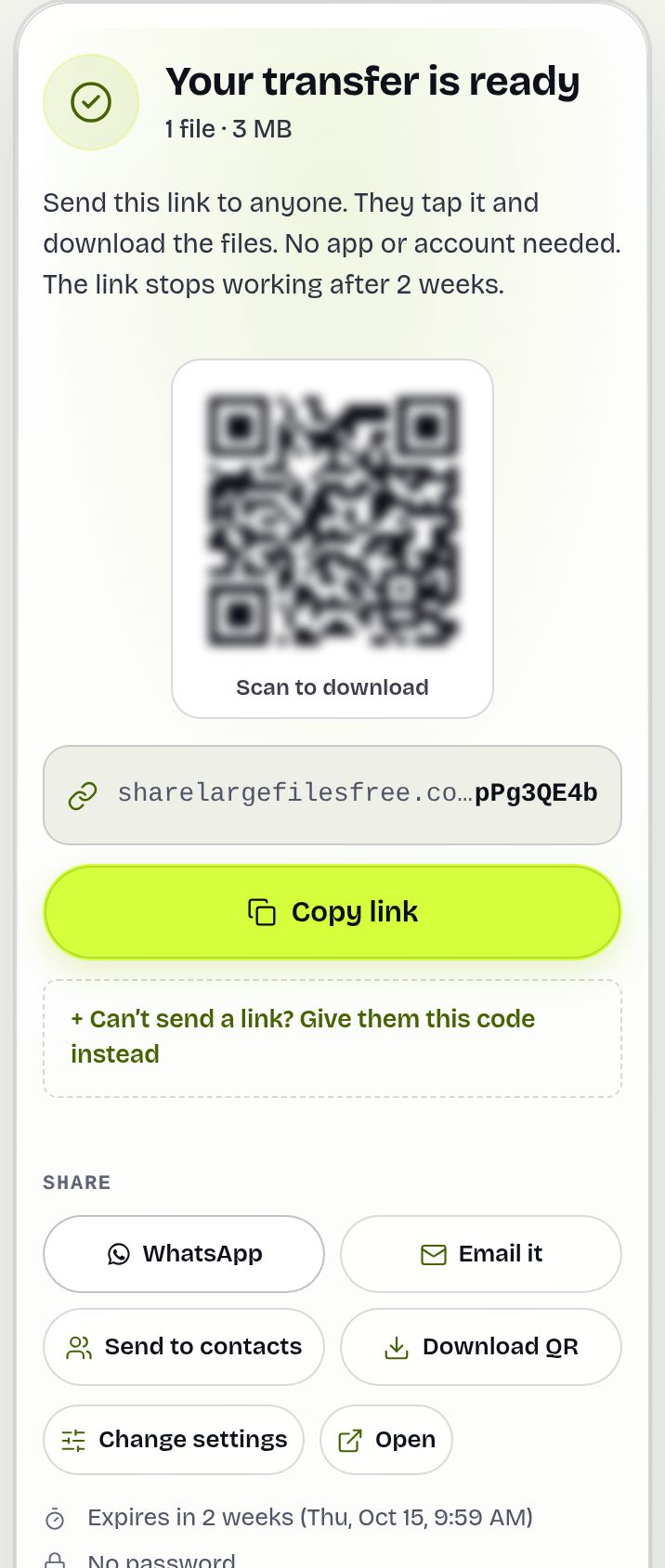
Everyone downloads the same files in original quality whenever suits them within 1 day, and can download several files as one ZIP. On the finished screen, Send to contacts opens your email app with the people you choose in BCC, so they do not see each other's addresses.
Email to a group or a saved contact group
Choose Send by email, type the first address and tap + Add for each extra person. To avoid typing the same list every week, save it once at Contact groups (+ New group, paste people or Import a CSV), then tap Pick from contacts & groups when sending. The site has a daily limit on email recipients, so for very large groups share a link instead.
Want only that group to open a shared link? In More options, under Who can open, choose Only emails or domains I list and pick the group. See send files to a group for details.
Which should you use?
Everyone in the same room with their phone or laptop out: a private room and Send to everyone, with no size limit and nothing stored. People in different places, or who will look later: one download link. A regular list of people, such as a class or a client team: a saved contact group, with download tracking on your Transfers page.
Share Large Files Free is independent. iPhone and Safari are trademarks of Apple Inc.
Troubleshooting
- Send to everyone is missing. It appears when two or more other devices are listed.
- Someone cannot join the room. If you locked it, unlock it for a moment, or check they opened the full room link.
- One device never accepts. It will show "No answer" after a while. Ask them to keep the page open and send again just to them.
- Transfers fail on school or office Wi-Fi. Some networks block direct connections between devices. Share a download link instead.
- Some people did not get the email. Ask them to check spam, or share the link in your group chat.
Frequently asked questions
Can I send one file to several phones at the same time?
Yes. Put them in a private room on Send via Wi-Fi and tap Send to everyone; each phone accepts on its own.
Is there a limit on how many devices?
The practical limit is your own connection, because each device gets its own copy. For large groups a download link is easier.
Do all devices need to be on the same Wi-Fi?
No. Anyone who opens the private room link can join, on any network.
Can people download later instead?
Yes. Upload once and share one link that works for 1 day.
Can I send to the same group every week?
Yes. Save them as a contact group and pick it when sending by email or limiting a link.
Ready to send?
Drop your files, get a link, done. Free up to 20 GB — no account needed.
Send files free