Quick answer: To move files from a PC to Android, open sharelargefilesfree.com/send-via-wifi on both devices on the same Wi-Fi and send directly, connect a USB cable in File transfer mode and copy into Internal shared storage, or use Quick Share for Windows. Received files usually appear in the phone's Download folder, which you can open in Files by Google or My Files.
Ways to send from a PC to Android
Sending from the PC to the phone raises two questions the other direction does not: will the phone have room, and where will the file end up? The methods below all keep the original file.
| Method | Where files land on Android | Size | Good for |
|---|---|---|---|
| Send via Wi-Fi (browser) | Download folder | No limit, only the phone's free space | Videos, PDFs, APKs, music, no setup |
| USB cable, File transfer mode | The folder you choose | Limited by the phone's storage | Large music or movie libraries |
| Quick Share for Windows | Download folder (often a Quick Share subfolder) | No fixed limit published | Frequent wireless sends at home |
| Phone Link | Usually the Download folder | Drag and drop only on some phones, with a batch limit | One or two small files |
| Download link | Download folder | Up to 20 GB per transfer | A phone that is somewhere else |
Send via Wi-Fi from the PC browser
- On the Android phone, open sharelargefilesfree.com/send-via-wifi in Chrome and keep the screen on.
- On the PC, open the same page in Edge, Chrome or Firefox. The phone appears with a name, an animal avatar and details such as "Android · Chrome".
- Click the phone, then choose files or drag them from File Explorer onto it.
- On the phone, tap Accept and keep Chrome in front until it finishes.
- Open Files by Google (or My Files on Samsung) and tap Downloads to find them.
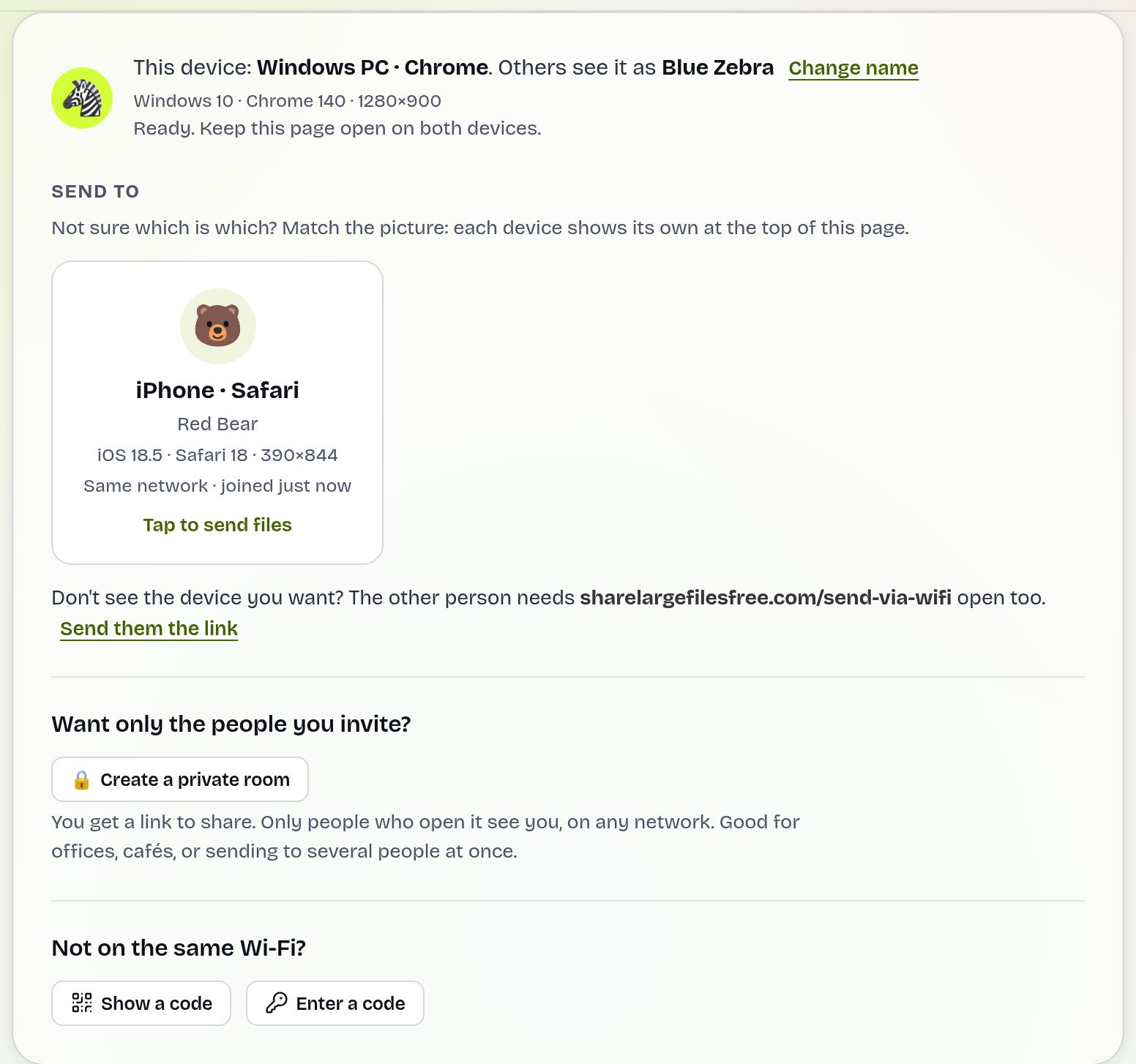
The files go straight from the PC to the phone over an encrypted connection and are never stored on a server. There is no size or file count limit, so the only real limit is free space on the phone: check Settings > Storage before sending a large movie. If the phone does not appear, use the 6-digit code or QR code, or create a private room. The same page works the other way round too; see Android to PC.
USB cable: copy into the right folder
- Connect the phone with a data cable, unlock it, tap the USB notification and choose File transfer.
- In File Explorer, open the phone under This PC, then Internal shared storage.
- Drag files into the folder that matches what they are: Download for documents, Movies for videos, Music for songs, Pictures for images.
- Wait for Windows to finish copying before unplugging.
Where you put a file matters. Videos in Movies and images in Pictures or DCIM show up in Google Photos or Gallery (in Google Photos, sometimes under Collections > On this device). A file in Download appears in the Files app but may not show in your photo library. If your phone has a microSD card, it appears as a second storage entry you can copy to instead.
Quick Share and Phone Link from Windows
Quick Share for Windows is Google's free app for Windows 10 and 11. With it installed, right-click a file in File Explorer and choose Send with Quick Share, or drag files into the app, then pick your phone. Bluetooth and Wi-Fi must be on and the phone unlocked. If the phone is signed in to a different Google account, tap Accept on it. Files are saved to the phone's Download folder, often in a Quick Share subfolder.
Phone Link is more limited from PC to phone. Dragging a file from the PC onto the phone window only works on supported phones, mainly recent Samsung and some HONOR models, and Microsoft limits how many files and how much data go in one batch. On other phones Phone Link can show photos and messages but cannot push files. Use it for a quick document, not a film.
Finding the files on Android
- Files by Google: tap Downloads on the home screen, or Browse > Internal storage > Download.
- Samsung My Files: tap Downloads, or Internal storage > Download.
- Chrome: the menu has a Downloads list for files received in the browser.
- To see a video in your gallery: in the Files app, long-press it, choose Move to and pick Movies or DCIM.
- APK files: tapping one asks you to allow installs from the Files app. Only install apps you trust.
Which should you use?
For a few big files when both devices are at home, Send via Wi-Fi is the simplest: no app, no account and no size limit. For loading a whole music or movie library, use the cable so you can choose exact folders. If you send from PC to phone every day, install Quick Share for Windows. If the phone is not near the PC, upload on the homepage (up to 20 GB) and open the link or the QR code on the phone; it lasts 1 day.
Sending to an iPhone instead? See PC to iPhone.
Share Large Files Free is independent and is not affiliated with Google, Microsoft, Samsung or HONOR. Android, Quick Share and Files by Google are trademarks of Google LLC; Windows and Phone Link are trademarks of Microsoft Corporation.
Troubleshooting
- "Not enough space" or a transfer stops near the end. Free space on the phone first; a 4 GB film needs a bit more than 4 GB free.
- Windows says the file is too large for the destination. This happens with some older microSD cards formatted as FAT32, which cannot hold a single file over 4 GB. Copy to internal storage instead.
- The phone does not appear in the browser. Keep Chrome open and in front on the phone, and check both are on the same network. On guest Wi-Fi, use the code or a hotspot.
- The transfer stops when the screen turns off. Android may pause Chrome in the background. Keep the screen on until it finishes.
- A video copied over USB is missing from Gallery. It is probably in Download. Move it to Movies or DCIM, or open it from the Files app.
Frequently asked questions
Where do files from a PC go on my Android phone?
Files sent by browser or Quick Share land in the Download folder. Open Files by Google or My Files and tap Downloads.
How do I send files from a PC to Android without a cable?
Open sharelargefilesfree.com/send-via-wifi on both devices and click the phone, or use Quick Share for Windows.
Can Phone Link send files to any Android phone?
No. Drag and drop file transfer works only on supported phones, mainly recent Samsung and some HONOR models.
Is there a size limit from PC to Android?
Send via Wi-Fi has no size limit; you only need free space on the phone. A download link carries up to 20 GB per transfer.
Why is my video not in Google Photos?
Files in the Download folder may not appear in your photo library. Move the video to Movies or DCIM with the Files app.
Ready to send?
Drop your files, get a link, done. Free up to 20 GB — no account needed.
Send files free