Quick answer: Every link transfer has a download code: the short set of letters and numbers at the end of its link. On the finished screen, open "Can’t send a link? Give them this code instead" to see it, with Copy code. The other person opens sharelargefilesfree.com/receive, types the code in "Link or download code" (capitals, spaces and dashes don't matter) and presses Open files. The page says straight away whether it found the transfer, then opens the same download page as the link, with the same password and limits.
When a code beats a link
| Situation | Why the code helps |
|---|---|
| Phone to a computer that is not yours | No need to sign in to email or chat on it |
| Over the phone | A few characters instead of a long address |
| Lab, library or print shop PCs | Type it, download, walk away |
| A link broken across two lines in an email | The code at the end is enough |
Send with a code
- Upload your files with Get a link selected and press Get link.
- On the finished screen, open Can’t send a link? Give them this code instead under the link.
- Read out the Download code, write it down, or press Copy code. On phones a Share code button sends it as text with the address to type it at.
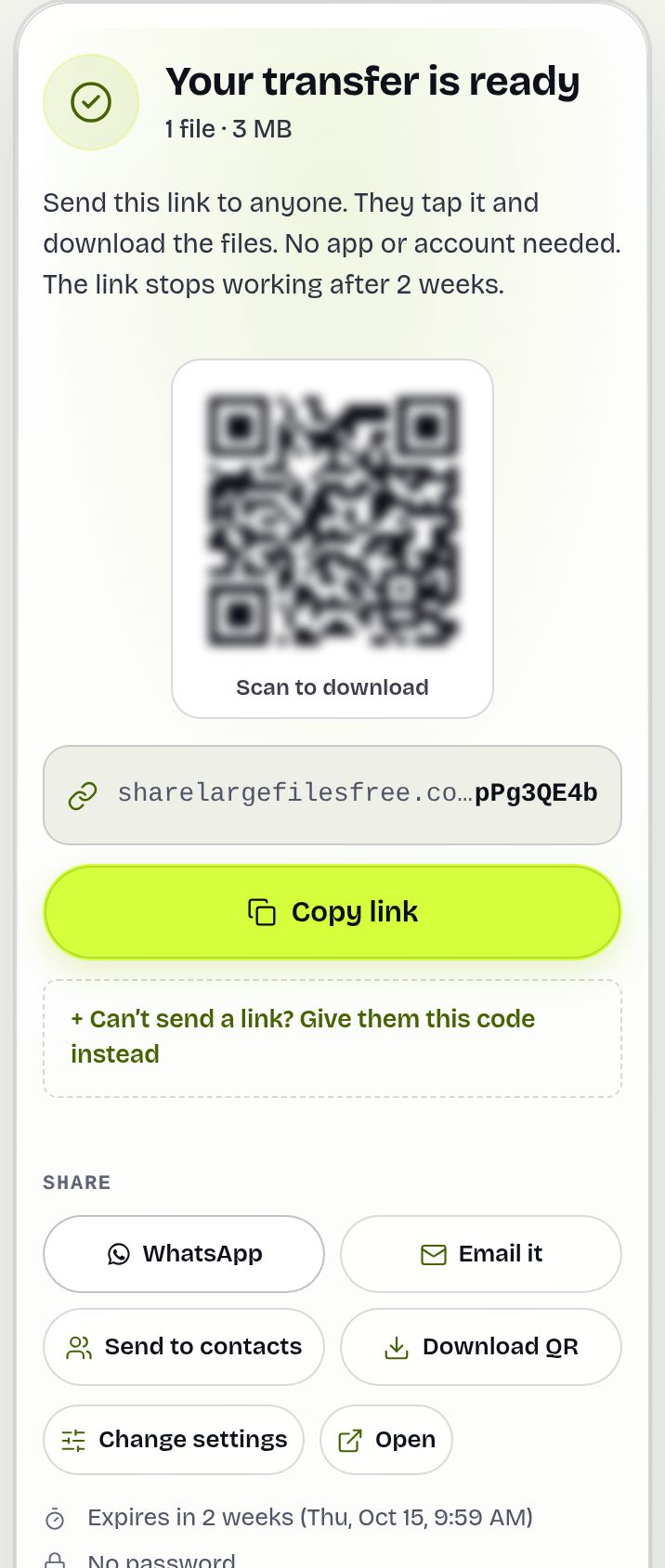
The code is the transfer ID, so you can also find it later: it is the last part of the link, and the More menu of each transfer on your Transfers page shows the Transfer ID.
Receive with a code
- On the device that should get the files, open sharelargefilesfree.com/receive.
- Type the code in Link or download code. Capitals, spaces and dashes don't matter, and a pasted full link works too.
- The page checks it as you type: "Found it." with the number of files, the size and how long they are available, or "This transfer is protected" when a password or other check follows.
- Press Open files, enter the password if the sender set one, and download.
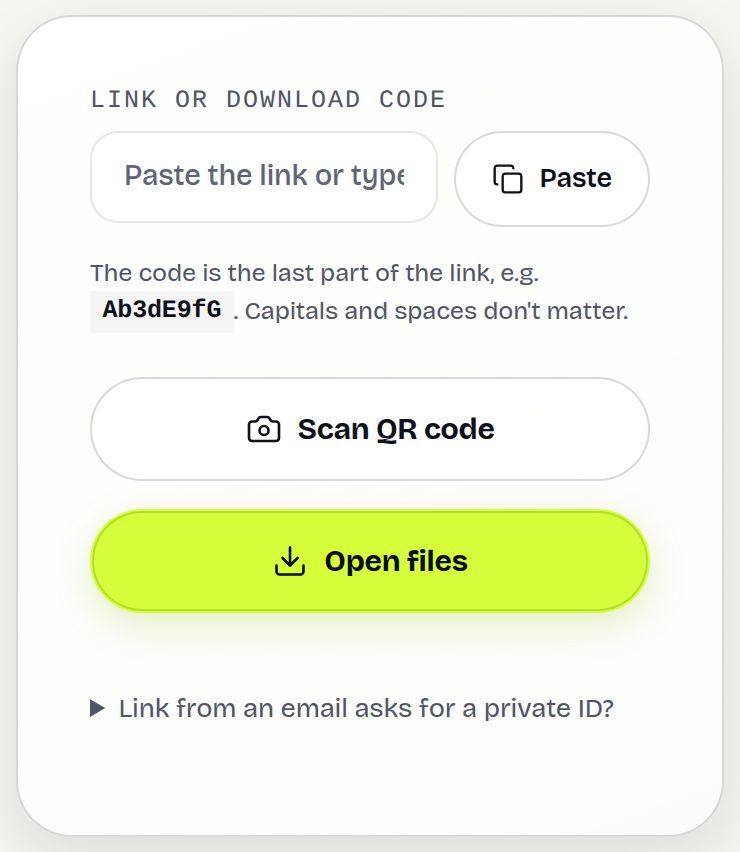
The same page has Scan QR code for a code shown on another screen, and Downloaded on this device, which lists transfers you opened in this browser until they expire (tick Remember transfers I download on this device).
Pasting a whole link into the box works too: if the transfer is found, the page opens it straight away.
Example: from a phone to a print shop PC
Rahul needs to print a 40 MB poster PDF that is on his phone. He uploads it with Get a link and opens the code section. At the shop he types sharelargefilesfree.com/receive on their computer, enters the short code, presses Open files and downloads the PDF. He never signs in to email on a stranger's PC, and the file is gone from the shop when the transfer expires.
On a shared or public computer
- Untick Remember transfers I download on this device before opening the files, or press Clear under Downloaded on this device when you are done.
- Delete the downloaded file from the Downloads folder and empty the bin.
- If the sender used a password, type it yourself rather than letting the browser save it.
What a download code is not
- Not a password. The code opens the same page as the link, so anyone who has it can open the transfer. For anything private, add a password and tell it separately, or require a confirmed email.
- Not your custom short link. A short link such as /class10-maths is typed in the address bar, not in the Receive box.
- Not the Wi-Fi pairing code. The 6-digit code on Send via Wi-Fi connects two open browsers for a live transfer; a download code works any time until the transfer expires.
- Different for email transfers. Files sent by email go to specific people, so the code alone shows "sent by email to specific people". Paste the whole link from the email, or add its second part in Private ID.
Device-to-device apps such as Send Anywhere use keys that expire within minutes. A download code lasts as long as the transfer, 1 day unless changed, so the other person does not need to be ready at the same moment.
Share Large Files Free is independent and not affiliated with Send Anywhere, a trademark of its owner.
Troubleshooting
- "No transfer with that code": check easily confused characters (0 and O, 1 and l) or paste the whole link.
- "This transfer has expired and its files were deleted": ask the sender to send it again.
- "The sender is still uploading": wait a minute and try again.
- "Too many tries from this network": wait a few minutes; repeated wrong codes are slowed down to stop guessing.
- "Found it, but it was sent by email to specific people": paste the complete link from your email, or open Link from an email asks for a private ID? and type the second part of the link in Private ID.
Frequently asked questions
Where do I type a download code?
At sharelargefilesfree.com/receive, in the Link or download code box, then press Open files.
Where do I find the code?
On the finished screen, under "Can’t send a link? Give them this code instead". It is also the last part of the link.
Does it matter if I type capitals?
No. Capitals, spaces and dashes are ignored.
Do email transfers have a code?
The code is shown for link transfers. Email recipients should paste their whole link, because it contains a private ID.
How long does the code work?
As long as the transfer: 1 day unless the sender extends or deletes it.
Is it safe?
It is as private as the link. Add a password for anything sensitive.
Ready to send?
Drop your files, get a link, done. Free up to 20 GB — no account needed.
Send files free