Quick answer: To send files with no internet, use AirDrop (Apple to Apple), Quick Share (Android and Windows), LocalSend on any local Wi-Fi network or hotspot, a USB cable, a USB drive or memory card, or Bluetooth for small files. Share Large Files Free's Send via Wi-Fi needs internet on both devices to introduce them, though the file then travels locally, so a phone hotspot with mobile data on is enough.
Quick checklist: pick your offline route
- Both Apple devices? Use AirDrop.
- Android to Android, or Android to a Windows PC? Use Quick Share.
- Mixed brands on the same Wi-Fi or hotspot? Use LocalSend.
- A computer involved and a cable to hand? Use a USB cable.
- Handing over to someone without connecting devices? Use a USB drive or memory card.
- A small file and nothing else works? Bluetooth.
First, an honest note about our Send via Wi-Fi
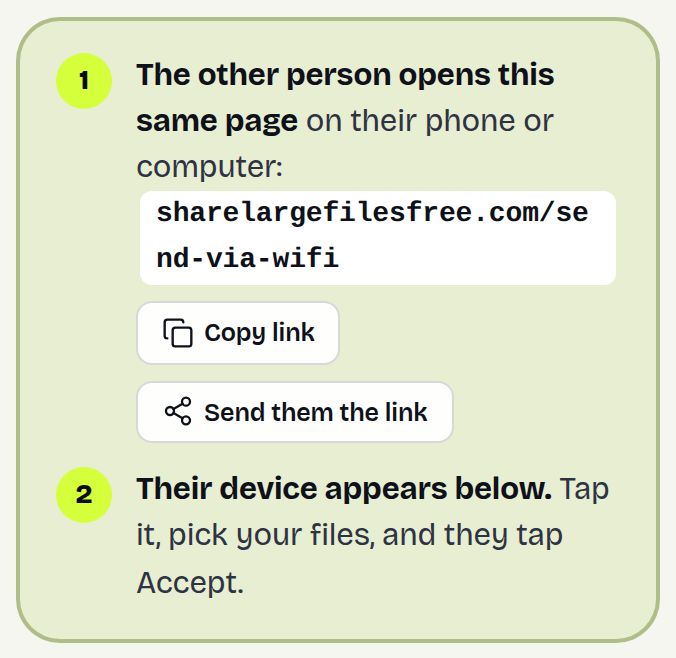
Send via Wi-Fi sends files directly between two browsers, and on the same network the file never goes over the internet. But both devices need an internet connection so our server can introduce them to each other. With no internet anywhere, it cannot connect.
What usually is available is a phone signal. Turn on a hotspot with mobile data on, connect the other device to it, and open the page on both. The introduction uses very little data; the file itself goes over the hotspot connection between the devices. See transfer files over a hotspot for the steps.
Truly offline options compared
| Method | Works between | Size | Needs |
|---|---|---|---|
| AirDrop | iPhone, iPad, Mac | Large files fine | Bluetooth and Wi-Fi on |
| Quick Share | Android, Chromebook, Windows with the Quick Share app | Large files fine | Bluetooth, Wi-Fi and location on |
| LocalSend | Android, iPhone, Windows, Mac, Linux | Large files fine | The app on both, and the same local network |
| USB cable | Phone and computer | Limited by storage | A data cable |
| USB drive or memory card | Anything with the right port | Limited by the drive | A drive the other device can read |
| Bluetooth file transfer | Android, Windows, Linux (not iPhone) | Small files only, it is slow | Pairing |
AirDrop and Quick Share
Both create their own direct wireless link, so neither needs internet or a router.
- AirDrop: on the receiver, set AirDrop to Everyone for 10 Minutes, turn on Wi-Fi and Bluetooth, turn off Personal Hotspot, then share and pick the device. Stuck? See AirDrop alternatives.
- Quick Share: on the receiver, set visibility to Everyone, turn on Bluetooth, Wi-Fi and location, then share and pick the device. On Windows, Google's Quick Share app must be installed beforehand, which needs internet once.
LocalSend on a local network
LocalSend is a free, open-source app for Android, iOS, Windows, macOS and Linux. It sends files across the local network without using the internet, which makes it the best offline option for mixed brands.
- Install LocalSend on both devices while you still have internet.
- Put both on the same network: a router with no internet still works, or a phone hotspot. Some phones only run a hotspot with mobile data on; that is fine, as LocalSend does not use it.
- Open LocalSend on both, choose the files on one and tap the other device.
- Accept on the receiving device.
Some guest networks block devices from seeing each other; a hotspot avoids that.
Cables, drives and Bluetooth
- USB cable: on Android choose File transfer in the USB notification; on iPhone tap Trust. On a Windows PC an iPhone shows the photo library.
- USB drive: computers read them directly. Android phones with USB-C usually accept a USB-C drive or adapter, and iPhones and iPads can use drives in the Files app (Lightning models need Apple's camera adapter). Format the drive as exFAT for files over 4 GB that need to work on both Windows and Mac.
- Bluetooth: pair the devices and send from the share menu on Android or Send or receive files via Bluetooth on Windows. It is slow, so keep it for documents and photos. iPhone does not support general Bluetooth file transfer.
If nothing works, and which to use
If none of the offline routes fits, wait for any connection, even a weak one. With internet on both devices and the receiver nearby, Send via Wi-Fi moves the files locally with no size limit. If the receiver is elsewhere, upload once and send a download link (up to 20 GB per transfer, kept for 1 day); they can download it whenever they are back online.
In short: AirDrop or Quick Share within a platform, LocalSend or a hotspot for mixed devices, a cable or drive for big batches with a computer, and Bluetooth only for something small.
Share Large Files Free is independent and is not affiliated with Apple, Google, Microsoft or the LocalSend project. iPhone, iPad, Mac, AirDrop and Personal Hotspot are trademarks of Apple Inc.; Android, Chromebook and Quick Share are trademarks of Google LLC; Windows is a trademark of Microsoft Corporation; Bluetooth is a trademark of Bluetooth SIG, Inc.
Frequently asked questions
Can I transfer files between phones without internet?
Yes. Use AirDrop between iPhones, Quick Share between Android phones, or LocalSend between any two phones on the same Wi-Fi or hotspot.
Does Send via Wi-Fi work offline?
No. Both devices need internet to find each other, though the file itself travels over the local network. A hotspot with mobile data is enough.
How do I send a file from iPhone to Android without internet?
Install LocalSend on both beforehand and put them on the same network, for example a phone hotspot or a router with no internet.
Is Bluetooth good for large files?
No. It is very slow; use it only for small files.
Why will my USB drive not take a large file?
It is probably formatted as FAT32, which cannot hold files over 4 GB. Reformat it as exFAT after backing up its contents.
Ready to send?
Drop your files, get a link, done. Free up to 20 GB — no account needed.
Send files free