Quick answer: For a few files or folders between two nearby Windows PCs, Nearby sharing or Send via Wi-Fi in the browser are the quickest. For hundreds of gigabytes, a network shared folder or an external drive is more practical. When setting up a new PC, Windows Backup or a paid migration tool can move settings and apps as well as files.
Two PCs, several good options
Windows has no single built-in "move everything to the other PC" button that suits every case. Microsoft retired Windows Easy Transfer years ago, so today you pick a method based on how much you are moving and whether the two PCs are in the same place.
Moving a project folder to a colleague's laptop is a different job from emptying an old desktop before you recycle it. The first wants something quick with no setup. The second wants something that can run unattended for hours and copy hundreds of gigabytes without stopping.
Methods compared
| Method | Best for | Size | Setup |
|---|---|---|---|
| Send via Wi-Fi (browser) | Files and folders between nearby PCs, today | No limit; needs free space on the receiver | Open one page on both PCs |
| Nearby sharing | A few files between Windows PCs in the same room | No published limit, but slow over Bluetooth | Switch it on in Settings on both PCs |
| Network shared folder | Large amounts on a home or office network | Limited by disk space | Sharing settings, a user account and password |
| External drive | Hundreds of GB, or PCs with no shared network | Size of the drive | A USB drive with enough space |
| OneDrive | Files you also want backed up in the cloud | Your OneDrive storage (5 GB on the free plan) | A Microsoft account on both PCs |
| Download link | A PC in another building, city or country | Up to 20 GB per transfer | Only a browser |
Storage plans and menu names change from time to time, so check Microsoft Support for current OneDrive limits.
Send via Wi-Fi: browser to browser on the same network
Send via Wi-Fi sends files straight from one browser to another over an encrypted connection. Nothing is uploaded to a server, and there is no file size or file count limit.
- Open sharelargefilesfree.com/send-via-wifi in Edge, Chrome or Firefox on both PCs. No app or account is needed.
- Wait a moment. Each PC shows the other with a name, an animal avatar and details such as "Windows · Edge".
- Click the other PC and pick files, or drag them onto the page.
- Accept on the receiving PC. The files are saved to its Downloads folder.
- Keep both pages open until the transfer finishes.
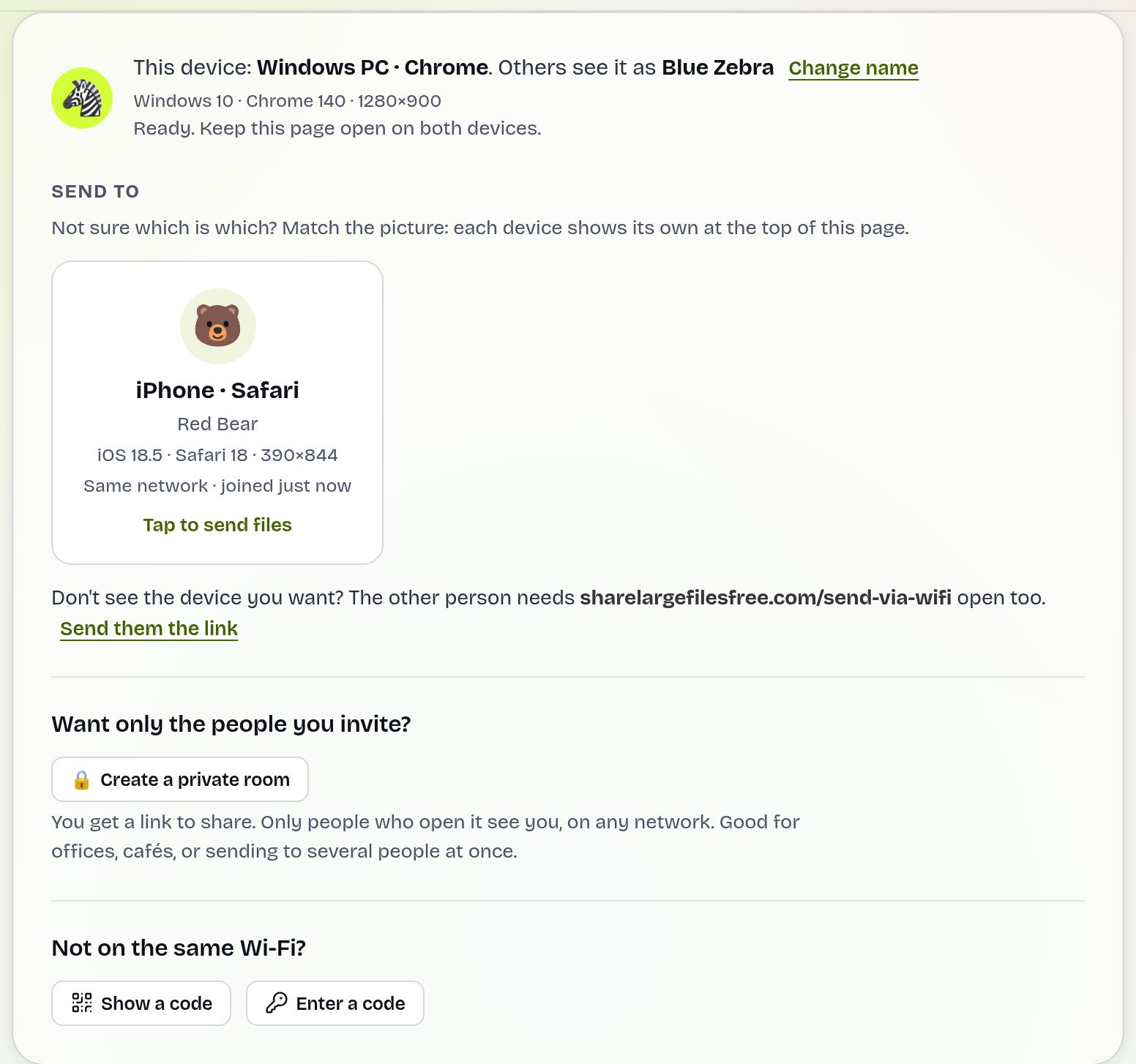
On the same network the speed is that of your local network, not your internet plan, although both PCs still need internet access so our server can introduce them. If they are on different networks, show the 6-digit code on one PC and type it on the other. In a shared office, Create a private room so only people with your link can see you.
Nearby sharing in Windows
- On both PCs, open Settings > System > Nearby sharing (on Windows 10, Settings > System > Shared experiences) and choose My devices only or Everyone nearby.
- Turn on Bluetooth on both PCs. Being on the same Wi-Fi network helps speed.
- In File Explorer, right-click the file, choose Share, and pick the other PC from the list.
- On the other PC, click Save or Save & open in the notification. Files go to Downloads by default.
Nearby sharing is handy for a handful of files, but it shares files rather than whole folders, and it can fall back to Bluetooth, which is slow for large videos. My devices only works only when both PCs use the same Microsoft account.
A shared network folder
- On the PC with the files, open Settings > Network & internet and make sure the network is set to Private.
- Under Advanced network settings > Advanced sharing settings, turn on Network discovery and File and printer sharing for private networks.
- Right-click the folder, choose Properties > Sharing > Share, add the account that should have access and click Share.
- On the other PC, type \\PCNAME (or \\ followed by the IP address) into the File Explorer address bar, sign in with that account, and copy the folder.
This is the strongest built-in option for very large copies, because File Explorer can copy whole folder trees and you can leave it running. Sign in with the account password, not the Windows Hello PIN.
External drives, OneDrive and migration tools
- External drive: copy to a USB drive, plug it into the other PC, copy off. NTFS is fine between Windows PCs. Avoid FAT32, which cannot hold a single file over 4 GB; exFAT also works if a Mac may be involved.
- OneDrive: move files into the OneDrive folder on one PC and they appear on the other once synced. The free plan is small, so large libraries usually need Microsoft 365 storage.
- Setting up a new PC: Windows Backup on recent versions of Windows 11 can restore settings, some apps and OneDrive files during setup, but it is not a full copy of every local file. Paid tools such as Laplink PCmover go further. Check what each version covers before relying on it, and copy irreplaceable folders yourself too.
Which should you use?
For a folder or a few big videos between two PCs on the same Wi-Fi, use Send via Wi-Fi or Nearby sharing. To empty an old PC of several hundred gigabytes, use a shared folder or an external drive and let it run. If the other PC is far away, upload once and share a download link of up to 20 GB, which the other person can open any time in the next 1 day.
Moving to a Mac instead? See transferring files from Windows to Mac.
Share Large Files Free is independent and is not affiliated with Microsoft or Laplink. Windows, OneDrive and Microsoft 365 are trademarks of Microsoft Corporation; PCmover is a trademark of Laplink Software.
Troubleshooting
- The other PC does not appear in Nearby sharing. Check that Bluetooth is on and that both PCs use the same setting. My devices only needs the same Microsoft account on both.
- "Windows cannot access \\PCNAME". The network is probably set to Public, or Network discovery is off. Try the IP address instead of the name.
- The shared folder asks for a password that never works. Use the full account email and password, not the PIN.
- The PCs do not see each other in Send via Wi-Fi. Guest and company networks often block direct connections between devices. Use the 6-digit code, or join both PCs to a phone hotspot with mobile data on.
- A file over 4 GB will not copy to a USB stick. The stick is FAT32. Back it up and reformat it as exFAT or NTFS.
Frequently asked questions
What is the fastest way to transfer files between two PCs?
On the same network, a shared folder or Send via Wi-Fi runs at local network speed. For hundreds of gigabytes, a fast USB drive is often just as quick.
Can I transfer files from PC to PC without a USB drive?
Yes. Use Nearby sharing, a shared network folder, OneDrive, or Send via Wi-Fi in the browser.
Does Windows still have Easy Transfer?
No. It was dropped in Windows 10. Windows Backup and third-party tools such as PCmover cover parts of that job today.
Is there a size limit for Send via Wi-Fi?
No. Only the free disk space on the receiving PC limits it.
How do I send files to a PC in another city?
Upload them on the homepage, up to 20 GB per transfer, and share the link or download code.
Ready to send?
Drop your files, get a link, done. Free up to 20 GB — no account needed.
Send files free