Quick answer: If your phone does not show up on a Windows PC, unlock it first. On Android, tap the USB notification and choose File transfer. On iPhone, tap Trust and enter your passcode, and install the Apple Devices app if Windows still does not see it. Try another cable and a USB port directly on the PC. If the cable route still fails, open Send via Wi-Fi in the browser on both devices, or send a download link.
Quick checklist: try these first
- Unlock the phone and keep it unlocked while you plug it in.
- Android: pull down the notifications, tap the USB notice and choose File transfer.
- iPhone: tap Trust on the Trust This Computer prompt and enter your passcode.
- Try a different cable, ideally the one that came with the phone.
- Use a USB port on the PC itself, not a hub, keyboard or monitor port.
- Restart the phone and the PC.
Android: the USB mode is set to charging only
For privacy, Android connects as charge-only by default, so the PC sees nothing. To switch:
- Plug in and unlock the phone.
- Swipe down from the top and tap the notification that mentions USB (for example Charging this device via USB).
- Under Use USB for, choose File transfer (on some phones File transfer / Android Auto or Transferring files). PTP or Transfer photos only shows the camera folders.
- Open File Explorer on the PC. The phone appears under This PC; open it, then Internal storage.
If no USB notification appears, the cable may be charge-only. Some phones also let you set a default in Developer options > Default USB configuration, but most people do not need it.
iPhone: Trust This Computer and the Apple Devices app
An iPhone shares nothing until you trust the computer. If you tapped Don't Trust by mistake, unplug and plug in again; if the prompt never comes back, reset it under Settings > General > Transfer or Reset iPhone > Reset > Reset Location & Privacy, then reconnect.
Windows also needs Apple's drivers. Installing the Apple Devices app from the Microsoft Store (or iTunes on older setups) adds them. After that, the iPhone appears in File Explorer as Apple iPhone, and the Windows Photos app can import from it.
Keep in mind that File Explorer only shows the photo library (the DCIM folder), not documents in the Files app. For those, use the Apple Devices app's file sharing for supported apps, iCloud Drive, or a link.
Cables, ports and drivers
| Symptom | Likely cause | Fix |
|---|---|---|
| Phone charges, PC shows nothing | Charge-only cable, or Android in charging mode | Use a data cable; choose File transfer |
| Connects and disconnects repeatedly | Worn cable, loose port, unpowered hub | New cable, port on the PC itself, clean the phone's port gently |
| Shows with a yellow warning in Device Manager | Driver problem | Update or reinstall the driver |
| Shows but folders are empty | Phone locked, or wrong USB mode | Unlock, reselect File transfer or Trust again |
For driver problems, right-click Start, open Device Manager and look under Portable Devices or Universal Serial Bus devices. Right-click the phone and choose Update driver, or Uninstall device and then unplug and reconnect so Windows installs it again. Windows Update can also offer optional driver updates. Some manufacturers offer their own USB drivers on their support sites.
Still nothing? A few last checks
- Try another PC. If the phone works there, the problem is your PC's ports or drivers.
- Try a USB-C to USB-C cable if both ends support it, or the other way round.
- Close phone management or backup apps from the manufacturer that may grab the connection.
- On work PCs, USB storage may be blocked by company policy. Ask IT, or skip the cable.
If nothing works: send without a cable
You do not need the cable at all to move files. Send via Wi-Fi works in the browser:
- Connect the phone and the PC to the same Wi-Fi (or the PC to the phone's hotspot, with mobile data on).
- Open sharelargefilesfree.com/send-via-wifi on both.
- On the phone, tap the PC when it appears and pick the files.
- On the PC, click Accept. Files land in Downloads.
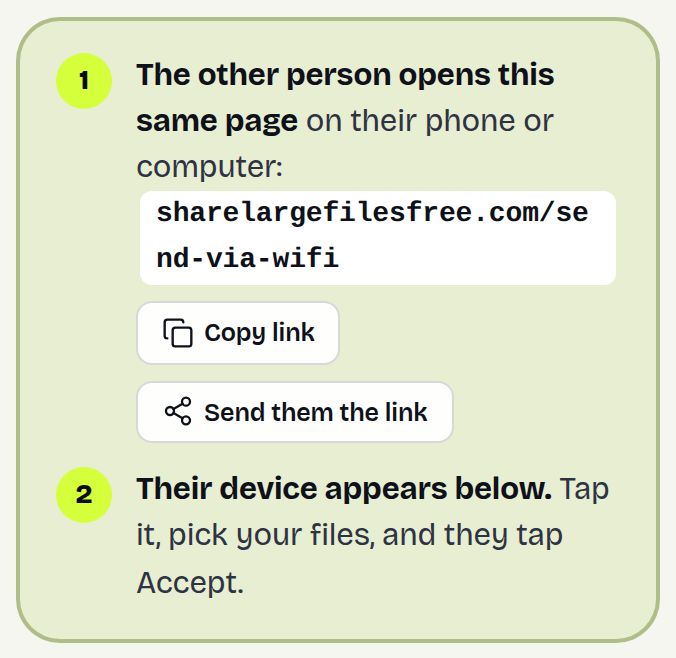
The files go directly between the two browsers over an encrypted connection, with no size limit beyond free disk space. Both devices need internet so they can find each other. On a guest or office network that blocks device-to-device connections, use the 6-digit code from a hotspot, or a link.
A download link also works: upload from the phone (up to 20 GB per transfer), then type the short download code on the PC.
Which should you use?
For a whole camera roll, the cable is worth fixing. For a few large files, Send via Wi-Fi is often quicker than hunting for the right cable. More detail: Android to PC and iPhone to PC.
Share Large Files Free is independent and is not affiliated with Apple, Google or Microsoft. iPhone and iTunes are trademarks of Apple Inc.; Android is a trademark of Google LLC; Windows is a trademark of Microsoft Corporation.
Frequently asked questions
Why does my Android phone only charge when connected to the PC?
It is in charging-only mode, or the cable is charge-only. Tap the USB notification and choose File transfer, or try a data cable.
Why does my iPhone not appear in File Explorer?
Unlock it, tap Trust, and install the Apple Devices app from the Microsoft Store for the drivers.
How do I get the Trust This Computer prompt back?
Reset Location & Privacy in the iPhone's Transfer or Reset settings, then reconnect.
Can I move files to my PC without a cable?
Yes. Open Send via Wi-Fi in the browser on both, or upload once and open the download link on the PC.
Ready to send?
Drop your files, get a link, done. Free up to 20 GB — no account needed.
Send files free