Quick answer: When there is no Wi-Fi router, a phone or laptop hotspot can act as the local network. Connect the second device to the hotspot, open Send via Wi-Fi on both, and send. Mobile data must be on so the devices can find each other, but the file goes directly over the hotspot connection between the two devices rather than through the internet.
When a hotspot is the right tool
A hotspot turns a phone or laptop into a small Wi-Fi network of its own. That is useful whenever there is no router you can use: on a train or in a hotel room, outdoors at a shoot, at a client's office where you cannot join their network, or on guest Wi-Fi that blocks devices from talking to each other. It is also handy when the venue Wi-Fi is so crowded that a local transfer would crawl.
The phone running the hotspot can be one end of the transfer itself. You do not need a third device.
A typical case: you have filmed on an iPhone at a client site and want the clips on a Windows laptop to start editing. The client's guest Wi-Fi blocks direct connections, there is no cable to hand, and uploading gigabytes over mobile data would take a long time. Connect the laptop to the iPhone's Personal Hotspot and send the clips across directly.
What travels over the hotspot, and what uses data
Send via Wi-Fi needs an internet connection on both devices so our server can introduce them to each other. For that reason the hotspot phone must have mobile data switched on. The introduction itself is small.
After that, the file goes directly over the hotspot connection between the two devices rather than through the internet, on an encrypted WebRTC connection (DTLS). It is not uploaded to or stored on a server, and there is no file size limit beyond free space on the receiver.
Data plans and carriers count hotspot use in different ways, so if your allowance is very tight, check your usage counter after a first small test transfer.
Turn on the hotspot
Menu names vary a little by model and software version, but these are the usual places:
| Device | Where to find it | Notes |
|---|---|---|
| iPhone | Settings > Personal Hotspot > Allow Others to Join | If another device cannot see it, try switching on Maximize Compatibility. |
| Google Pixel and most Android phones | Settings > Network & internet > Hotspot & tethering > Wi-Fi hotspot | The network name and password are shown on the same screen. |
| Samsung Galaxy | Settings > Connections > Mobile Hotspot and Tethering > Mobile Hotspot | Tap Mobile Hotspot itself to see the password or a QR code. |
| Windows 11 laptop | Settings > Network & internet > Mobile hotspot | Shares the laptop's own connection; the laptop needs internet itself. |
Some carriers limit or disable hotspot use on certain plans. If the option is greyed out, check with your carrier.
How to send files over a hotspot, step by step
- On phone A, turn on the hotspot with mobile data on.
- On device B, join that Wi-Fi network using the name and password shown on phone A.
- Open sharelargefilesfree.com/send-via-wifi in a browser on both devices.
- Tap the other device when it appears, with its name and animal avatar, and choose the files.
- Tap Accept on the receiving device.
- Keep both screens on with the browser in front until the transfer completes. Files land in the Downloads folder.
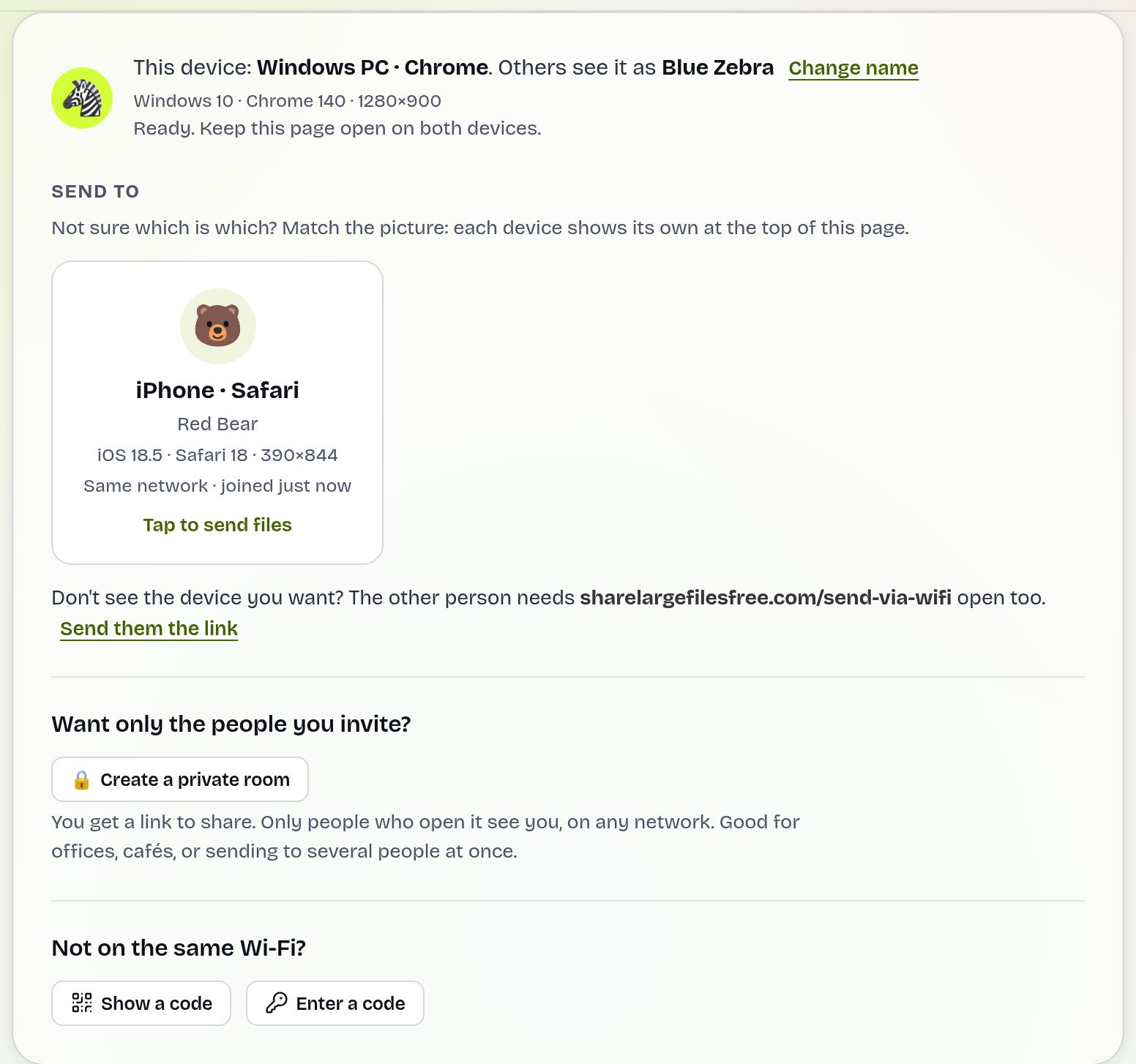
Several devices can join the same hotspot. To hand the same files to all of them, create a private room and use Send to everyone; each person accepts on their own device.
Battery and speed tips
- Running a hotspot drains the battery faster than usual. Plug the hotspot phone in if you can, especially for long transfers.
- Keep the two devices close together. The hotspot is a short-range network, and speed drops with distance and walls.
- Turn off low power or battery saver modes during the transfer, since they can put the browser to sleep or slow the hotspot.
- Disconnect other devices from the hotspot that you are not using, so they do not compete for it.
- Switch the hotspot off when you are done, both to save battery and so nobody else uses your data.
Built-in options that also skip the router
Some native sharing features create their own direct link without a router, using Wi-Fi Direct or a similar peer-to-peer Wi-Fi connection. AirDrop does this between iPhone, iPad and Mac. Quick Share does it between Android devices, and with Windows PCs that have the Quick Share app installed. Nearby sharing does it between Windows PCs. They work well within their own platform, but not across all brands.
The hotspot method is for the mixed cases, such as an iPhone and a Windows laptop, or an Android phone and a Mac. For more on the native options, see the AirDrop alternative guide.
Which should you use?
If both devices share a platform and its built-in feature works, use that. If they do not, or the built-in feature will not connect, use a hotspot with Send via Wi-Fi. If the receiver is not with you, or the hotspot phone has no signal at all, upload once and send a download link instead (up to 20 GB per transfer, available for 1 day).
For iPhones and iPads receiving very large files, remember that Safari holds a file in memory until it is complete, so a link or a cable may suit a huge file better.
Share Large Files Free is independent and is not affiliated with Apple, Google, Samsung or Microsoft. iPhone, iPad, Mac, AirDrop and Personal Hotspot are trademarks of Apple Inc.; Android, Pixel and Quick Share are trademarks of Google LLC; Galaxy is a trademark of Samsung; Windows is a trademark of Microsoft Corporation.
Troubleshooting hotspot transfers
- The devices cannot find each other. Check that mobile data is on for the hotspot phone and that device B is connected to the hotspot, not to another Wi-Fi network. Otherwise use the 6-digit code.
- The hotspot does not show up on the other device. On iPhone, keep the Personal Hotspot screen open, or turn on Maximize Compatibility. On Android, try switching between the 2.4 GHz and 5 GHz band if your phone offers it.
- The hotspot keeps turning off. Many phones switch it off when no device has been connected for a while. Turn it back on and reconnect.
- The transfer stops partway. A screen lock or battery saver probably paused the browser. Keep both screens on and send again.
Frequently asked questions
Can I transfer files between two phones without Wi-Fi?
Yes. Turn on the hotspot on one phone, connect the other to it, and open Send via Wi-Fi on both.
Does a hotspot transfer use my mobile data for the file?
Mobile data is needed so the devices can find each other, but the file goes directly over the hotspot connection between the two devices rather than through the internet.
Can a laptop act as the hotspot?
Yes. On Windows 11, use Settings, Network & internet, Mobile hotspot. The laptop needs its own internet connection.
Can I send to the phone that is running the hotspot?
Yes. The hotspot phone can be the sender or the receiver.
Is there a size limit over a hotspot?
No fixed limit. The file goes directly between the devices, so only free space on the receiver limits it.
Ready to send?
Drop your files, get a link, done. Free up to 20 GB — no account needed.
Send files free