Quick answer: If Quick Share does not show the other device, set the receiver's visibility to Everyone (often for 10 minutes), turn on Bluetooth, Wi-Fi and location on both, keep the screens on and the devices close, and on Windows make sure the Quick Share app is installed and signed in. If it still fails, or one device is an iPhone or Mac, use Send via Wi-Fi in the browser or a download link.
Quick checklist: try these first
- Set the receiver's visibility to Everyone (on many phones, Everyone for 10 minutes).
- Turn on Bluetooth, Wi-Fi and location on both devices.
- Unlock the receiver and keep its screen on.
- Bring the devices close, ideally within a metre or two while they find each other.
- Turn off battery saver on both.
- Update Google Play services (or the Samsung Quick Share app) and restart both devices.
Fix 1: visibility, and same account versus everyone
Quick Share only shows you to people allowed by the receiver's setting. Open the Quick Share tile in Quick Settings, or look in Settings > Google > Devices & sharing > Quick Share. On Samsung Galaxy phones it is under Settings > Connected devices > Quick Share. Names vary by phone and version.
| Visibility | Who sees you | Good for |
|---|---|---|
| Your devices | Devices signed in to the same Google Account | Moving files between your own phone, tablet and PC; transfers can be accepted automatically |
| Contacts | People in your contacts who also use Quick Share | Friends and family, if their details match |
| Everyone (often for 10 minutes) | Anyone nearby | The quickest fix when the device does not appear |
| No one / hidden | Nobody | Never shows up |
A common trap: sending to your own second device that is signed in to a different Google Account. It will not appear under Your devices. Use Everyone, or sign both in to the same account.
Fix 2: Bluetooth, location and Wi-Fi
Quick Share finds devices with Bluetooth and location scanning, then moves the file over a direct Wi-Fi link (or another connection it picks). If any of these is switched off, the other device may never appear, or the transfer may crawl over Bluetooth.
- Turn on Bluetooth and Wi-Fi from Quick Settings. You do not have to join a Wi-Fi network.
- Turn on location. Android uses it for nearby device scanning.
- Turn off any phone hotspot and Airplane mode.
- If a transfer starts but is very slow, both devices may be on different Wi-Fi bands or busy networks. Moving closer usually helps.
Fix 3: Quick Share for Windows
A Windows PC needs Google's Quick Share app, downloaded from Google's Android website. It is not the same thing as Windows' own Nearby sharing, which only talks to other Windows PCs.
- Install and sign in. Open the app and sign in with your Google Account if you want Your devices to work.
- Check the PC's visibility in the app, the same way as on a phone.
- Bluetooth and Wi-Fi must be on on the PC. A desktop without Bluetooth or Wi-Fi hardware cannot use it.
- Allow the app through the firewall if Windows or your security software asks, and pause a VPN while you test.
- Check requirements. The app supports recent 64-bit versions of Windows; very old PCs may not be supported.
Received files usually land in the Downloads folder on Windows, and in Files or Downloads on the phone.
Fix 4: it starts, then fails
- Not enough storage on the receiver. Free up space and resend.
- The screen locked mid-transfer. Keep both screens on until it finishes.
- Battery saver paused background activity. Turn it off.
- Interference in a crowded place. Move away from other devices and try again.
If nothing works: other ways to send
Quick Share covers Android and Windows. On recent versions some Pixel phones can also exchange files with nearby iPhones, but most cross-brand cases still need another route. Send via Wi-Fi works in any browser:
- Connect both devices to the same Wi-Fi, or put one on the other's hotspot with mobile data on.
- Open sharelargefilesfree.com/send-via-wifi in a browser on both.
- Tap the other device, pick the files, and the receiver taps Accept.
Files go directly between the browsers over an encrypted connection, with no size limit beyond free space. Both devices need internet so our server can introduce them. On different networks, or if they still do not see each other, use the 6-digit pairing code:
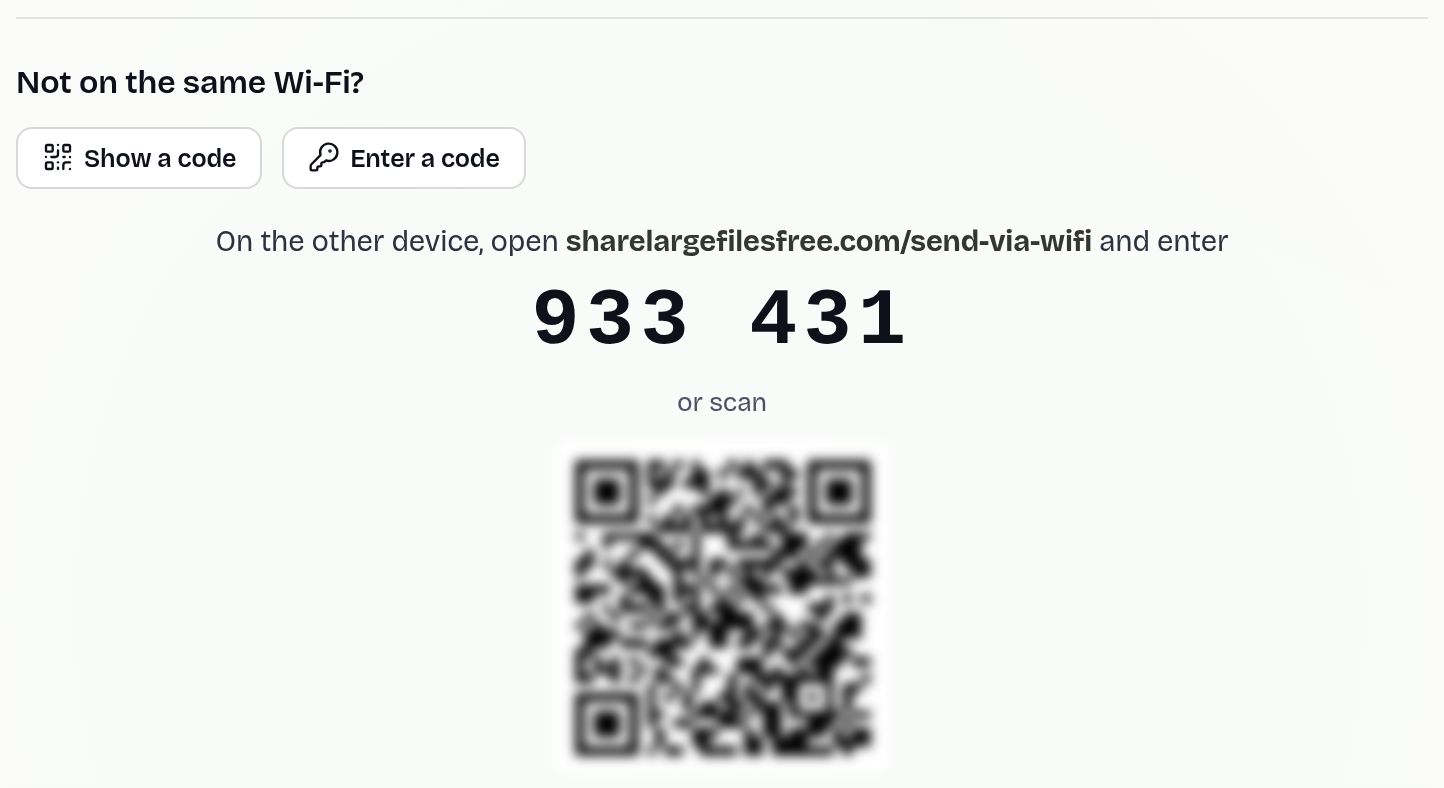
If the receiver is not nearby, upload once and send a download link, up to 20 GB per transfer, kept for 1 day.
Which should you use?
For two Android devices, or an Android phone and a Windows PC with the app installed, Quick Share is worth fixing. For an iPhone, a Mac, or a network where it will not connect, use Send via Wi-Fi. For someone far away, use a link. More detail: Android to PC and Android to Android.
Share Large Files Free is independent and is not affiliated with Google, Samsung, Microsoft or Apple. Android, Pixel and Quick Share are trademarks of Google LLC; Galaxy is a trademark of Samsung; Windows is a trademark of Microsoft Corporation; iPhone and Mac are trademarks of Apple Inc.
Frequently asked questions
Why is Quick Share not finding the other phone?
Usually the receiver's visibility is set to Contacts or Your devices. Set it to Everyone and make sure Bluetooth, Wi-Fi and location are on.
Does Quick Share need the same Google Account?
Only for Your devices. With Everyone visibility, any nearby device can send.
Why is Quick Share so slow?
It may have fallen back to Bluetooth. Keep Wi-Fi on for both devices and move them closer.
Does Quick Share work on Windows?
Yes, with Google's Quick Share app installed, and Bluetooth and Wi-Fi on the PC.
What can I use with an iPhone instead?
Open Send via Wi-Fi in the browser on both devices, or send a download link.
Ready to send?
Drop your files, get a link, done. Free up to 20 GB — no account needed.
Send files free