Quick answer: When switching to a new Mac, use Windows Migration Assistant from Apple to copy your user files from the PC. For a few files at a time, use Send via Wi-Fi in the browser or connect to a shared Windows folder from Finder. For very large amounts with no network, copy to an exFAT drive.
Moving to a Mac, or just sending files?
Two different jobs hide behind this question. If you are leaving Windows for a new Mac, you want your documents, pictures, music and possibly email and browser bookmarks moved across in one go, and Apple has a tool for exactly that. If you just need to send a folder from a PC to a Mac today, a setup wizard is overkill and a direct transfer is quicker.
Watch out for drive formats as well: a USB drive formatted as NTFS on Windows can be read by a Mac but not written to without extra software.
Files themselves move across fine. Word, Excel and PDF documents open on a Mac, and photos, music and video keep their quality. What does not move is Windows software: you install the Mac version of each app, or a Mac alternative, after the files are across.
Methods compared
| Method | Best for | Size | Setup |
|---|---|---|---|
| Windows Migration Assistant | Setting up a new Mac from an old PC | Your whole user account | Install Apple's app on the PC |
| Send via Wi-Fi (browser) | Files and folders on the same network | No limit; needs free space on the Mac | Open one page on both |
| SMB share, opened from Finder | Browsing and copying many folders | Limited by disk space | Share a folder in Windows |
| External drive (exFAT) | Hundreds of GB, or no shared network | Size of the drive | Format the drive once |
| Cloud (OneDrive, Google Drive, iCloud) | Files you want in sync | Your storage plan | Same account on both |
| Download link | A Mac that is not nearby | Up to 20 GB per transfer | Only a browser |
Windows Migration Assistant for a new Mac
- On the PC, download Windows Migration Assistant from Apple Support. Pick the version that matches the macOS version on your Mac.
- Connect both computers to the same network, or link them with an Ethernet cable. Close other apps on the PC.
- Open Windows Migration Assistant on the PC and click Continue.
- On the Mac, open Migration Assistant (in Applications > Utilities, or offered during setup) and choose to transfer From a Windows PC.
- Select the PC, check that both screens show the same passcode, then pick what to transfer and click Continue.
It copies your user folders and, depending on the version, items such as email accounts, contacts, calendars and bookmarks. It does not move Windows programs, which do not run on macOS. A large account can take hours, so leave both computers plugged in.
Send via Wi-Fi from Edge or Chrome to Safari
- Open sharelargefilesfree.com/send-via-wifi on the PC and on the Mac in any modern browser.
- Find the Mac on the PC's page. It appears with a name, an animal avatar and details such as "Mac · Safari".
- Click it and choose files, or drag them in from File Explorer.
- Click Accept on the Mac. Files are saved to the Downloads folder.
- Keep both pages open until the transfer finishes.
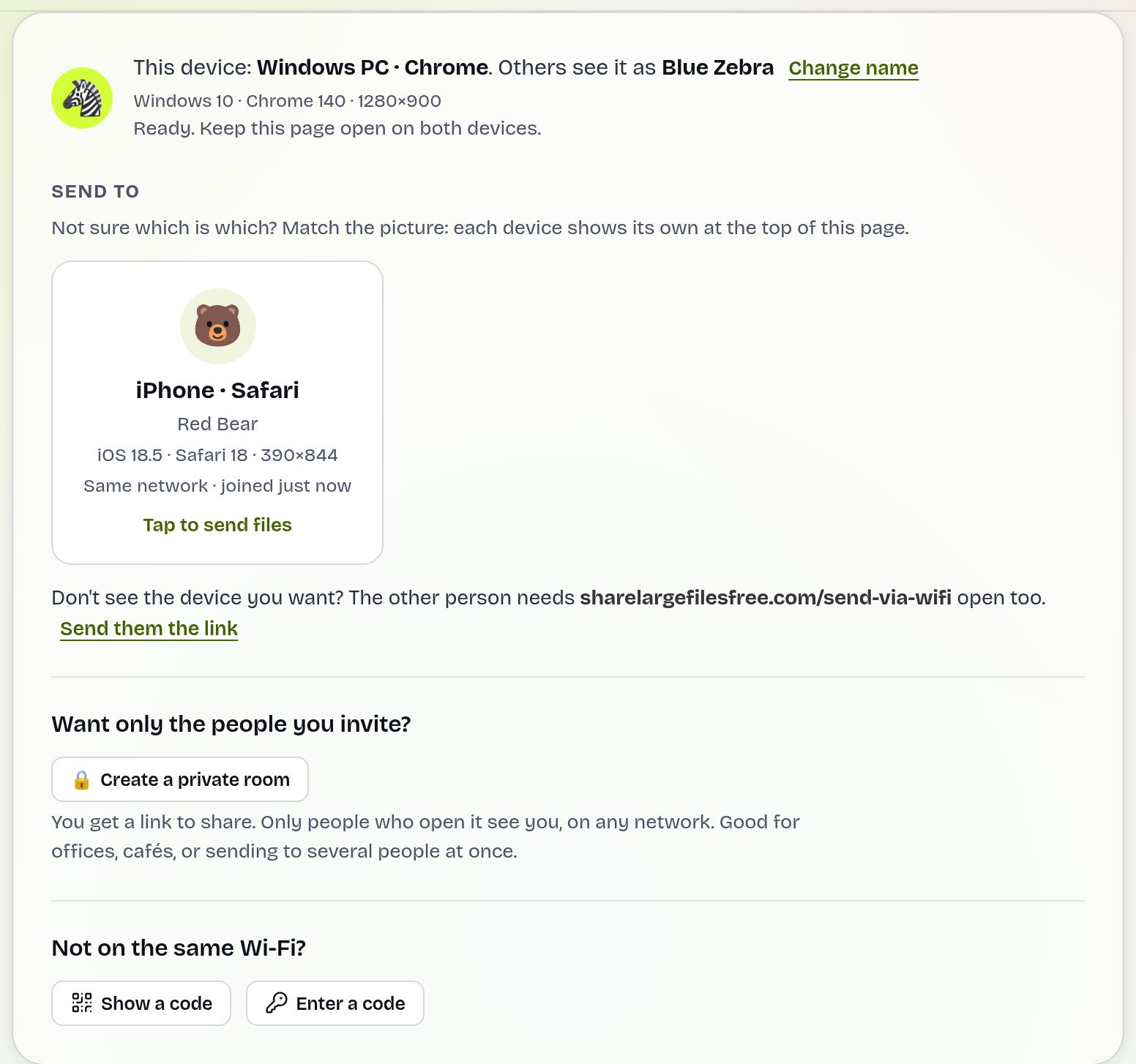
Files go straight between the browsers over an encrypted connection, are never uploaded to a server, and have no size limit. Both computers need internet access so they can find each other; on different networks, use the 6-digit code instead.
Connect to a Windows shared folder from Finder
- On the PC, set the network to Private and turn on File and printer sharing under Advanced sharing settings.
- Right-click the folder, choose Properties > Sharing > Share, and share it with your account.
- Find the PC's IP address in Settings > Network & internet, under your connection's properties.
- On the Mac, in Finder choose Go > Connect to Server, type smb:// followed by the IP address, and click Connect.
- Sign in with the Windows account name and password (for a Microsoft account, its email and password, not the PIN), then drag the folders to your Mac.
exFAT drives and cloud storage
- exFAT drive: on Windows, right-click the drive in File Explorer, choose Format, and pick exFAT. This erases it, so back it up first. Both systems can read and write exFAT, and it handles files over 4 GB.
- Cloud: OneDrive and Google Drive have Mac apps, and iCloud for Windows can sync iCloud Drive from the PC side. Good for keeping work in sync, but free tiers are small and a big first sync is slow.
Which should you use?
New Mac replacing an old PC: Windows Migration Assistant, then check your folders. A few files or a project folder on the same network: Send via Wi-Fi. Browsing the PC from the Mac to pick things over time: a shared folder. Moving hundreds of gigabytes without a network: an exFAT drive. Mac in another place: a download link, up to 20 GB per transfer for 1 day. Sending the other direction? See Mac to PC.
Share Large Files Free is independent and is not affiliated with Apple, Microsoft or Google. Mac, macOS, Finder, iCloud and Safari are trademarks of Apple Inc.; Windows, Edge and OneDrive are trademarks of Microsoft Corporation; Google Drive and Chrome are trademarks of Google LLC.
Troubleshooting
- Migration Assistant cannot find the PC. Check both are on the same network, temporarily allow the app through third-party firewalls, and restart both. An Ethernet cable between them often helps.
- Finder says the server cannot be reached. Use the IP address, check the PC network is Private and that File and printer sharing is on.
- The Mac cannot write to the USB drive. It is NTFS. Copy the data off and reformat the drive as exFAT.
- The PC and Mac do not see each other in Send via Wi-Fi. Guest and office Wi-Fi may isolate devices. Use the 6-digit code or a phone hotspot with mobile data on.
Frequently asked questions
Is Windows Migration Assistant free?
Yes. Apple provides it free on its support site. Download the version that matches your Mac's macOS.
Will my Windows programs move to the Mac?
No. Windows apps do not run on macOS. Your files and some account data move, and you install Mac versions of your apps.
Can a Mac write to an NTFS drive?
Not without extra software. Format the drive as exFAT so both systems can read and write it.
Is there a size limit for Send via Wi-Fi?
No. Only the free space on the Mac limits it.
How do I send files to a Mac far away?
Upload them on the homepage, up to 20 GB per transfer, and share the link or download code.
Ready to send?
Drop your files, get a link, done. Free up to 20 GB — no account needed.
Send files free