Quick answer: Between a Chromebook and an Android phone, use Quick Share, Phone Hub's recent photos, a USB cable in the Files app, or Google Drive. For an iPhone, or as a fallback for any phone, open sharelargefilesfree.com/send-via-wifi on both and send directly; files land in Downloads on the Chromebook.
Android and iPhone are different here
ChromeOS is a Google system, so it pairs naturally with Android phones: Quick Share (previously called Nearby Share) sends files both ways, and Phone Hub can show your phone's recent photos. An iPhone has none of that, and AirDrop does not exist on ChromeOS. For an iPhone the practical routes are the browser, Google Drive or Google Photos, or a cable for photos.
Everything you receive on the Chromebook goes to My files > Downloads in the Files app.
Methods compared
| Method | Phones | Direction | Notes |
|---|---|---|---|
| Quick Share | Android | Both ways | Built in; Bluetooth and Wi-Fi on |
| Phone Hub recent photos | Android | Phone to Chromebook | Recent photos and screenshots only |
| USB cable | Android; iPhone photos on some versions | Both ways for Android | Set the phone to File transfer |
| Google Drive or Google Photos | Android and iPhone | Both ways | Uses your Google storage |
| Send via Wi-Fi (browser) | Android and iPhone | Both ways | Same network; no size limit on our side |
| Download link | Any | Both ways | Up to 20 GB; works anywhere |
Quick Share and Phone Hub (Android)
- On the Chromebook, open Quick Settings (click the time) and make sure Quick Share is on. Set visibility so your phone can find it.
- On the Android phone, select files, tap Share, then Quick Share, and pick the Chromebook.
- Accept on the Chromebook if asked. To go the other way, right-click a file in the Files app, choose Share, then Quick Share.
Phone Hub (in Settings > Connected devices) links your Android phone to the Chromebook. Where supported, it shows the phone's most recent photos and screenshots in the shelf, and clicking one copies it to Downloads. It is handy for a screenshot, not for a folder of videos. Menu names vary a little between ChromeOS versions.
Send via Wi-Fi for iPhone or any phone
- Open sharelargefilesfree.com/send-via-wifi in Chrome on the Chromebook and in Safari or Chrome on the phone, on the same Wi-Fi.
- Each device lists the other with a name, an animal avatar and details such as "ChromeOS · Chrome".
- Tap or click the device you are sending to and choose files.
- The receiver taps Accept. Keep the phone screen on until it finishes.
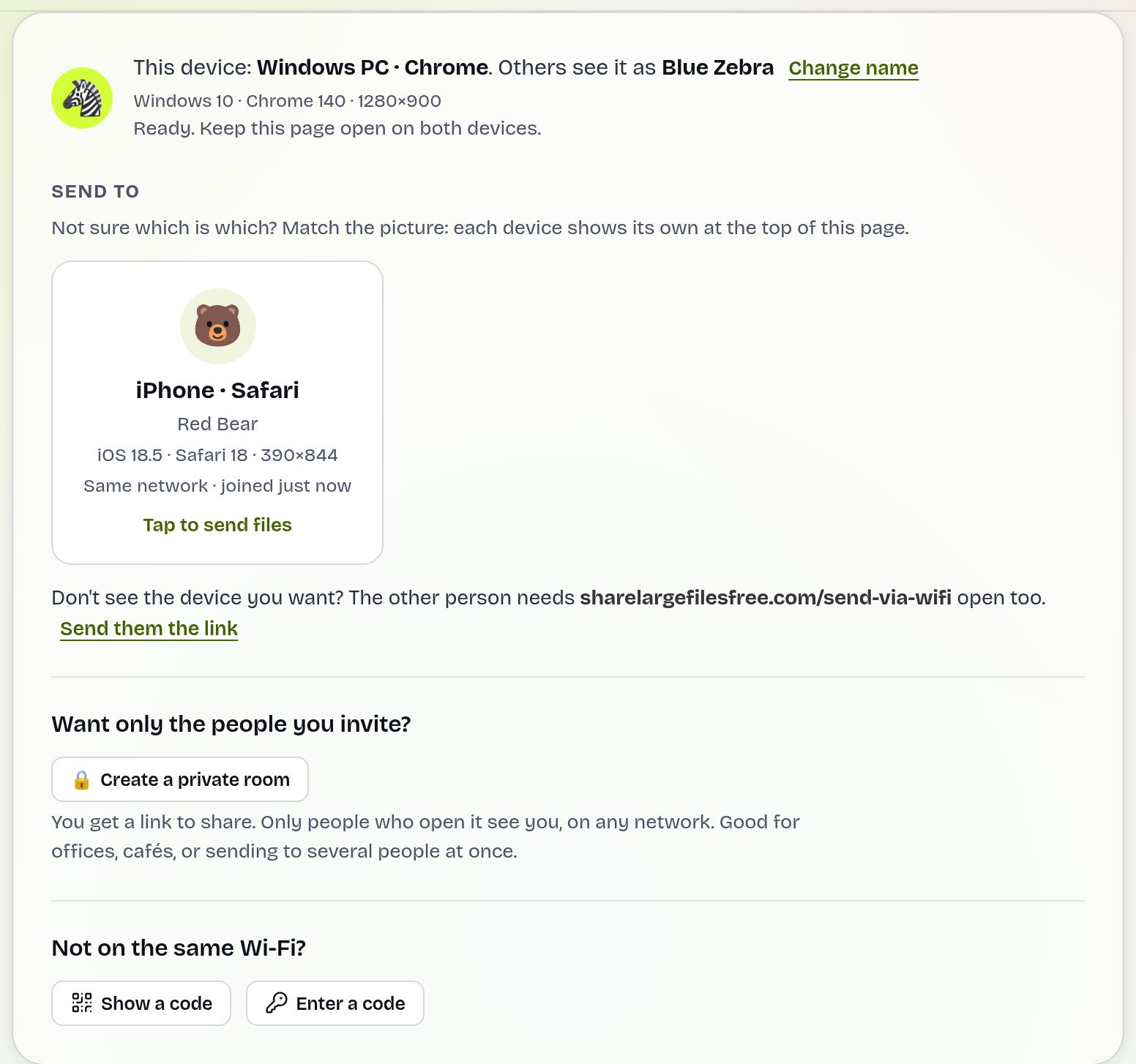
Files go straight between the two browsers over an encrypted connection; nothing is stored on a server, and there is no size limit on our side beyond free space. An iPhone receiving a file holds it in memory until it is complete, so very large files from the Chromebook to an iPhone are better sent as a link. On school or office Wi-Fi, where devices often cannot see each other, use Show a code and Enter a code, or the phone's hotspot.
USB cable and Google Drive
Android by cable. Connect the phone, then tap the USB notification on it and choose File transfer. The phone appears in the Chromebook's Files app; drag files in either direction. Use a data cable, not a charge-only one.
iPhone by cable. On recent ChromeOS versions an unlocked, trusted iPhone may appear in the Files app with its photos and videos, ready to copy. If yours does not, use Google Photos or the browser instead; copying files onto an iPhone this way is not supported.
Google Drive. Google Drive appears in the Chromebook's Files app. Upload from the phone's Drive app, or drop files into Drive on the Chromebook, and they show up on the other side. It suits documents more than big videos.
Which should you use?
With an Android phone, try Quick Share first, use Phone Hub for a quick screenshot, and a cable for a large batch. With an iPhone, use Send via Wi-Fi in the browser, or Google Photos if your camera roll already backs up there. For a phone somewhere else, upload on the homepage and share the link, valid for 1 day. For Windows instead of ChromeOS, see Android to PC.
Share Large Files Free is independent and is not affiliated with Google or Apple. Chromebook, ChromeOS, Android, Google Drive, Google Photos, Quick Share and Phone Hub are trademarks of Google LLC; iPhone, AirDrop and Safari are trademarks of Apple Inc.
Troubleshooting
- Quick Share cannot find the Chromebook. Unlock both, turn on Bluetooth and Wi-Fi, and set visibility to everyone temporarily. School-managed Chromebooks may have it turned off.
- The phone is not in the Files app. Choose File transfer in the phone's USB notification and try another cable.
- Phone Hub shows no photos. The feature may need to be turned on in Phone Hub settings, and it only shows recent items.
- Devices do not see each other in Send via Wi-Fi. Use the 6-digit code or a hotspot with mobile data on.
- The Chromebook runs out of space. Many Chromebooks have small storage. Check free space in Settings > Device > Storage management, or save large videos straight to a USB drive or SD card from the Files app.
- An iPhone video will not play on the Chromebook. HEVC (H.265) clips may not play in the built-in player on every model. On the iPhone, Settings > Camera > Formats > Most Compatible records H.264 for future videos.
Frequently asked questions
Can I AirDrop to a Chromebook?
No. Use Send via Wi-Fi in the browser or Google Photos for iPhone to Chromebook.
Where do received files go on a Chromebook?
To My files > Downloads in the Files app.
Is Nearby Share the same as Quick Share?
Yes. Google renamed Nearby Share to Quick Share.
Can a Chromebook read my Android phone by cable?
Yes. Set the phone's USB mode to File transfer and it appears in the Files app.
Ready to send?
Drop your files, get a link, done. Free up to 20 GB — no account needed.
Send files free