Quick answer: AirDrop is built into Apple devices only. Android uses Quick Share, Windows PCs use Nearby sharing or the Quick Share app, and for mixed devices Send via Wi-Fi works between any two browsers on the same network, with no app, account or size limit. For people who are not nearby, a download link works on any network.
Why AirDrop only works between Apple devices
AirDrop uses Bluetooth to discover nearby devices and a direct peer-to-peer Wi-Fi link to send the file. That Wi-Fi link uses an Apple technology that is built into iPhone, iPad and Mac, so for most of its history AirDrop has not worked with Android phones or Windows PCs.
Google has started making Quick Share compatible with AirDrop on some recent Pixel phones, with the iPhone set to receive from Everyone for 10 Minutes. Support depends on the model and software version, so check your phone's settings before relying on it. For everyone else, a cross-platform option is still needed.
The same is true in the other direction. A Windows laptop cannot see an iPhone in its sharing list, and a Mac cannot see a Samsung phone. People often fall back on emailing files to themselves or sending them through a chat app, which works for small items but runs into size limits and compression with videos and large folders.
The built-in alternatives on each platform
- Quick Share (Android). Built into Android phones and tablets, including Samsung Galaxy, where it replaced Samsung's own sharing feature. It sends to nearby Android devices and Chromebooks.
- Quick Share for Windows. A free Google app for Windows PCs that lets them send to and receive from Android devices.
- Nearby sharing (Windows). Built into Windows 10 and 11 for sending between Windows PCs. Turn it on in Settings > System > Nearby sharing.
- AirDrop (Apple). In Control Center on iPhone and iPad, and in Finder on a Mac.
Each of these is good within its own family. The gaps are between families, especially iPhone and Windows, iPhone and most Android phones, and Mac and Android.
Which method works between which devices
| From / to | iPhone or Mac | Android | Windows PC |
|---|---|---|---|
| iPhone or Mac | AirDrop, Send via Wi-Fi | Send via Wi-Fi; Quick Share on some recent Pixels | Send via Wi-Fi |
| Android | Send via Wi-Fi; Quick Share on some recent Pixels | Quick Share, Send via Wi-Fi | Quick Share app, Send via Wi-Fi |
| Windows PC | Send via Wi-Fi | Quick Share app, Send via Wi-Fi | Nearby sharing, Send via Wi-Fi |
For any pair that is not in the same room, a download link works too, up to 20 GB per transfer. Features and compatibility change with software updates, so check each maker's help pages for the current state.
Send via Wi-Fi: AirDrop-style sharing in any browser
Send via Wi-Fi works much like AirDrop: nearby devices appear on screen, you tap one, and the other person accepts. The difference is that it runs in Chrome, Edge, Firefox or Safari, so the brand of device does not matter.
- Connect both devices to the same Wi-Fi, or connect one to the other's mobile hotspot.
- Open sharelargefilesfree.com/send-via-wifi on both. No app or account is needed.
- Tap the other device, shown with a name, an animal avatar and details such as "Android · Chrome".
- Choose the files, or drop them on the device on a computer.
- Tap Accept on the receiving device and keep both pages open until it finishes.
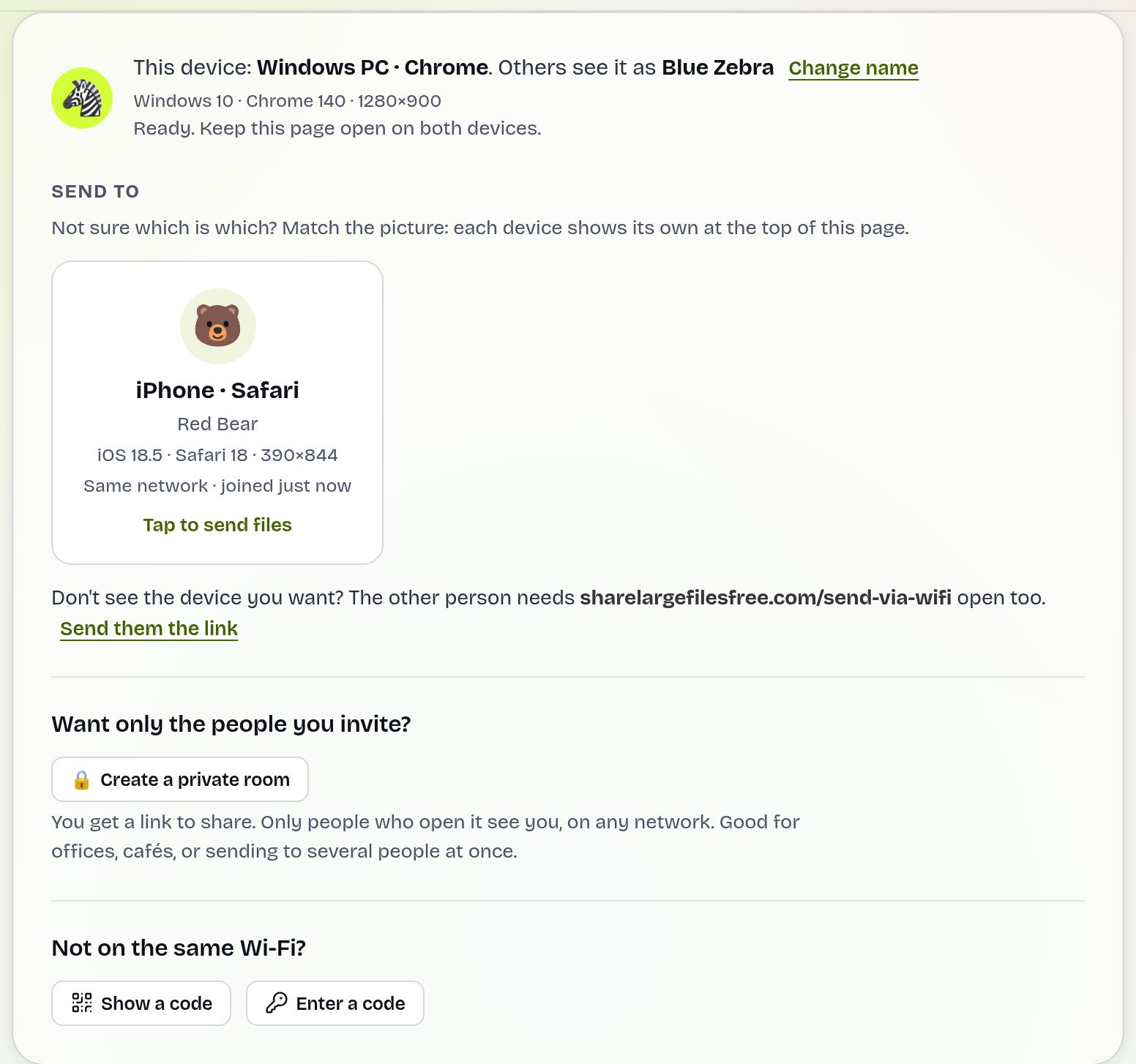
Files go directly between the two browsers over an encrypted WebRTC connection (DTLS) and are never stored on a server. There is no size or file count limit beyond free space on the receiver. If the devices are on different networks, show a 6-digit code on one and type it on the other, or scan the QR code.
Using native sharing where it works
When both devices are from the same family, the built-in option is quick:
- Android to Android with Quick Share: open the file, tap Share, choose Quick Share and pick the nearby device. The receiver may need Quick Share visibility set to Everyone or Contacts in its settings.
- Android to Windows: install Quick Share for Windows on the PC, sign in or set who can share with you, then pick the PC from the Android share sheet.
- Windows to Windows: switch on Nearby sharing on both PCs, right-click a file in File Explorer, choose Share and pick the other PC.
- Apple to Apple: tap Share > AirDrop and pick the device. If it does not appear, set AirDrop to Everyone for 10 Minutes on the receiver.
Which should you use?
Use the built-in tool when both devices support it and it connects first time. Use Send via Wi-Fi for any mix of brands, for sending to several devices at once with a private room and Send to everyone, or when a built-in tool will not find the other device. Use a download link when the other person is not nearby, when the network blocks local connections, or when sending a very large file to an iPhone, where Safari holds an incoming file in memory until it is complete.
Specific pairs have their own guides: iPhone to Android, iPhone to PC and Android and Mac.
Share Large Files Free is independent and is not affiliated with Apple, Google, Samsung or Microsoft. AirDrop, iPhone, iPad, Mac, Finder and Safari are trademarks of Apple Inc.; Android, Pixel, Chrome, Chromebook and Quick Share are trademarks of Google LLC; Galaxy is a trademark of Samsung; Windows and Edge are trademarks of Microsoft Corporation.
Troubleshooting
- Quick Share or AirDrop cannot see the other device. Check Bluetooth and Wi-Fi are on, the screen is unlocked, and receiving is set to everyone rather than contacts only.
- Send via Wi-Fi shows no devices. Make sure both are on the same network, switch off any VPN, or use the 6-digit code.
- Devices appear but the transfer never starts. Guest and office networks often block direct connections. Use a hotspot or a download link.
- Strangers appear in the list. Create a private room and share its link only with your own devices or group.
- A large video will not finish on the iPhone. The iPhone may not have enough free memory to hold it. Send it as a download link instead, and the iPhone saves it to the Files app as it downloads.
- The received file is hard to find. Look in the Downloads folder on Android and Windows, and in Files > Downloads on iPhone.
Frequently asked questions
Is there AirDrop for Android?
Android has Quick Share for Android-to-Android. For Android to iPhone, use Send via Wi-Fi in the browser, or Quick Share on recent Pixels where AirDrop compatibility is available.
Can I AirDrop to a Windows PC?
No. Use Send via Wi-Fi in a browser on both devices, or a download link.
Do I need to install an app?
No. Send via Wi-Fi works in Chrome, Edge, Firefox and Safari on phones, tablets and computers.
Is there a size limit?
Send via Wi-Fi has no size limit beyond free space on the receiver. A download link takes up to 20 GB per transfer.
Are my files uploaded anywhere?
Not with Send via Wi-Fi. Files go directly between the two browsers over an encrypted connection.
Ready to send?
Drop your files, get a link, done. Free up to 20 GB — no account needed.
Send files free