Quick answer: To transfer files from a Windows PC to an iPhone, open sharelargefilesfree.com/send-via-wifi on both devices on the same Wi-Fi and send directly, upload to iCloud Drive from iCloud for Windows or icloud.com, or copy into an app with the Apple Devices app or iTunes. Browser downloads land in Files > Downloads; for very large files, a download link or cable is safer than a direct transfer.
Why PC to iPhone needs a workaround
An iPhone does not show up as a drive in File Explorer the way an Android phone does. Windows can import photos from an iPhone, but copying files onto it is more limited, and AirDrop only works between Apple devices. So the question is mostly which route suits your file and where you want it to end up on the phone.
Moving files the other way? See transferring large files from iPhone to PC.
Methods compared
| Method | Needs | Where it lands on iPhone | Best for |
|---|---|---|---|
| Send via Wi-Fi (browser) | A browser on the PC, Safari on the iPhone, same network | Files app > Downloads | A few files, no setup |
| iCloud Drive (iCloud for Windows or icloud.com) | An Apple Account with enough iCloud storage | Files app > iCloud Drive | Documents you want on all devices |
| Apple Devices app or iTunes, file sharing | A cable and an app that accepts files | Files app > On My iPhone > that app | Huge videos for VLC or similar apps |
| Download link | A browser on each device | Files app > Downloads | An iPhone that is somewhere else |
Apple and Microsoft change these apps from time to time, so menu names may differ slightly on your devices.
Send via Wi-Fi: PC browser to Safari
- On the iPhone, open sharelargefilesfree.com/send-via-wifi in Safari and keep the screen on.
- On the PC, open the same page in Edge, Chrome or Firefox. The iPhone appears with a name, an animal avatar and "iPhone · Safari".
- Click the iPhone, then choose files or drag them from File Explorer.
- On the iPhone, tap Accept and keep Safari in front until the transfer completes.
- Open the Files app and go to Downloads (under On My iPhone or iCloud Drive, depending on your Safari download setting).
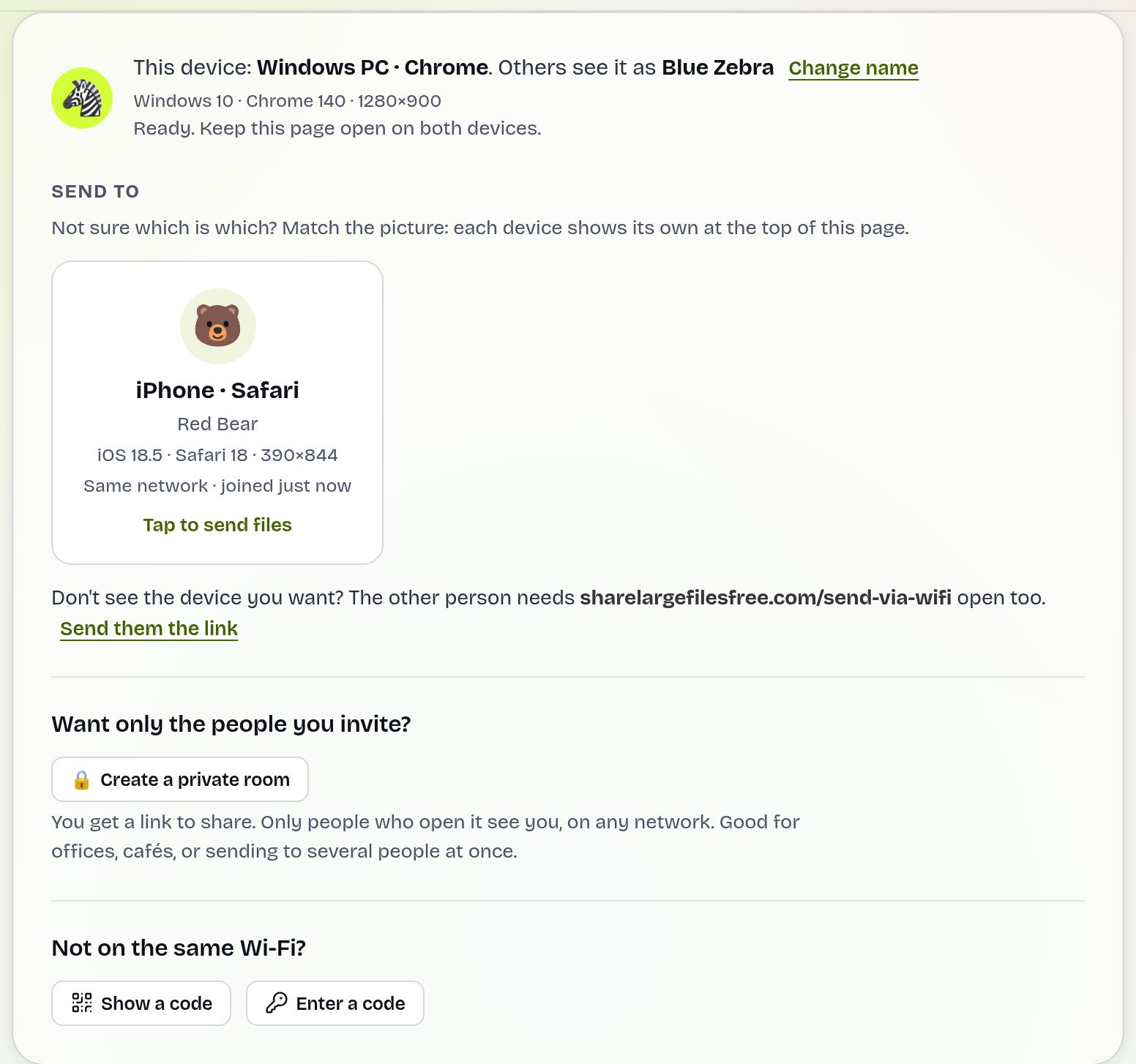
Files go directly from the PC to the iPhone over an encrypted connection and are not stored on a server. There is no size or count limit on our side, but there is one iPhone caveat: Safari holds each incoming file in memory until it is complete. A few hundred megabytes is fine; a file of several gigabytes may fail on a phone with little free memory. For very large files, use a download link or the cable method below. If the iPhone does not appear, use the 6-digit code or a hotspot.
Save to Photos and find your files
- Videos and photos: in Files > Downloads, open the item, tap the share button and choose Save Video or Save Image. It then appears in the Photos app.
- Several at once: tap Select in Files, pick the items, then share and save.
- Download location: Settings > Apps > Safari > Downloads (on older iOS, Settings > Safari) chooses between On My iPhone and iCloud Drive. On My iPhone avoids using iCloud storage.
- Formats: iPhone plays MP4 and MOV. An MKV or AVI file will not save to Photos; open it in a player app such as VLC, or convert a copy on the PC with the video to MP4 converter.
iCloud Drive and the Apple Devices app
iCloud Drive. Install iCloud for Windows from the Microsoft Store, sign in and turn on iCloud Drive. An iCloud Drive folder appears in File Explorer; copy files into it and they appear in the iPhone's Files app under iCloud Drive once uploaded. Without installing anything, you can sign in at icloud.com in a browser, open Drive and upload there. Either way the file uses your iCloud storage, and the free tier is small, so large videos usually need an iCloud+ plan.
Apple Devices app or iTunes. On Windows 11, the Apple Devices app from the Microsoft Store manages iPhones; on Windows 10, iTunes does the same job.
- Connect the iPhone with a cable, unlock it and tap Trust.
- In Apple Devices, select the iPhone and open Files (in iTunes, File Sharing).
- Pick an app that accepts files, such as VLC or a PDF reader, and drag files onto it.
- On the iPhone, find them in that app or in Files > On My iPhone > the app's folder.
This is the most dependable way to put a multi-gigabyte film on an iPhone, since it uses a cable and does not depend on Safari's memory. Only apps that support file sharing appear in the list.
Which should you use?
For a few documents, photos or normal-sized videos with both devices at home, use Send via Wi-Fi: nothing to install and no account. For a very large video, copy it into VLC or a similar app with the Apple Devices app or iTunes, or upload it on the homepage (up to 20 GB) and download the link on the iPhone, which writes to storage rather than memory. If your files already live in iCloud Drive, keep using it. For an iPhone that is not near the PC, the link or a download code works on any network and lasts 1 day.
Sending from a Mac instead? See sending large files from a Mac. Looking for an AirDrop-like option for mixed devices? Read our AirDrop alternative guide.
Share Large Files Free is independent and is not affiliated with Apple or Microsoft. iPhone, iCloud, iTunes, Safari and AirDrop are trademarks of Apple Inc.; Windows is a trademark of Microsoft Corporation.
Troubleshooting
- A large file fails partway on the iPhone. Close other apps to free memory and try again, or use a download link or the Apple Devices app for that file.
- The iPhone does not appear on the PC page. Keep Safari open and in front, and check both are on the same Wi-Fi. On guest or office Wi-Fi, use the 6-digit code or a private room.
- Save Video is missing. The format is not supported by Photos. Play it in VLC or convert it to MP4.
- The Apple Devices app does not see the iPhone. Unlock the phone, tap Trust, and try another cable or USB port.
- The file is not in Downloads. Check both On My iPhone and iCloud Drive in Files, or search for its name.
Frequently asked questions
Can I AirDrop from a Windows PC to an iPhone?
No. AirDrop only works between Apple devices. Use Send via Wi-Fi in the browser, iCloud Drive or the Apple Devices app instead.
Where do files from my PC go on the iPhone?
Browser transfers land in the Files app under Downloads. From there, share a video or photo and tap Save Video or Save Image to add it to Photos.
Can I send a 10 GB video from PC to iPhone over Wi-Fi?
Direct browser transfers to iPhone are held in memory, so very large files may fail. Use the Apple Devices app with a cable, or a download link.
Do I need iTunes to transfer files to an iPhone?
No. Send via Wi-Fi and iCloud Drive need no iTunes. On Windows 11 the Apple Devices app replaces iTunes for cable transfers.
Is Send via Wi-Fi free?
Yes. It needs no app and no account, and files are never stored on a server.
Ready to send?
Drop your files, get a link, done. Free up to 20 GB — no account needed.
Send files free