Quick answer: To transfer files from Android to a PC, connect a USB cable and choose File transfer on the phone, use Quick Share for Windows or Phone Link, or open sharelargefilesfree.com/send-via-wifi on both devices and send directly over your Wi-Fi with no app and no size limit. For a PC that is somewhere else, use a download link.
Your options, side by side
Android and Windows get along better than iPhone and Windows, because a PC can open an Android phone like a USB drive. You still have several routes, and each suits a different job.
| Method | Needs | Size | Best for |
|---|---|---|---|
| Send via Wi-Fi (browser) | A browser on both, same network | No limit, only free space on the PC | A few large files, no setup |
| USB cable, File transfer mode | A data cable | Limited by disk space | A whole DCIM folder or backup |
| Quick Share for Windows | The Quick Share app on the PC, Bluetooth and Wi-Fi | No fixed limit published | Regular wireless transfers at home |
| Phone Link | Phone Link on Windows, Link to Windows on the phone | Recent photos; file drag and drop only on some phones, with a batch limit | Grabbing a recent photo or screenshot |
| Google Drive | A Google account and free storage | 15 GB free, shared with Gmail and Photos | Files that should stay in the cloud |
| Download link | A browser on each device | Up to 20 GB per transfer | A PC in another place or on another network |
Menu names vary between phone makers and app versions, so the wording on your screen may differ slightly.
Send via Wi-Fi: phone to PC in the browser
If the phone and the PC are on the same Wi-Fi, you can send straight from one browser to the other. Nothing is installed and nothing is uploaded to a server.
- On the PC, open sharelargefilesfree.com/send-via-wifi in Chrome, Edge or Firefox and leave the tab open.
- On the Android phone, open the same page in Chrome. The PC appears with a name, an animal avatar and details such as "Windows · Edge".
- Tap the PC, then pick files. Android shows its picker: choose from Photos, Gallery or Files.
- On the PC, click Accept.
- Keep the phone screen on and Chrome in front until the transfer completes. The files land in the PC's Downloads folder.
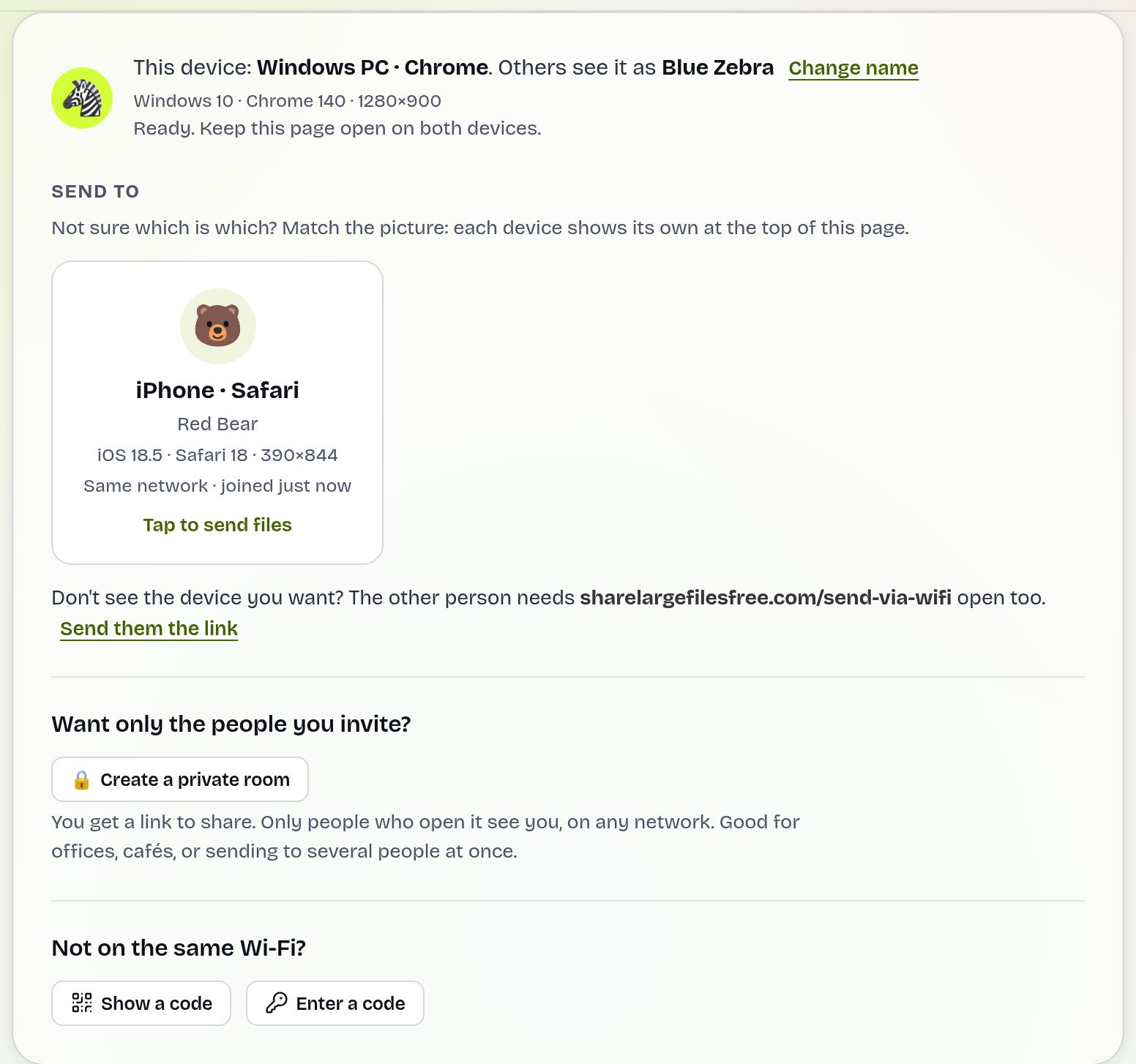
Files travel directly between the two browsers over an encrypted connection, at the speed of your local network, with no size or file count limit. If the PC does not show up, for example on office or guest Wi-Fi that blocks devices from seeing each other, show the 6-digit code on one device and type it on the other. To keep strangers out on shared Wi-Fi, choose Create a private room and open its link on both devices. More detail is in transferring files over Wi-Fi.
USB cable in File transfer mode
- Connect the phone to the PC with a USB cable that carries data, and unlock the phone.
- Pull down the notification shade and tap the USB notification (often "Charging this device via USB").
- Choose File transfer (on some phones File transfer / Android Auto or Transfer files).
- On the PC, open File Explorer. The phone appears under This PC. Open it, then Internal shared storage.
- Photos and videos are in DCIM > Camera; screenshots usually in Pictures > Screenshots; downloaded files in Download. Copy what you need to a folder on the PC.
This is the best route for thousands of photos, because it does not depend on Wi-Fi. Copy to the PC rather than moving, and check the copies before deleting anything from the phone.
Quick Share for Windows
Quick Share (formerly Nearby Share) is built into most Android phones, and Google offers a free Quick Share app for Windows 10 and 11. The PC needs Bluetooth and Wi-Fi switched on.
- Install Quick Share on the PC from Google's Android website and sign in, or set who can find the PC.
- On the phone, select files in Photos or Files, tap Share and choose Quick Share.
- Tap the PC's name. If it is not signed in to the same Google account, accept the transfer on the PC.
Received files go to the PC's Downloads folder by default; you can change this in the app's settings. Samsung phones use the same Quick Share name, and recent versions work with the Windows app too.
Phone Link and Google Drive
Phone Link comes with Windows and pairs with the Link to Windows app on Android. Its Photos tab shows your recent photos and screenshots, which you can drag onto the desktop. Dragging other files between phone and PC works only on supported phones (mainly recent Samsung and some HONOR models), and Microsoft caps how many files and how much data you can move in one go. It is handy for a quick screenshot, not for a folder of 4K video.
Google Drive works if you already have space: upload from the Drive app on the phone, then open drive.google.com on the PC and download. The free 15 GB is shared with Gmail and Google Photos, and each file goes up to the internet and back down, so it is slower than a local transfer.
Which should you use?
For a handful of large videos or documents and both devices at home, use Send via Wi-Fi: no install, no account, no size limit. For a full camera roll or a phone backup, use the USB cable. If you move files from your phone to your own PC every day, Quick Share for Windows is worth installing. If the PC is at work or with someone else, upload on the homepage instead and open the link or download code on the PC; the link lasts 1 day.
Going the other way? See transferring files from a PC to Android. Using a Mac? Read Android and Mac file transfer.
Share Large Files Free is independent and is not affiliated with Google, Microsoft, Samsung or HONOR. Android, Quick Share and Google Drive are trademarks of Google LLC; Windows and Phone Link are trademarks of Microsoft Corporation.
Troubleshooting
- The phone does not appear in File Explorer. Unlock it and choose File transfer again; the default is often charging only. Try another cable, since many cheap cables only charge.
- The phone shows up but looks empty. The screen was locked when it connected. Unlock it and reopen the phone in File Explorer.
- Copying a big folder stops with an error. Copy in smaller batches and keep the phone awake.
- The PC does not appear in Send via Wi-Fi. Check both are on the same network and the page is open on both. On guest or office Wi-Fi, use the 6-digit code, a private room or your phone's hotspot.
- Quick Share cannot find the PC. Turn on Bluetooth on the PC, keep the phone unlocked, and check the PC's visibility setting in the app.
- Videos will not play on Windows. Some phones record HEVC. Install the codec Windows suggests or play the file in VLC.
Frequently asked questions
How do I transfer files from Android to a PC without a cable?
Open sharelargefilesfree.com/send-via-wifi on both devices on the same Wi-Fi and send directly, or use Quick Share for Windows.
Why does my PC not see my Android phone over USB?
The phone is probably in charging-only mode. Unlock it, tap the USB notification and choose File transfer, or try a data cable.
Is there a size limit for Send via Wi-Fi?
No. There is no file size or file count limit; you only need enough free space on the PC.
Where do received files go on the PC?
With Send via Wi-Fi and Quick Share they go to the Downloads folder. With a cable, they go wherever you copy them.
Can I send files to a PC that is not near me?
Yes. Upload them on the homepage, up to 20 GB per transfer, and open the link or download code on that PC.
Ready to send?
Drop your files, get a link, done. Free up to 20 GB — no account needed.
Send files free