Quick answer: Send via Wi-Fi moves files directly between two browsers on the same network, so an iPhone, an Android phone, a Mac and a Windows PC can all exchange files without an app or account. The speed is that of your local Wi-Fi, there is no file size limit, and nothing is stored on a server.
How a Wi-Fi transfer in the browser works
When you open Send via Wi-Fi, each device gets a name and an animal avatar, along with a short description such as "iPhone · Safari" or "Windows · Chrome". Devices on the same network see each other automatically. Our server only introduces them; once they have found each other, the browsers open an encrypted WebRTC connection (DTLS) and the file travels directly from one to the other.
Because the file is never uploaded, nothing is stored on a server and there is no size or file count limit. The only real limit is free space on the receiving device. Both devices do need an internet connection for the introduction, and both pages must stay open until the transfer is finished.
Why local Wi-Fi transfers are fast
A cloud upload has to go out through your internet connection and come back down on the other side, so it is limited by your upload speed, which on many home connections is much slower than the download speed. A local transfer skips that trip. When both devices are on the same Wi-Fi, the data moves across your own network, so the speed depends on your router and how close the devices are to it, not on your internet plan.
For the best results, keep both devices near the router, avoid crowded channels if you can, and use a computer on an Ethernet cable as one end if it is available. A slow or busy internet line hardly matters once the transfer has started.
How to send files over Wi-Fi, step by step
- Connect both devices to the same Wi-Fi network. One device can also be connected to the other's mobile hotspot.
- Open sharelargefilesfree.com/send-via-wifi on both devices in Chrome, Edge, Firefox or Safari. No app or account is needed.
- Find the other device in the list, by its name, animal avatar and device details.
- Tap it and choose files, or drag them onto it on a computer.
- Accept on the receiving device. The transfer starts as soon as the other person taps Accept.
- Keep both pages open, and on phones keep the screen on with the browser in front, until it completes. Received files go to the Downloads folder.
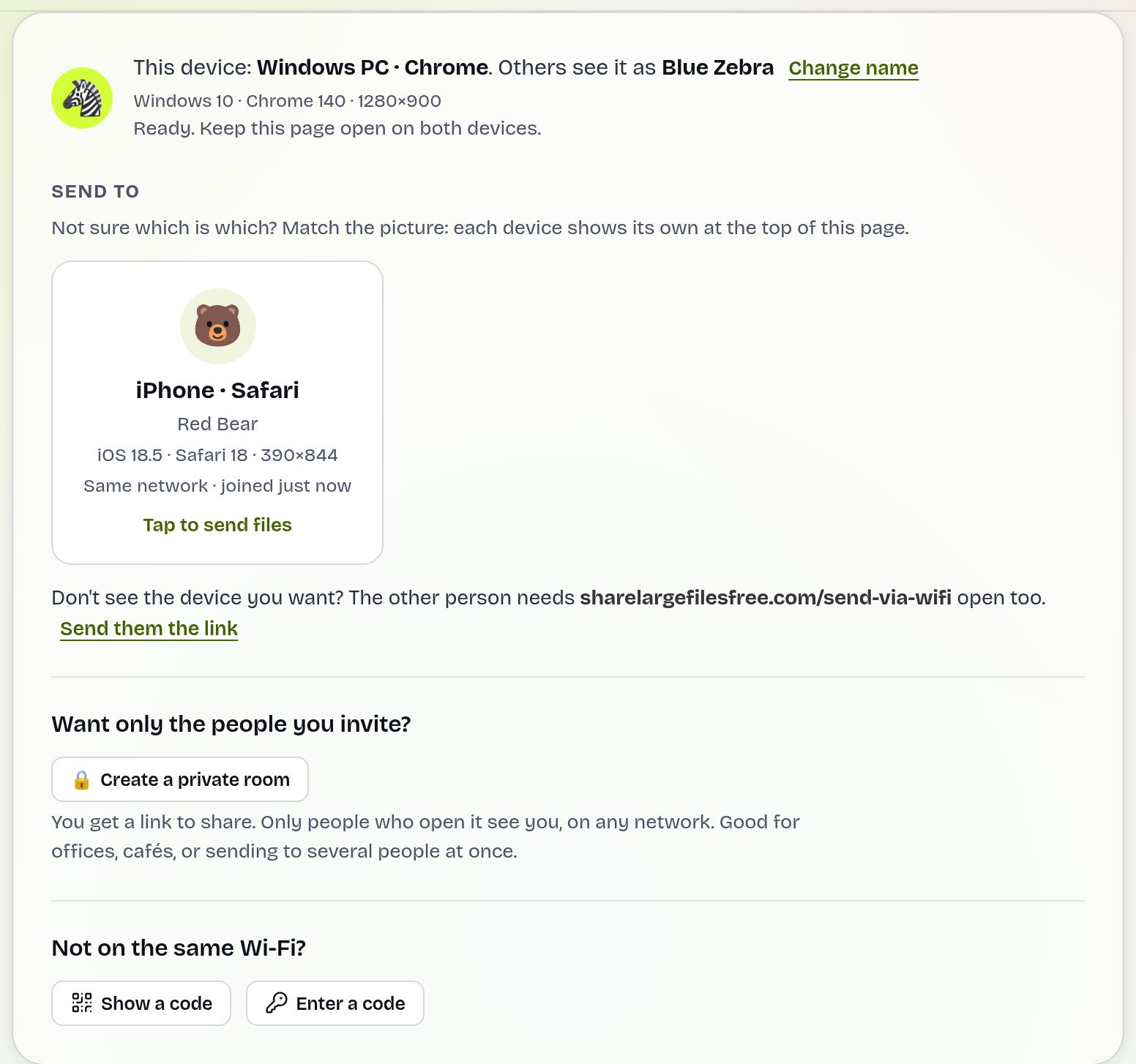
If the other device does not appear, tap the option to show a 6-digit code on one device and type it on the other, or scan the QR code. This also works when the devices are on different networks.
Guest, hotel and office Wi-Fi: client isolation
Many guest networks, hotel networks and some company networks use a setting called client isolation. It lets every device reach the internet but blocks devices from talking to each other, which is exactly what a local transfer needs. You will usually notice it because the devices find each other but the transfer never starts, or because nothing appears at all.
You have three ways around it:
- Use a phone's hotspot. Turn on the hotspot on one phone, connect the other device to it, and transfer over that link. See transferring files over a hotspot.
- Use the 6-digit code with one device on a different network, such as mobile data.
- Use a download link from the homepage. It works on any network and the receiver does not need to be online at the same time.
Private rooms and sending to several devices
On a shared network, such as an office, a café or a classroom, every device on the Wi-Fi that has the page open could appear in the list. To keep things tidy and private, choose Create a private room. You get a link, and only people who open that link see each other. The person who created the room can lock it so nobody else can join, and can remove devices.
Inside a room, Send to everyone sends the same files to every device at once. Each person accepts on their own device, so it is a quick way to hand out a presentation, a set of photos or a project folder to a whole team without uploading anything.
Send via Wi-Fi compared with built-in sharing
Phones and computers have their own nearby sharing features, but each works best within one family of devices.
| Method | Works between | Size limit | Needs |
|---|---|---|---|
| AirDrop | iPhone, iPad and Mac | No fixed limit published | Apple devices, Wi-Fi and Bluetooth on |
| Quick Share | Android phones and tablets, Chromebooks, and Windows PCs with the Quick Share app | No fixed limit published | Bluetooth and location or nearby device settings on |
| Nearby sharing (Windows) | Windows PC to Windows PC | No fixed limit published | Windows 10 or 11, Bluetooth on |
| Send via Wi-Fi | Any phone, tablet or computer with a modern browser | None; limited by free space | Same network (or a code) and a browser |
| Download link | Anyone, anywhere | 20 GB per transfer | A browser; works on any network |
If you are looking for an AirDrop alternative for mixed devices, Send via Wi-Fi is the option that does not care about brand.
Which should you use?
If both devices are Apple, AirDrop is already built in. If both are Android, Quick Share is usually the simplest. For any other mix, such as an iPhone and an Android phone or a Mac and a Windows PC, use Send via Wi-Fi when the devices are in the same place, and a download link when they are not or when the network blocks local connections.
One caveat for iPhone and iPad: Safari holds a received file in memory until it is complete, so a very large file needs enough free memory on the device. For huge files to an iPhone, a download link or a cable is the safer choice.
Share Large Files Free is independent and is not affiliated with Apple, Google, Samsung or Microsoft. AirDrop, iPhone, iPad, Mac and Safari are trademarks of Apple Inc.; Android, Chrome and Quick Share are trademarks of Google LLC; Windows and Edge are trademarks of Microsoft Corporation.
Troubleshooting Wi-Fi transfers
- The other device does not appear. Check that both are on the same Wi-Fi, not one on Wi-Fi and one on mobile data. A VPN can also make a device look like it is elsewhere. Otherwise use the 6-digit code.
- It finds the device but the transfer never starts. The network probably uses client isolation. Switch to a hotspot, or use a download link.
- The transfer stops partway. A phone may have locked its screen or moved the browser to the background. Keep the page in front and send again.
- Strangers appear in the list. Create a private room and share its link only with the people you want.
- I cannot find the received file. Look in the Downloads folder, or on iPhone in the Files app under Downloads.
Frequently asked questions
Can I transfer files over Wi-Fi without an app?
Yes. Open sharelargefilesfree.com/send-via-wifi in a browser on both devices, tap the other device and choose your files.
Is there a file size limit?
No. Files go directly between the devices, so the only limit is free space on the receiver.
Does the file go through the internet?
No. Both devices need internet to find each other, but on the same Wi-Fi the file itself travels over your local network on an encrypted connection.
Why can my devices not see each other on hotel Wi-Fi?
Many guest networks block devices from connecting to each other. Use a phone hotspot, the 6-digit code, or a download link.
Can I send to several devices at once?
Yes. Create a private room, have everyone open its link, and use Send to everyone. Each person accepts on their own device.
Ready to send?
Drop your files, get a link, done. Free up to 20 GB — no account needed.
Send files free