Quick answer: If AirDrop does not show the other device or gets stuck on Waiting, set AirDrop on the receiving device to Everyone for 10 Minutes, turn on Wi-Fi and Bluetooth on both, turn off Personal Hotspot, keep both devices unlocked and close together, and on a Mac make sure the firewall is not blocking all incoming connections. If it still fails, or one device is not an Apple device, open Send via Wi-Fi in the browser on both devices or send a download link.
Quick checklist: try these first
- On the receiving device, set AirDrop to Everyone for 10 Minutes. Contacts Only fails more often than you would expect.
- Turn on Wi-Fi and Bluetooth on both devices. You do not need to join a Wi-Fi network, but the radios must be on.
- Turn off Personal Hotspot on both iPhones.
- Wake and unlock the receiver and keep it unlocked until the prompt appears.
- Bring the devices close together, within a few metres, with no walls between them.
- Turn off Focus (Do Not Disturb and similar) on the receiver while you test.
- Restart both devices if none of that helps.
Fix 1: the receiver's AirDrop setting
AirDrop has three receiving modes, and the wrong one is the most common cause of a device that never shows up:
| Setting | Who can send to you | When it causes trouble |
|---|---|---|
| Receiving Off | Nobody | Always: the device is invisible |
| Contacts Only | People in your contacts | When the sender's email or phone number in your contacts does not match their Apple Account exactly |
| Everyone for 10 Minutes | Anyone nearby, then it switches back to Contacts Only | Rarely; just set it again after 10 minutes |
On iPhone or iPad, it is usually under Settings > General > AirDrop, or press and hold the network card in Control Center and tap AirDrop. On a Mac, open a Finder window, click AirDrop in the sidebar and change Allow me to be discovered by; it is also in Control Center. Menu names vary a little between versions. If a work or school iPhone has no AirDrop option at all, it may be turned off by a device profile or by Screen Time > Content & Privacy Restrictions > Allowed Apps.
Fix 2: Bluetooth, Wi-Fi and Personal Hotspot
AirDrop uses Bluetooth to find nearby devices and a direct Wi-Fi link to move the file. Both radios must be on; switching Wi-Fi off from Control Center may only disconnect it from a network, so check in Settings if in doubt.
Personal Hotspot is the hidden culprit. While an iPhone is sharing its connection, its Wi-Fi is busy and AirDrop does not work properly. Turn it off in Settings > Personal Hotspot, and turn off the toggle for Allow Others to Join as well. On a Mac, internet sharing can interfere in the same way.
Fix 3: stuck on Waiting, or the transfer says Declined
- Waiting forever: the receiver is locked, asleep, or the prompt is hidden. Unlock it and look for the AirDrop prompt; a Focus mode can keep it out of sight.
- Declined straight away: the receiver tapped Decline, or there was not enough free storage for the file. Free up space and try again.
- Fails halfway on a big file: keep both screens on and the devices close. Very large videos sometimes fail on the first try and work on the second.
- Sent but cannot find it: on a Mac, AirDropped files go to the Downloads folder. On iPhone, photos and videos go to Photos, and other files ask which app to open them with, often Files.
Fix 4: a Mac that never appears
The Mac firewall can block AirDrop completely. Open System Settings > Network > Firewall > Options (on older macOS, System Preferences > Security & Privacy > Firewall) and turn off Block all incoming connections. Leaving the firewall itself on is fine.
Also check that the Mac is not asleep with the lid closed, that Finder's AirDrop window is open while you test, and that Bluetooth is on. Very old Macs and very old iPhones may not see each other at all; update both devices if you can. Security software and VPNs on the Mac can also get in the way, so try with them paused.
If nothing works: other ways to send
AirDrop only works between Apple devices, and sometimes it simply refuses. Send via Wi-Fi does the same job in any browser, Apple or not:
- Connect both devices to the same Wi-Fi, or connect one to the other's Personal Hotspot with mobile data on.
- Open sharelargefilesfree.com/send-via-wifi in Safari or Chrome on both devices.
- Tap the other device when it appears, with its name and animal avatar.
- Pick the files. The receiver taps Accept, and the files go directly between the two browsers over an encrypted connection, with no file size limit.
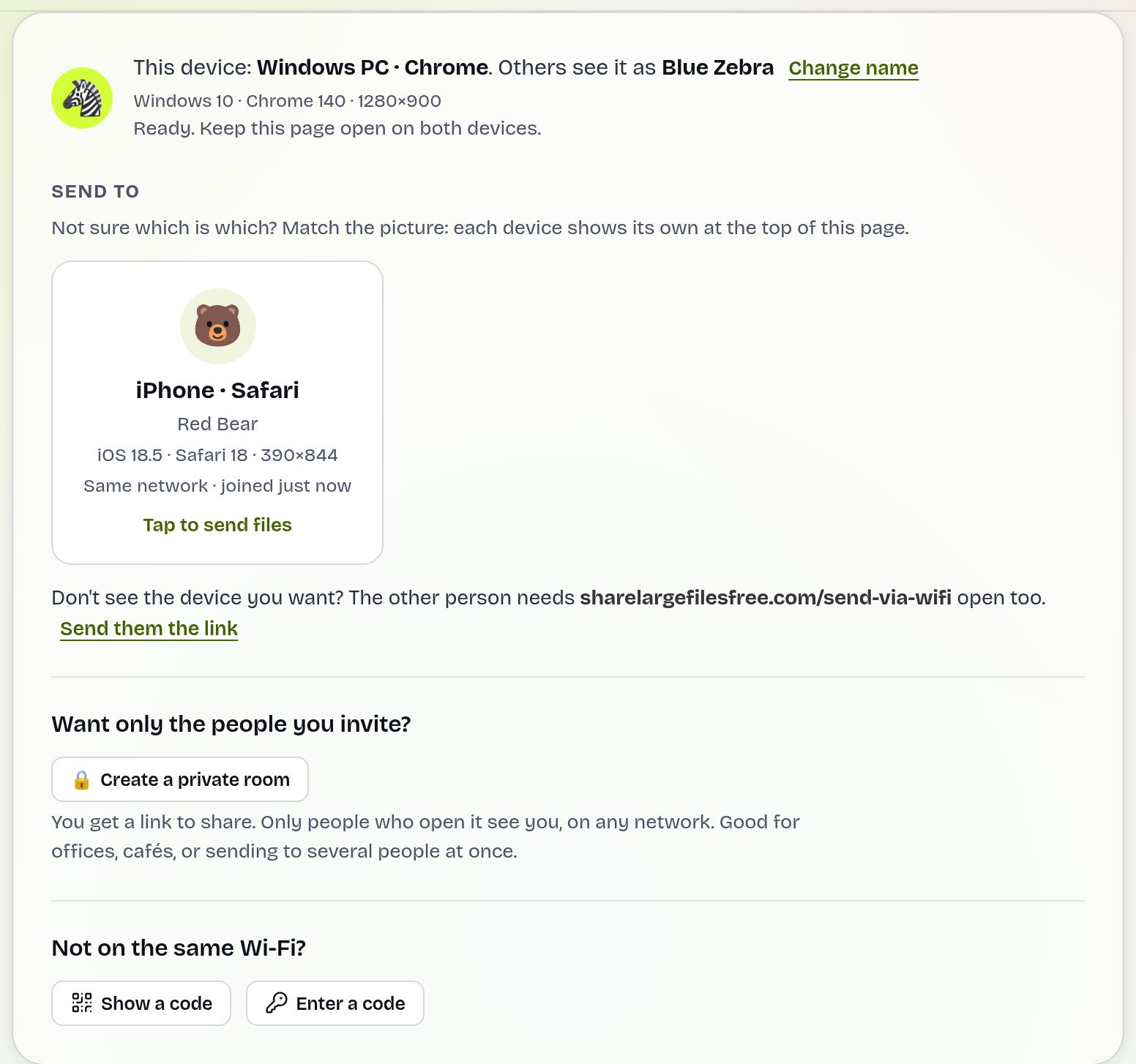
Both devices need internet so our server can introduce them; the file itself does not go through the server. If the devices are on different networks, use the 6-digit code instead. For an iPhone receiving a very large file, Safari holds it in memory until it is complete, so a cable or a link may suit a huge file better.
If the other person is not nearby, upload once and send a download link: up to 20 GB per transfer, kept for 1 day, in original quality. For more options, see the AirDrop alternative guide.
Which should you use?
Between two Apple devices that are close together, AirDrop is worth the two minutes of checking above. If one device is Android or Windows, or AirDrop still will not connect, use Send via Wi-Fi. If the person is somewhere else, use a link.
Share Large Files Free is independent and is not affiliated with Apple. iPhone, iPad, Mac, AirDrop and Personal Hotspot are trademarks of Apple Inc.
Frequently asked questions
Why is my iPhone not showing up in AirDrop?
Usually its AirDrop setting is Receiving Off or Contacts Only, Bluetooth or Wi-Fi is off, or Personal Hotspot is on. Set it to Everyone for 10 Minutes and try again.
Does AirDrop need internet?
No. It uses Bluetooth and a direct Wi-Fi link between the devices.
Why does AirDrop say Declined?
The receiver declined, or there was not enough free storage for the file.
Can I AirDrop to an Android phone or Windows PC?
Not with AirDrop itself. Use Send via Wi-Fi in the browser on both devices, or a download link.
Why can my Mac not receive AirDrop?
Check that Block all incoming connections is off in the firewall options, Bluetooth is on and the Mac is awake.
Ready to send?
Drop your files, get a link, done. Free up to 20 GB — no account needed.
Send files free