Quick answer: Between an iPad and a Windows PC you can send directly in the browser with sharelargefilesfree.com/send-via-wifi, copy with a USB drive plugged into the iPad, use the Apple Devices app or iTunes file sharing over a cable, or sync with iCloud for Windows. On the iPad, received files land in Files > Downloads.
What an iPad can and cannot do with a PC
An iPad does not appear as an ordinary drive in File Explorer. Windows can see its photo and video folder (DCIM) for importing, but not its documents. On the other hand, the iPad's Files app is more capable than the iPhone's with accessories: iPads with a USB-C port can read USB flash drives and external SSDs directly, which gives you a simple way to move large files without any cloud.
For the phone versions of this, see iPhone to PC and PC to iPhone.
Methods compared
| Method | Direction | Best for | Needs |
|---|---|---|---|
| Send via Wi-Fi (browser) | Both ways | A few files, no setup | Same network, both pages open |
| USB drive in the Files app | Both ways | Very large videos and folders | A USB-C iPad (or an adapter) and an exFAT drive |
| Apple Devices app or iTunes file sharing | Both ways, per app | Files for one app, like VLC | A cable and an app that supports file sharing |
| Windows photo import | iPad to PC | Photos and videos | A cable, then File Explorer or the Photos app |
| iCloud for Windows | Both ways | Documents kept in sync | Enough iCloud storage |
| Download link | Both ways | Devices in different places | Only a browser; up to 20 GB |
Send via Wi-Fi in both directions
- Open sharelargefilesfree.com/send-via-wifi in Safari on the iPad and in Edge, Chrome or Firefox on the PC, both on the same Wi-Fi.
- Each device lists the other with a name, an animal avatar and details such as "iPad · Safari" or "Windows · Edge".
- On the sending device, tap or click the other one and choose files. On the PC you can drag them from File Explorer; on the iPad pick from Photos or Browse.
- Tap or click Accept on the receiving device.
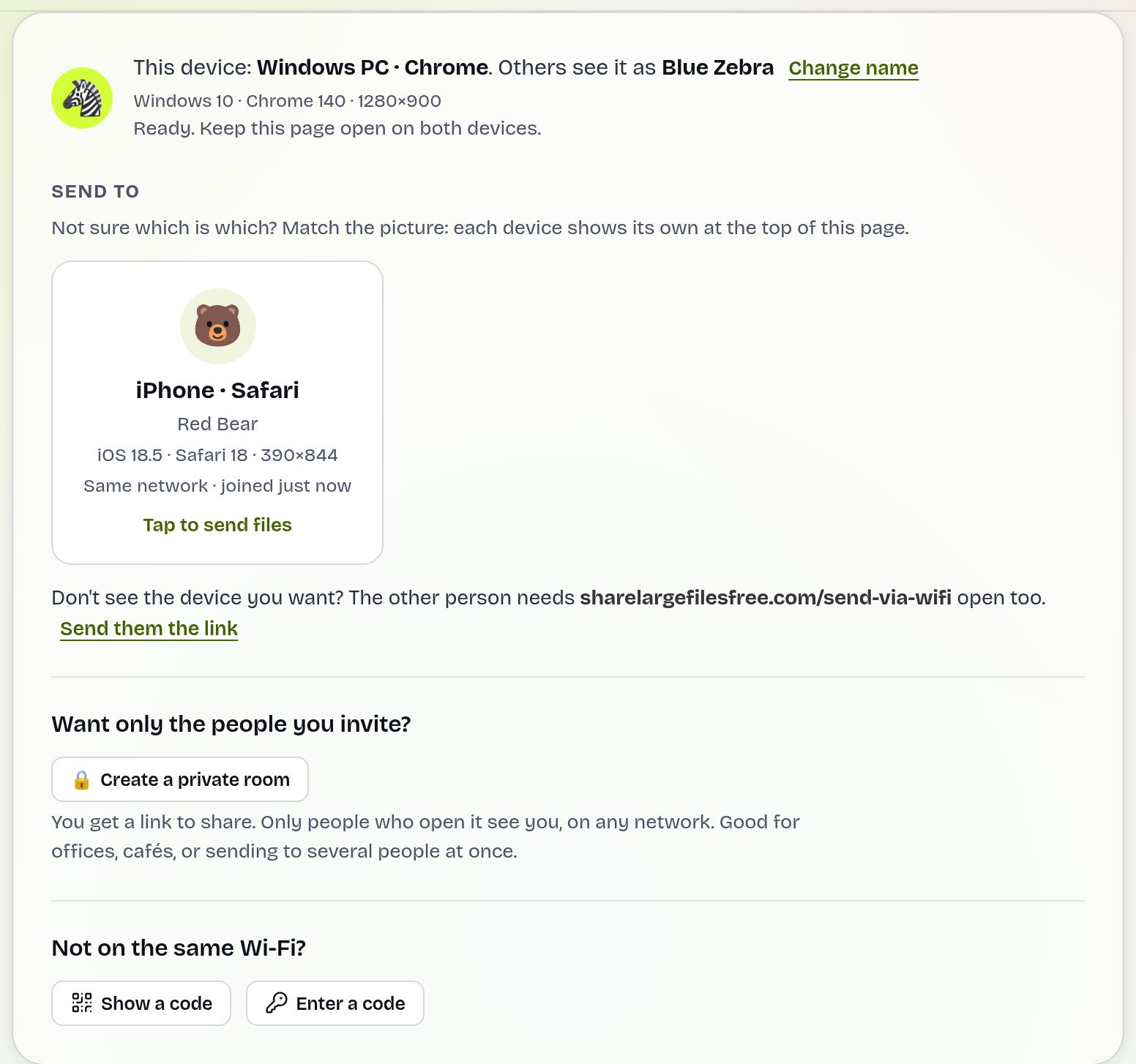
On the PC, files go to the Downloads folder. On the iPad, they go to Files > Downloads; keep Safari in front and the screen on while receiving. Nothing is uploaded to a server, and there is no size limit on our side. An iPad holds each incoming file in memory until it is complete, though, so sending a file of many gigabytes to the iPad may fail; use the USB drive method for those. Sending from the iPad to the PC has no such issue. If the two do not see each other, use the 6-digit code.
USB drive in the iPad Files app
- Format a USB stick or SSD as exFAT on the PC (right-click it in File Explorer, Format). exFAT works on both Windows and iPadOS and allows files over 4 GB.
- Copy the files onto it on the PC, then plug it into the iPad's USB-C port (Lightning iPads need Apple's camera adapter, and some drives need more power than that provides).
- Open the Files app; the drive appears under Locations. Long-press files and choose Copy, then paste into On My iPad, or the other way round.
This is the most reliable way to move a long film or a whole project folder, because there is no network involved.
Apple Devices app, iTunes and photo import
On Windows 11, install the Apple Devices app from the Microsoft Store; on Windows 10, iTunes does the same job. Connect the iPad, unlock it and tap Trust, select it, then open Files (in iTunes, File Sharing). Drag files onto an app such as VLC or a PDF reader to copy them to the iPad, or select a file in an app's list and save it to the PC. Only apps that support file sharing appear.
For photos and videos from the iPad, open File Explorer, then This PC > Apple iPad > Internal Storage > DCIM, or use Import in the Windows Photos app. If you want JPEG and H.264 instead of HEIC and HEVC, set Settings > Photos > Transfer to Mac or PC to Automatic.
iCloud for Windows
Install iCloud for Windows from the Microsoft Store and turn on iCloud Drive (and iCloud Photos if you like). An iCloud Drive folder appears in File Explorer; anything you put there shows up in the iPad's Files app, and the other way round. It is the right choice for documents you work on in both places. The free tier is small, so large videos usually need iCloud+.
Which should you use?
For a handful of files at home, use Send via Wi-Fi. For anything huge going onto the iPad, a USB drive in the Files app is quickest and safest. Use the Apple Devices app when the file belongs in one app, and iCloud Drive when you want both devices to stay in sync. If the iPad is somewhere else, upload on the homepage and share the link, valid for 1 day. Mixing in a Mac too? See Windows to Mac.
Share Large Files Free is independent and is not affiliated with Apple or Microsoft. iPad, iCloud, iTunes and Safari are trademarks of Apple Inc.; Windows is a trademark of Microsoft Corporation.
Troubleshooting
- The USB drive does not appear on the iPad. Reformat it as exFAT, try a powered hub, and check it is not NTFS-formatted, which iPadOS may only read.
- The Apple Devices app does not see the iPad. Unlock it, tap Trust and try another cable or port.
- DCIM is empty in File Explorer. Unlock the iPad; with Optimize iPad Storage on, originals may be in iCloud only.
- Large transfer to the iPad fails in the browser. Close other apps and retry, or use a USB drive or download link.
- Devices do not see each other in Send via Wi-Fi. On office or guest Wi-Fi, use the 6-digit code.
Frequently asked questions
Can I use a USB stick with an iPad?
Yes. iPads with USB-C read USB drives in the Files app; older iPads need a camera adapter. exFAT works best.
Do I need iTunes to move files to an iPad?
No. Send via Wi-Fi, a USB drive or iCloud Drive need no iTunes. On Windows 11 the Apple Devices app replaces it.
Where do files from my PC go on the iPad?
Browser transfers land in Files > Downloads; file sharing puts them in the app you chose.
Why does my PC only show photos from the iPad?
Windows sees only the DCIM camera folder. Use file sharing, a USB drive or Send via Wi-Fi for other files.
Ready to send?
Drop your files, get a link, done. Free up to 20 GB — no account needed.
Send files free