Quick answer: Use AirDrop for everyday transfers from iPhone to Mac. For thousands of photos or very long videos, connect a cable and import with Image Capture or Photos. If AirDrop does not see the Mac, open Send via Wi-Fi in Safari on both devices and send directly over your Wi-Fi, with no size limit.
Start with AirDrop
Honestly, AirDrop is very good at this. Both devices are made by the same company, the transfer is direct and encrypted, and it keeps photos and videos in full quality. If it works for you, keep using it.
- On the Mac, open Finder and click AirDrop in the sidebar. Set Allow me to be discovered by to Contacts Only or Everyone.
- On the iPhone, select the photos or files, tap Share, then AirDrop, and tap your Mac.
- If both devices use the same Apple Account, the files arrive without a prompt. Otherwise, accept on the Mac.
- Files land in the Mac's Downloads folder.
To keep location and edit history with photos, tap Options at the top of the share sheet and turn on All Photos Data where your iOS version offers it.
Methods compared
| Method | Best for | Size | Needs |
|---|---|---|---|
| AirDrop | Everyday photos, videos and files | No published limit; big batches can stall | Wi-Fi and Bluetooth on both |
| Cable with Image Capture or Photos | A whole camera roll | Limited by disk space | A data cable and a trusted connection |
| iCloud Photos and iCloud Drive | Everything in sync, all the time | Your iCloud storage plan | Same Apple Account on both |
| Send via Wi-Fi (browser) | When AirDrop will not show the Mac | No limit; needs free space on the Mac | Safari on both, same network |
| Download link | A Mac that is not nearby | Up to 20 GB per transfer | Only a browser |
When AirDrop fails, and why
- The Mac is not in the list. Wake and unlock the Mac, keep both devices close, and check that Wi-Fi and Bluetooth are on. Turn off Personal Hotspot on the iPhone, which can block AirDrop.
- Discovery settings. On the iPhone, Settings > General > AirDrop controls receiving; on the Mac, the Finder AirDrop window does. Contacts Only needs each person's Apple Account details in the other's Contacts.
- Managed or older Macs. Work and school Macs sometimes have AirDrop turned off by IT, and very old Macs may not support AirDrop with an iPhone at all.
- Big batches. Sending hundreds of photos or a long 4K video can stall or fail partway. Send smaller groups, or use a cable.
Send via Wi-Fi when AirDrop will not show the Mac
Send via Wi-Fi works in any browser, so it does not care which settings AirDrop has.
- Open sharelargefilesfree.com/send-via-wifi in Safari on the iPhone and in Safari, Chrome or Firefox on the Mac. Use the same Wi-Fi network.
- Tap the Mac on the iPhone. It shows a name, an animal avatar and details such as "Mac · Safari".
- Choose files from Photo Library or Browse (the Files app).
- Click Accept on the Mac. The files are saved to Downloads.
- Keep Safari in front and the iPhone screen on until the transfer finishes.
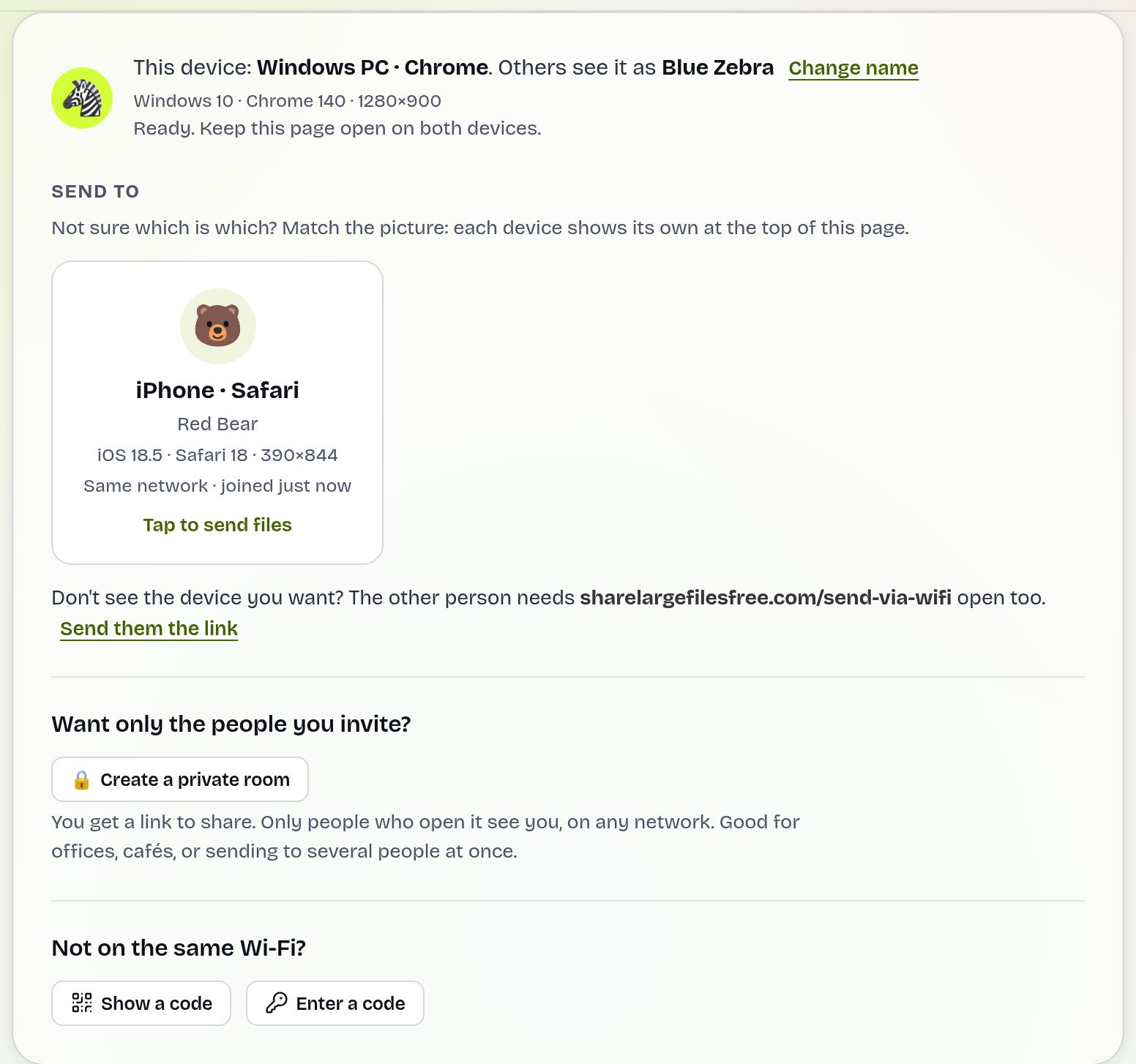
Files go directly between the two browsers over an encrypted connection and are not stored on a server. There is no size limit. Both devices need internet access so our server can introduce them. If the Mac is on another network, type the 6-digit code instead. To send originals without iOS converting them, save items to the Files app first and pick them through Browse.
Cable import with Image Capture or Photos
- Connect the iPhone with a USB cable, unlock it, and tap Trust if asked.
- Open Image Capture (in Applications) and select the iPhone in the sidebar. Or open Photos and click the iPhone under Devices.
- Choose a destination folder in Image Capture, select the items, and click Download (or Import in Photos).
This is the most reliable way to move thousands of photos, and Image Capture saves plain files to a folder you pick, without adding them to a Photos library. For documents in apps, select the iPhone in the Finder sidebar and open the Files tab. If photos arrive as JPEG when you wanted HEIC, set Settings > Photos > Transfer to Mac or PC to Keep Originals.
iCloud Photos and iCloud Drive
With iCloud Photos turned on with the same Apple Account on both devices, new photos appear on the Mac automatically. Files saved to iCloud Drive appear in Finder. The free iCloud tier is small, so a large library usually needs iCloud+, and if Optimize Storage is on, the full original may need to download before you can use it.
Which should you use?
Use AirDrop first. For a whole camera roll or anything AirDrop keeps failing on, plug in a cable and use Image Capture. If you already pay for iCloud, let it sync. When AirDrop simply will not show the Mac, or the Mac is managed or old, Send via Wi-Fi is the quickest fallback. For a Mac somewhere else, share a download link of up to 20 GB, valid for 1 day. Sending to Windows instead? See iPhone to PC, or the AirDrop alternative guide.
Share Large Files Free is independent and is not affiliated with Apple. iPhone, Mac, AirDrop, iCloud, Finder and Safari are trademarks of Apple Inc.
Troubleshooting
- AirDrop says "Waiting" and then fails. Unlock the Mac, move the devices closer, and toggle Wi-Fi and Bluetooth on both.
- The iPhone does not appear in Image Capture. Unlock it, tap Trust, and try another cable. Some cables only charge.
- Imported videos look small. They may be iCloud placeholders. Download originals on the iPhone first, or turn off Optimize iPhone Storage.
- The devices do not see each other in Send via Wi-Fi. Guest or office networks may block it. Use the 6-digit code or the iPhone's Personal Hotspot with mobile data on.
Frequently asked questions
Where do AirDropped files go on a Mac?
To the Downloads folder.
Is there an AirDrop size limit?
Apple does not publish one, but very large batches can stall. A cable or Send via Wi-Fi is more dependable for those.
Why will my iPhone not show my Mac in AirDrop?
Usually the Mac is asleep, discovery is set too narrowly, Personal Hotspot is on, or IT has disabled AirDrop.
How do I move thousands of photos from iPhone to Mac?
Connect a cable and import with Image Capture or Photos.
Can I transfer without AirDrop or a cable?
Yes. Open Send via Wi-Fi in Safari on both devices, or use iCloud.
Ready to send?
Drop your files, get a link, done. Free up to 20 GB — no account needed.
Send files free