Quick answer: Upload your photos and videos and share the link as usual; there is nothing to switch on. When at least two files, and roughly 60% or more of the transfer, are photos or videos the browser can show (JPG, PNG, GIF, WebP, AVIF, MP4, MOV, WebM and similar), the download page opens as a grid of thumbnails. Recipients tap one for the full-screen viewer, tick the ones they want and press Download selected, or use Select all. On phones, Save to Photos puts the picks straight into the gallery. Files are always the originals.
When an album link is useful
- Weddings, parties and school events: guests scroll through, pick the photos they are in and download only those.
- Family trips: one link for everyone, without a shared-album app or compressed copies in a chat.
- Property, product and site photos: a colleague or supplier can browse the set before deciding what to download.
The album is just a nicer way to show an ordinary transfer, so everything else still works: passwords, download limits, expiry and tracking.
How to send an album
- Upload the photos and videos, or a folder (up to 1000 files and 20 GB per transfer).
- Choose Get a link or Send by email and send. No setting is needed; the album appears by itself.
- Optional: in More settings, add client review so people can heart favourites, or Brand the download page with your name.
What the recipient sees
The page opens with a heading such as "24 photos and videos", plus "+ 2 other files" if there are documents too, and a grid of thumbnails. Video tiles show their first frame and a play symbol.
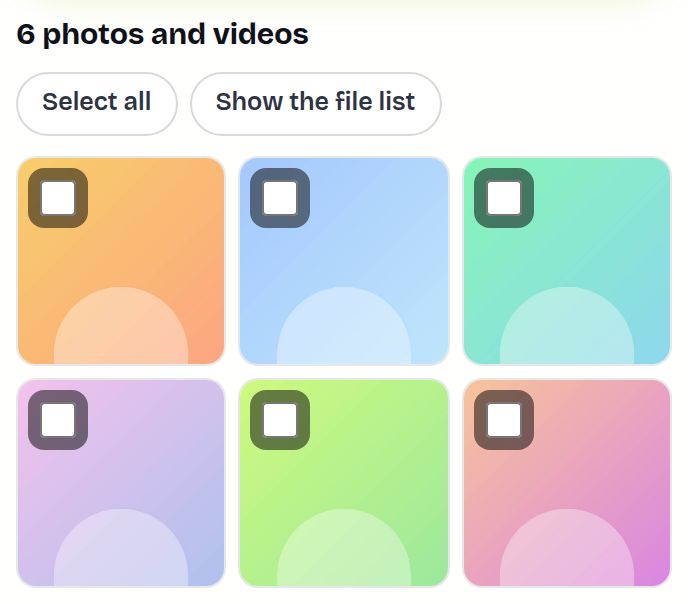
- Tap a tile to open the full-screen viewer; videos play there.
- Tick the box on the tiles they want, or press Select all. The bar shows "3 selected" with Download selected. Selecting everything downloads the transfer as one ZIP.
- On phones, Save to Photos fetches the picks, then a second tap opens the share sheet where they choose Save image or Save video.
- Show the file list switches to the plain list with sizes and file types.
Which files show in the album
| Type | In the album |
|---|---|
| JPG, PNG, GIF, WebP, AVIF, BMP | Yes, with thumbnails |
| MP4, MOV, M4V, WebM | Yes, playable where the browser supports the codec |
| HEIC, camera RAW (CR3, NEF, ARW, DNG…), PSD, TIFF | No preview; listed and downloadable as usual |
| PDFs, documents, ZIPs | Listed under the album |
A shoot sent as RAW only shows as a list. Add JPG exports so people can browse, or convert iPhone photos with HEIC to JPG, and keep the originals in the same transfer.
Example: sharing a family wedding
Neha has the best photos and a few clips from her cousin's wedding. She uploads them with Get a link and pastes the link into the family WhatsApp group. Her aunt opens it on her phone, scrolls the album, ticks the six photos she is in and taps Save to Photos. Her uncle on a laptop presses Select all and gets everything as one ZIP. Nobody installs an app, and every photo arrives at full resolution.
Tips for a better album
- Rename key files before uploading: the name appears under each tile, so "Stage-dance-01.jpg" helps more than "IMG_4821.JPG".
- Add a short message such as "Photos from Sunday, tick the ones you want" so people know what to do.
- For a big shoot, send the best selection in one transfer and the rest in a second; each transfer holds up to 1000 files.
- Want to know which photos people liked? Stats on your Transfers page lists the files viewed most, with views and downloads per file.
Album link vs. the usual ways
| Album link | WhatsApp media | |
|---|---|---|
| Quality | Original files | Usually compressed unless sent as documents |
| Pick and download some | Yes, Download selected | Saved one by one |
| Uses storage | No account storage; expires after 1 day | Fills every member's phone |
Limits and troubleshooting
- Shown as a list, not an album: fewer than two previewable files, or most files are RAW, HEIC or documents. Add JPG or MP4 versions.
- No tick boxes or Download selected: the transfer is view only or set to delete after download, which allow no single-file downloads.
- No Save to Photos button: it appears only on phones whose browser can share files; use Download selected instead.
- A video tile stays black: the browser cannot play that codec (some HEVC files). The download is still the original.
- The transfer limits still apply: 1000 files per transfer, so send larger sets in several transfers.
- The browser asks to allow multiple downloads: Download selected saves each picked file separately; tap Allow.
- A ZIP will not open on a phone: use Download selected or Save to Photos instead of selecting everything, or open the ZIP in the Files app.
Share Large Files Free is independent and not affiliated with the companies named on this page. WhatsApp and iPhone are trademarks of their respective owners.
Frequently asked questions
How do I turn on the album view?
You do not need to. It appears automatically when most files in the transfer are photos or videos the browser can show.
Are the photos compressed?
No. Thumbnails are only for browsing; every download is the original file.
Why are my HEIC or RAW photos shown as a list?
Browsers cannot preview those formats. Add JPG versions to get the album, and keep the originals in the same transfer.
Can people download only some photos?
Yes. They tick the ones they want and press Download selected, or use Save to Photos on a phone.
Do viewers need an account?
No. The album opens in any browser on a phone or computer.
How long does the album link last?
Links expire after 1 day. You can keep it longer from your Transfers page.
Ready to send?
Drop your files, get a link, done. Free up to 20 GB — no account needed.
Send files free