Quick answer: When a link transfer is ready, the finished screen shows a QR code labelled "Scan to download" next to the link. The other person points their phone camera at it and the download page opens. Use Download QR to save it as an image, or Share QR on phones. For a wall, desk or slide, open your Transfers page, choose More > QR poster, add a title and an optional short message, and press Print or save as PDF. Recipients can also scan with Scan QR code on the Receive page.
When a QR code is the easiest way
- Face to face: a client in your studio, a colleague at the next desk, a parent at the school gate.
- A room of people: a classroom, a workshop, a conference talk or an event table.
- Print: a notice board, a product box, a menu or a visiting card that should lead to a file.
Show the QR code on your screen
- Upload your files with Get a link selected and press Get link.
- When the upload finishes, the QR code appears next to the link, labelled Scan to download.
- The other person scans it with their phone camera. No app is needed on either side.
- To pass the code itself on, press Download QR (saves a PNG) or, on phones, Share QR.
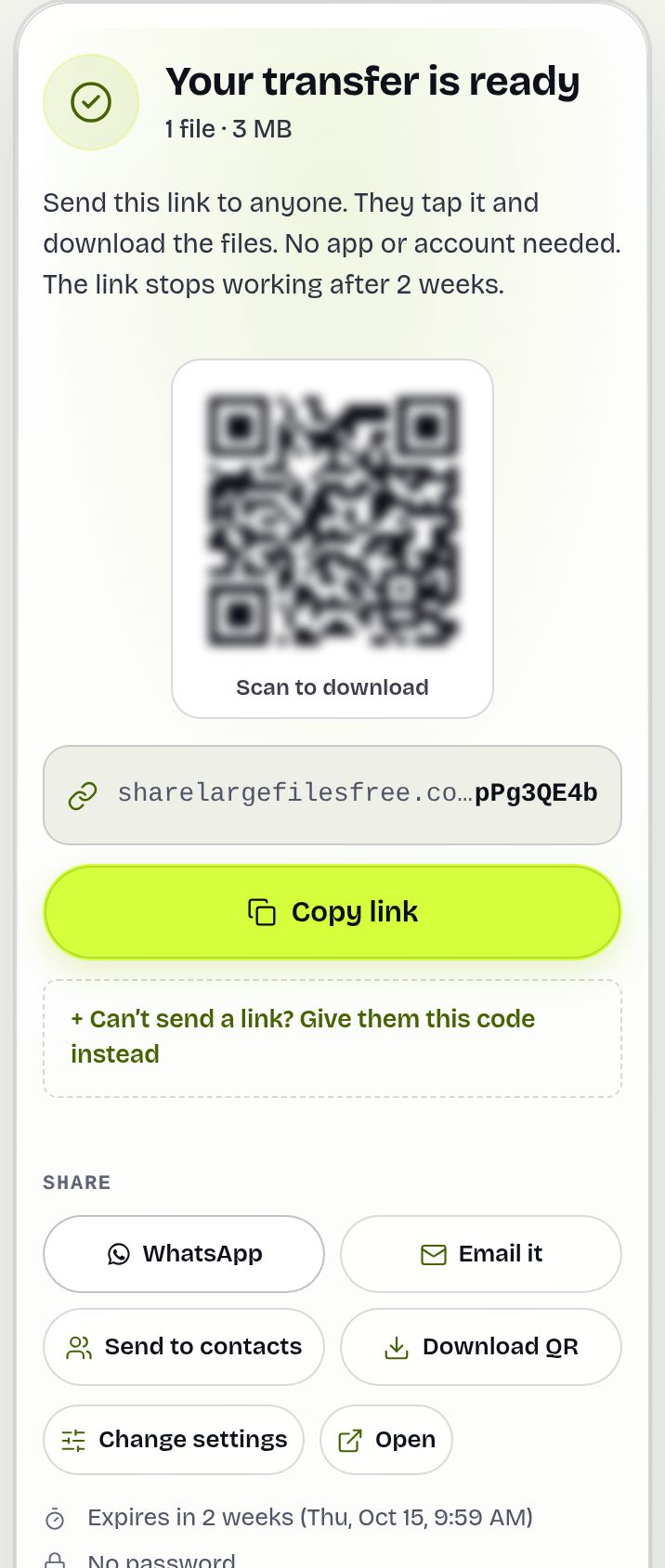
If you set a custom short link, the QR code opens that address.
Print a QR poster
- On your Transfers page, press More on the transfer and choose QR poster.
- Type a Title and an optional Short message, and choose whether to Show the expiry date.
- Press Print or save as PDF. Only the poster is printed: a large black-on-white code, "Scan to download", and the link written underneath for people who prefer typing.
If the transfer has a password, the poster says "Ask the sender for the password" instead of printing it. Each personal link has its own Poster button, labelled with that person's name, so each team or room can have its own code.
Example: a workshop handout
Dev runs a photography workshop and wants all 30 participants to get the presets and a sample RAW file. He uploads them, makes a QR poster titled "Workshop files", shows the expiry date and puts the PDF on his last slide. Participants scan from their seats; anyone who missed it types the short address printed under the code. Afterwards Stats show how many downloaded.
What the person scanning sees
Their camera app shows the link; tapping it opens the download page in the browser, with the files, sizes and a Download button. Any password, confirmed email or download limit you set applies as usual.
QR code, short link or download code?
| Situation | Use |
|---|---|
| Someone next to you with a phone | QR code on the finished screen |
| Classroom, office wall, event table | Printed QR poster |
| Slide at the end of a talk | Downloaded QR image in your slides |
| Phone call, radio, whiteboard | A short link or download code |
| Both devices in the same room, very large files | Send via Wi-Fi, which can pair devices with a code or QR code |
Scan on a laptop or tablet
A laptop has no camera app for QR codes, but the Receive page does: press Scan QR code, allow camera access once, and hold the code up to the webcam. The download page opens on that device. For codes on a projector, scan from the middle of the room first to check the size.
Limits: what a QR code does not do
- A QR code is just the link. Anyone who photographs a poster can open it, so add a password, a confirmed email, a download limit or a closing time for anything private.
- It stops working when the transfer expires after 1 day. Showing the expiry date on the poster avoids confused scans later.
- Email transfers have no QR code or poster, because each recipient gets a private link.
- Only the sender can open the poster page, from the browser they sent from or when signed in.
Tips and troubleshooting
- Test-scan the printout, and print it large enough for the distance people will stand at.
- The camera does not react: use the Scan QR code button on the Receive page, or type the link.
- No Share QR button: your browser cannot share images; use Download QR.
- Need a QR code for something else, like a website or Wi-Fi details? Use the free QR code generator.
- The poster says only the sender can make it: open it from the Transfers page in the browser you sent from, or sign in first.
- People scan an old poster: the transfer has expired. Press Keep it longer on the Transfers page before the date, or print a new poster for a new transfer.
Frequently asked questions
How do I share files with a QR code?
Upload with Get a link. The finished screen shows a QR code; the other person scans it with their phone camera.
Does the person scanning need an app?
No. Most phone cameras open QR codes, and the download page works in any browser.
Can I print the QR code?
Yes. Choose More > QR poster on your Transfers page, add a title, then Print or save as PDF.
Is the password printed on the poster?
No. The poster only says to ask the sender for the password.
What happens when the transfer expires?
The code opens a page saying the transfer is no longer available. Keep the transfer longer from your Transfers page to avoid that.
Is it free?
Yes, for any link transfer up to 20 GB.
Ready to send?
Drop your files, get a link, done. Free up to 20 GB — no account needed.
Send files free