Quick answer: Most failed uploads are caused by a weak or dropping connection, sleep mode, a phone browser sent to the background, or a VPN or network filter. Keep the device awake and the browser in front, use a stable connection, and pause VPNs. On Share Large Files Free, uploads go up in pieces: a dropped connection pauses the upload and it continues by itself, and after a closed tab you can pick the same files to continue where it stopped.
Quick checklist: try these first
- Keep the browser in front and the screen on, especially on a phone.
- Stop the computer sleeping and plug in a laptop.
- Move closer to the router, or use an Ethernet cable.
- Pause your VPN and other big uploads such as cloud backups.
- Check the file is under 20 GB, the limit per transfer.
- Try another browser, or a private window without extensions.
What happens on our site when an upload is interrupted
Files go up in pieces rather than in one long request, so a problem usually costs a few seconds, not the whole upload:
| What went wrong | What the page does | What you do |
|---|---|---|
| A short drop | Retries the failed piece a few times | Nothing |
| Connection gone for longer | Shows Connection lost — upload paused, checks the connection regularly and continues by itself | Wait, or press Resume now |
| Tab closed, browser crashed, phone reloaded the page | The server keeps what it received for a limited time | Open the upload page in the same browser and pick the same files |
| File larger than 20 GB | The file is not added, with a note that it is over the limit | Compress, split or send in parts |
After a closed tab, a banner on the upload page says you have an unfinished upload. Press Pick the same files and choose them again; each file continues from the last piece the server has. Browsers do not let a page keep access to your files after a reload, which is why you choose them again. Use the same browser, and do not rename or edit the files, or they start from zero. The full details are in resume an interrupted upload.
Cause 1: the connection keeps dropping
- Weak Wi-Fi is the classic cause. Sit near the router, or plug in a cable.
- Mobile data can switch masts or drop in lifts and trains. Upload from a fixed place.
- Public and hotel Wi-Fi may log you out after a time limit. Check that you are still connected.
- Other uploads (photo backup, cloud sync, video calls) share the same upload bandwidth. Pause them.
Cause 2: sleep, background tabs and battery saving
A sleeping computer stops uploading. On Windows, set a longer time under Settings > System > Power & battery > Screen and sleep; on a Mac, look in System Settings > Battery or Energy for options that stop automatic sleep. Names vary by version.
Phones are stricter. iOS and Android may pause a browser tab as soon as you switch apps or the screen locks, and low power or battery saver modes make it worse. Keep the browser in front and the screen on until the upload finishes. If the page was paused, it continues once you return to it and the connection is back.
Cause 3: VPNs, filters and the browser itself
- VPNs can slow uploads and reconnect in the middle. Pause it for the upload if you can.
- Company or school networks may block or limit large uploads. Try another network.
- Browser extensions such as ad blockers or privacy tools occasionally interfere. A private window usually runs without them.
- An outdated browser can misbehave. Update it, or try Chrome, Edge, Firefox or Safari.
Cause 4: the file is too big
Each transfer takes up to 20 GB. A larger file is not added, and a message shows its size next to the limit. For video, the free video compressor can make it fit if a small loss in quality is acceptable. Otherwise, cut it with the file splitter, or send several transfers.
If nothing works: send without uploading
If the person is nearby, skip the upload. Send via Wi-Fi sends files directly between two browsers on the same network, so your internet upload speed does not matter and there is no size limit:
- Open sharelargefilesfree.com/send-via-wifi on both devices.
- Tap the other device, choose the files, and the receiver taps Accept.
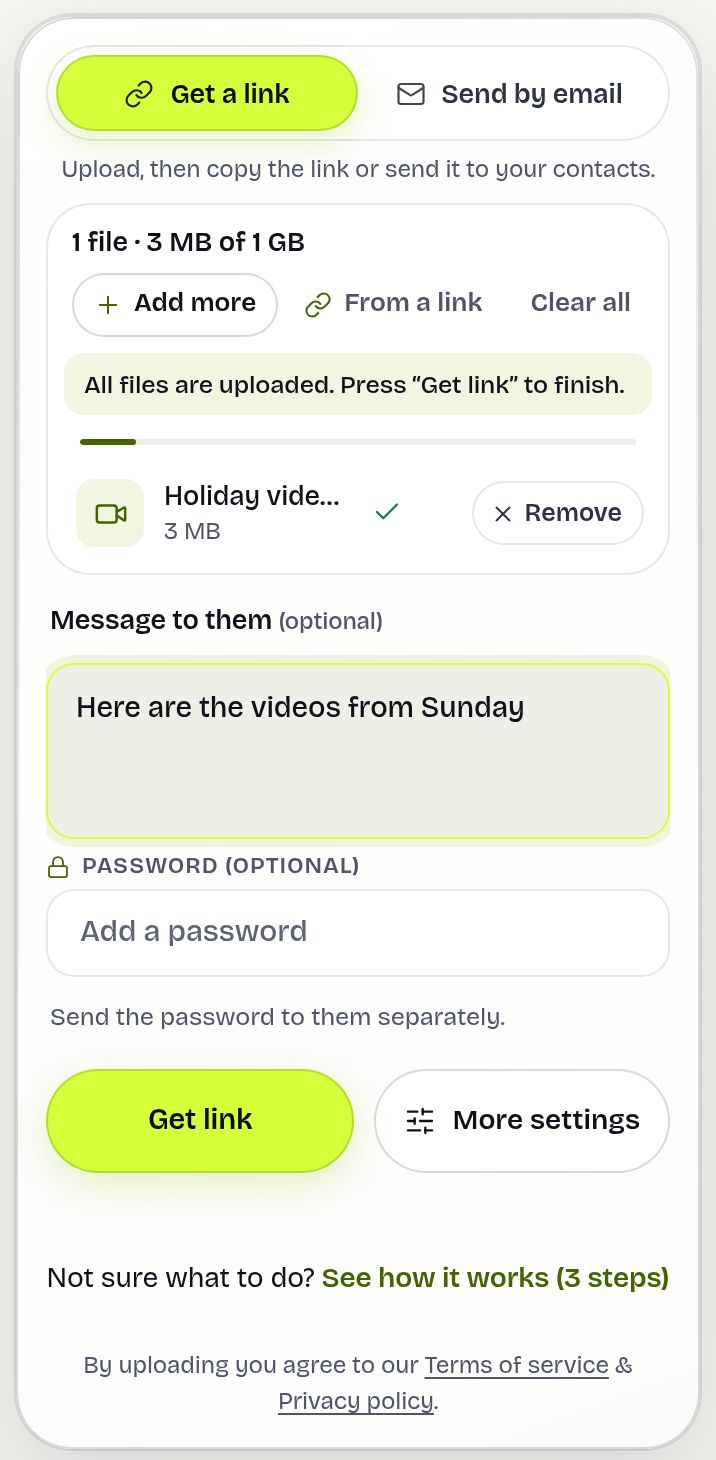
Both devices need internet so they can find each other, but the file stays on the local network. For someone far away, upload when you have a stable connection, for example overnight, and check the time needed with the upload time calculator.
Share Large Files Free is independent and is not affiliated with Apple, Google or Microsoft. iOS and Safari are trademarks of Apple Inc.; Android and Chrome are trademarks of Google LLC; Windows and Edge are trademarks of Microsoft Corporation.
Frequently asked questions
Why does my upload stop when I switch apps on my phone?
Phones pause background browser tabs to save battery. Keep the browser in front and the screen on.
Do I have to start again if my connection drops?
No. The upload pauses and continues by itself when the connection is back, or press Resume now.
I closed the tab. Is my upload lost?
Not if you come back in time. Open the upload page in the same browser and pick the same files to continue.
Why did my file start from zero?
It no longer matches: a different name, size or modified time, or a different browser.
What if my file is over 20 GB?
Compress it, split it into parts, or use Send via Wi-Fi if the receiver is nearby.
Ready to send?
Drop your files, get a link, done. Free up to 20 GB — no account needed.
Send files free