Quick answer: Open My account, go to Security and press Set up two-step verification. Scan the QR code with an authenticator app (Google Authenticator, Microsoft Authenticator, 1Password, Authy and others), type the code under Code from the app and press Turn on, then save your one-time backup codes. From then on, signing in on the website with a password, an emailed code or Google also asks for the app code. The same page lists Signed-in devices with Sign out and Sign out everywhere else.
What it does and when to turn it on
Two-step verification adds a second check to every website sign-in: a 6-digit code from an app on your phone that changes every 30 seconds. A stolen or guessed password alone is then not enough.
- A freelancer whose Transfers page shows every client, file name and download would not want a stranger to see or delete them.
- A business collecting form answers or NDA signatures holds other people's names and emails in the account.
- Anyone who reuses passwords (it happens) gets protection if one of those sites leaks.
Turn it on step by step
- Sign in, open My account and go to Security.
- Press Set up two-step verification.
- Open an authenticator app on your phone and add an account. Scan the QR code, or press Copy key and type the key by hand.
- Type the 6-digit code the app shows into Code from the app and press Turn on.
- Under Your backup codes, press Copy codes or Download as a text file and keep them somewhere safe. Each works once, and they are shown only now.
What signing in looks like afterwards
After your password, emailed code or Google sign-in, a Two-step verification page asks for the code from your app. Type it under Code and press Verify and sign in. No phone to hand? Type a backup code (it looks like abcde-12345) in the same box. You then stay signed in on that device for 30 days after you last use it, unless you choose otherwise.
A worked example
Kabir, a video editor, turns on two-step verification and saves the backup codes file to his password manager. A month later he gets a "New sign-in" email about a browser he does not recognise. He opens Security, sees an unknown device under Signed-in devices, presses Sign out everywhere else and changes his password. The other browser never got past the code step, but now it cannot even try with the old password.
The other security tools
| Tool | What it does |
|---|---|
| New sign-in email | Sent when your account is used on a browser it has not seen before, with a link to your account page |
| Signed-in devices | Every browser where you are signed in, with Sign out for each one |
| Sign out everywhere else | Ends every session except the one you are using |
| Sign me out when I close the browser | A box on the sign-in page for shared computers: the session also ends after some idle minutes, and that browser's saved transfers and presets are cleared |
| Password or email change | Signs out your other devices |
To manage the second step later, open Backup codes or turn off: Make new backup codes replaces the old set, and Turn off removes the app step.
What an account protects
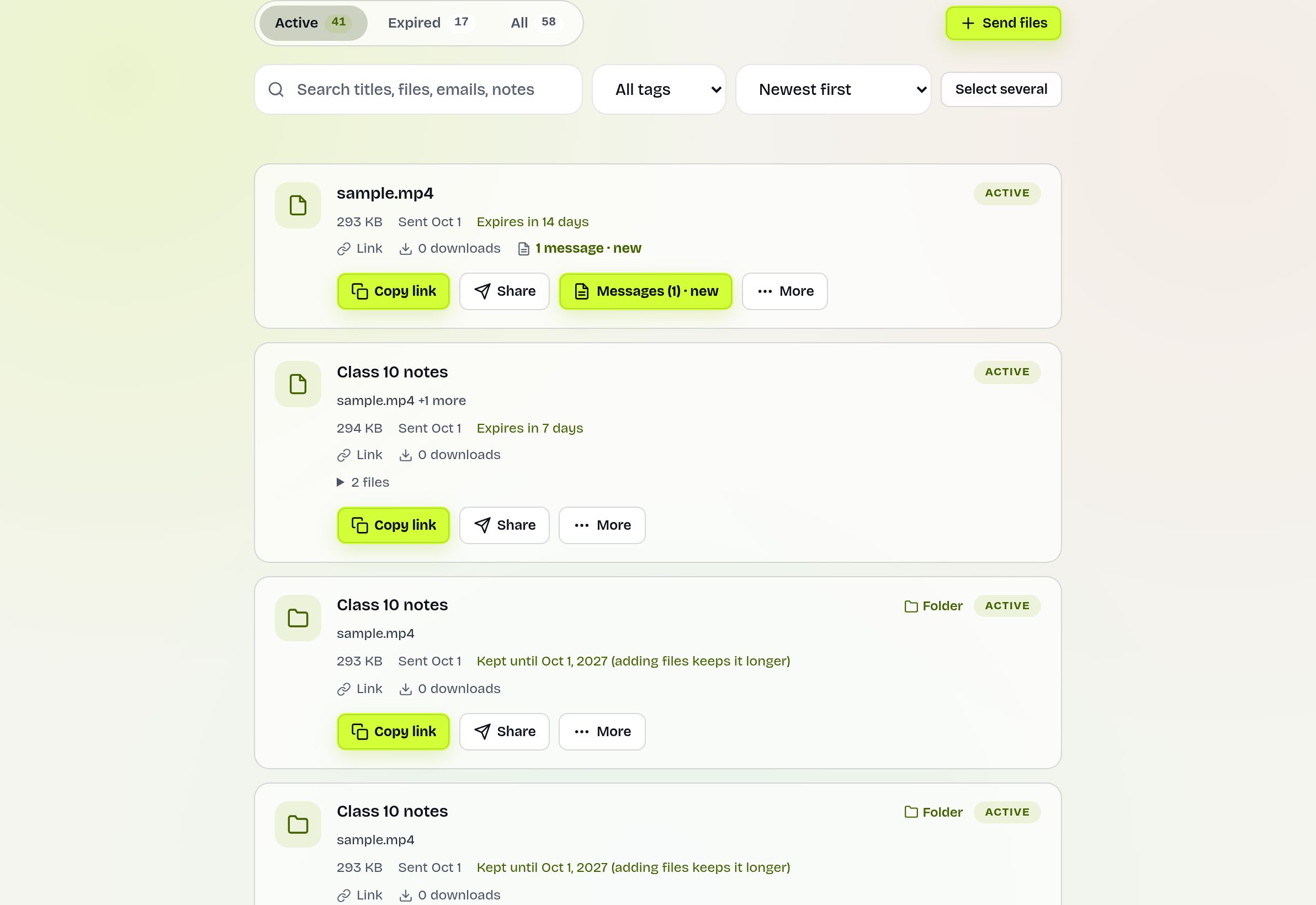
Your transfer list and its controls (edit, settings, keep it longer, delete), contact groups, presets, form answers, NDA signature records and Insights. Someone with your password could see who you sent files to, change the files behind a link or delete transfers. Recipients notice nothing of two-step verification: their download pages work exactly as before.
Limits and what it does not do
- It applies to signing in on the website. The mobile app's sign-in does not ask for it yet.
- It protects your account, not individual links. For the files themselves use a password, Anyone who confirms their email, an NDA or download limits; see security.
- Only authenticator app codes are supported. SMS codes and hardware security keys are not offered.
Troubleshooting
- Code always rejected: the phone's clock is probably wrong. Set date and time to automatic and try a fresh code.
- New phone: sign in with a backup code, turn the feature off and set it up again on the new phone.
- Lost phone and backup codes: use the Contact page from your account's email address and we will help you back in.
- Not asked for a code when signing in: check that Security shows two-step verification as On; the mobile app does not ask yet.
- Signed out on a shared computer sooner than expected: that is the "Sign me out when I close the browser" box doing its job after a few idle minutes.
Frequently asked questions
How do I turn on two-step verification?
Open My account, then Security, press Set up two-step verification, scan the QR code with an authenticator app, type the code and press Turn on.
Which authenticator apps work?
Any standard one, such as Google Authenticator, Microsoft Authenticator, 1Password or Authy.
What if I lose my phone?
Sign in with one of your backup codes, then set up the app again. If you have lost those too, contact us from your account's email address.
Does it apply when I sign in with Google or an emailed code?
Yes. Once on, every website sign-in asks for the app code as well.
Can I sign out a device I lost?
Yes. Find it under Signed-in devices and press Sign out, or use Sign out everywhere else.
Do I need an account to send files?
No. Accounts are optional; they keep your transfers, groups and insights in one place.
Ready to send?
Drop your files, get a link, done. Free up to 20 GB — no account needed.
Send files free