Quick answer: On a slow connection, the upload is the bottleneck. For nearby devices, Send via Wi-Fi moves files directly over the local network, so internet speed barely matters. For remote recipients, estimate the time with the upload time calculator, upload overnight with the device awake, and rely on resumable uploads if the connection drops. Compress video only when some quality loss is acceptable.
Quick checklist
- Is the receiver in the same place? Use Send via Wi-Fi: no upload needed.
- Measure your upload speed with any speed test, not the download figure.
- Estimate the time with the upload time calculator.
- Stop other uploads such as photo backup and cloud sync.
- Use a cable to the router instead of Wi-Fi if you can.
- Start long uploads overnight with sleep turned off.
- Compress only if a smaller, slightly lower-quality file is fine.
Nearby? Skip the upload with Send via Wi-Fi
Slow internet only hurts when the file has to travel over it. If you and the receiver are in the same home, office or room, Send via Wi-Fi sends the file directly between the two browsers over the local network, which is usually much faster than a home upload. There is no size limit beyond free space on the receiver.
- Connect both devices to the same Wi-Fi (or one to the other's hotspot).
- Open sharelargefilesfree.com/send-via-wifi on both.
- Tap the other device and pick the files; the receiver taps Accept.
- Keep both screens on until it finishes. Files land in Downloads.
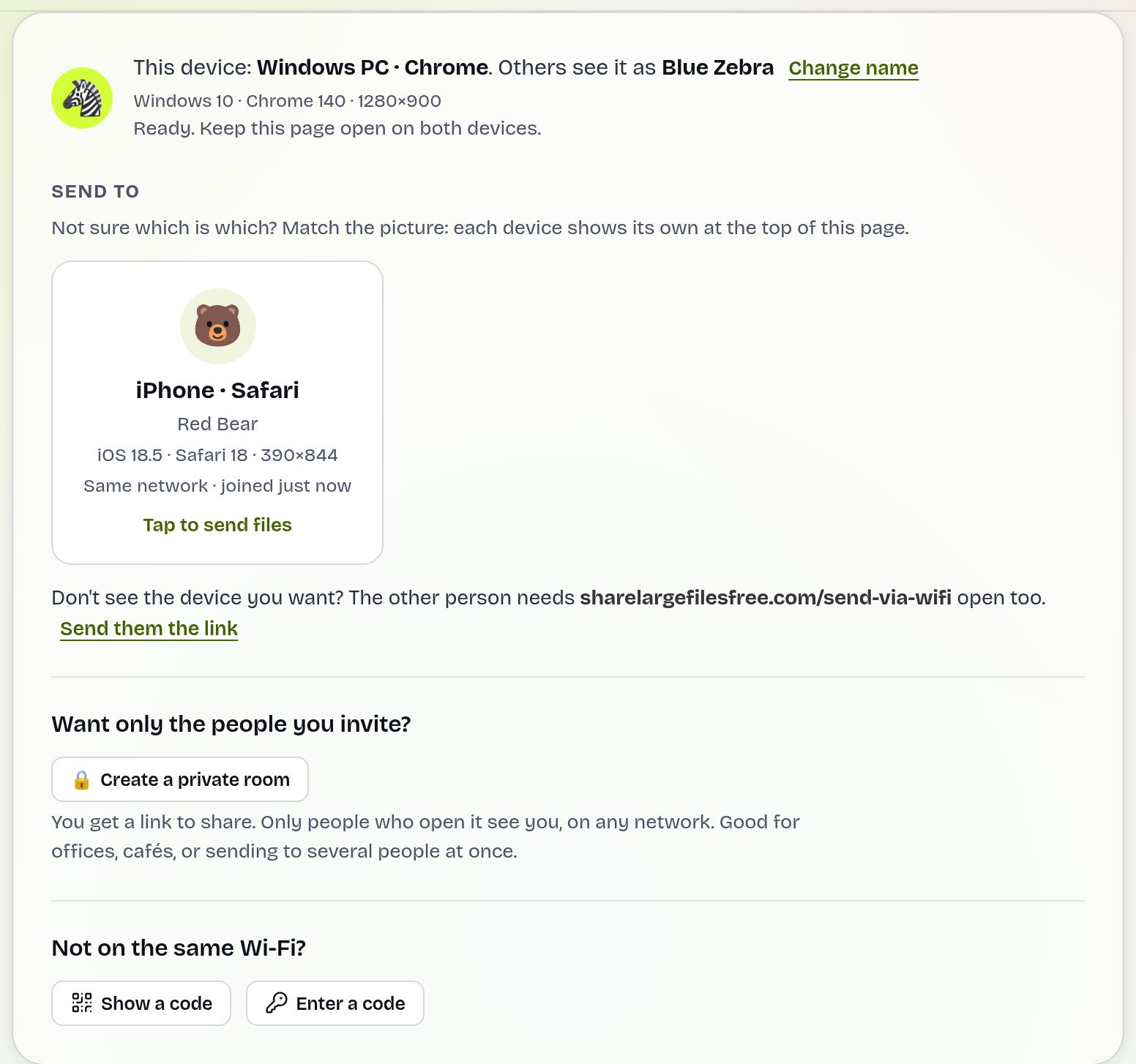
Both devices still need a working internet connection so our server can introduce them, but that takes very little data; the file itself stays on the local network.
Do the maths before you start
Upload time is roughly the file size divided by your upload speed, plus some overhead. Speeds are quoted in megabits per second (Mbps), and 1 megabyte equals 8 megabits, so 1 GB is about 8,000 megabits.
| File size | At 5 Mbps | At 10 Mbps | At 20 Mbps |
|---|---|---|---|
| 1 GB | about 27 minutes | about 13 minutes | about 7 minutes |
| 5 GB | about 2 hours 15 minutes | about 1 hour 7 minutes | about 33 minutes |
| 20 GB | about 9 hours | about 4 hours 30 minutes | about 2 hours 15 minutes |
These are the plain arithmetic figures; real uploads take a bit longer. Many home connections upload far slower than they download, so check the upload number. For your own file and speed, use the upload time calculator.
Upload overnight, and let it resume
If the answer is hours, start the upload when you can leave it alone, such as before bed.
- Plug in a laptop and turn off sleep (on Windows under Settings > System > Power & battery; on a Mac in the Battery or Energy settings). The screen may turn off; the computer must not sleep.
- On a phone, keep the browser in front and the screen on, and plug it in. Phones pause background tabs.
- Pause cloud backups and large downloads so they do not compete for bandwidth.
On Share Large Files Free, files go up in pieces. If the connection drops, the upload pauses and continues by itself when it is back. If the tab closes, open the upload page again in the same browser and pick the same files to resume where it stopped. Each transfer takes up to 20 GB, and the recipient gets a link that lasts 1 day, so they do not need to be online at the same time.
Make the file smaller, only if quality loss is fine
Compressing a video re-encodes it, which always loses some quality. That is fine for a preview, a social clip or a family video watched on a phone; it is not fine for footage someone will edit or grade.
- The free video compressor runs in your browser, so the file is not uploaded to compress it.
- Lower resolution helps most: a 4K video exported at 1080p is far smaller.
- Zipping videos and photos barely shrinks them, since they are already compressed.
- Send only what is needed: selected clips instead of the whole card.
Other ways round a slow connection
- Mobile data or a hotspot: in some places a phone's upload is faster than the home connection. Mind your data allowance.
- Another network: an office, library or friend with a faster connection.
- Split it: send several smaller transfers so each finishes sooner.
- Physical delivery: for very large projects, a USB drive in the post can still beat a slow upload.
Which should you use?
Nearby receiver: Send via Wi-Fi, every time. Remote receiver and a few gigabytes: upload once with a download link, overnight if needed. Remote receiver and a file that would take days: compress if quality allows, or post a drive. See also sending large files internationally.
Share Large Files Free is independent and is not affiliated with Apple or Microsoft. Mac is a trademark of Apple Inc.; Windows is a trademark of Microsoft Corporation.
Frequently asked questions
How long does it take to upload 5 GB?
About 1 hour 7 minutes at 10 Mbps upload, plus overhead. Use the upload time calculator for your own speed.
Can I send a large file without uploading it?
Yes, if the receiver is nearby. Send via Wi-Fi sends it directly over the local network.
What if my upload drops overnight?
It pauses and continues by itself when the connection is back. After a closed tab, pick the same files again to resume.
Does compressing a video reduce quality?
Yes, a little. Use it only when the recipient does not need the original.
Ready to send?
Drop your files, get a link, done. Free up to 20 GB — no account needed.
Send files free