Quick answer: To transfer files between Android phones, use Quick Share from the Share menu for nearby phones, Google's setup copy tool or Samsung Smart Switch when moving to a new phone, or a USB-C cable. If Quick Share does not show the other phone, open sharelargefilesfree.com/send-via-wifi in Chrome on both and send directly over Wi-Fi, with no app and no size limit.
Your options at a glance
| Method | Best for | Size | Needs |
|---|---|---|---|
| Quick Share | A few files to a nearby phone | No fixed limit published | Google Play services, Bluetooth and Wi-Fi on |
| Send via Wi-Fi (this site) | Any brand, many files, phones without Quick Share | No limit, only free space | A browser, same Wi-Fi or hotspot |
| Setup copy tool or Samsung Smart Switch | Moving everything to a new phone | Whole phone | A cable or Wi-Fi, done during setup |
| USB-C cable or USB OTG drive | Large folders without any network | Free space | A USB-C to USB-C cable or a flash drive |
| Download link (this site) | The other phone is somewhere else | Up to 20 GB per transfer | A browser |
Quick Share (formerly Nearby Share)
Google renamed Nearby Share to Quick Share in 2024 and merged it with Samsung's Quick Share, so on most phones you will see the new name.
- On the receiving phone, swipe down to Quick Settings, tap Quick Share and set who can share with you, for example Everyone for 10 minutes.
- On the sending phone, select the files in Photos, Gallery or Files and tap Share, then Quick Share.
- Tap the other phone when it appears, and tap Accept on the receiving phone.
Menu names vary between brands and Android versions, so check your phone's settings if you cannot find it. Some phones sold without Google services do not include Quick Share at all.
Send via Wi-Fi: step by step
- Connect both phones to the same Wi-Fi, or turn on one phone's hotspot (with mobile data on) and join it from the other.
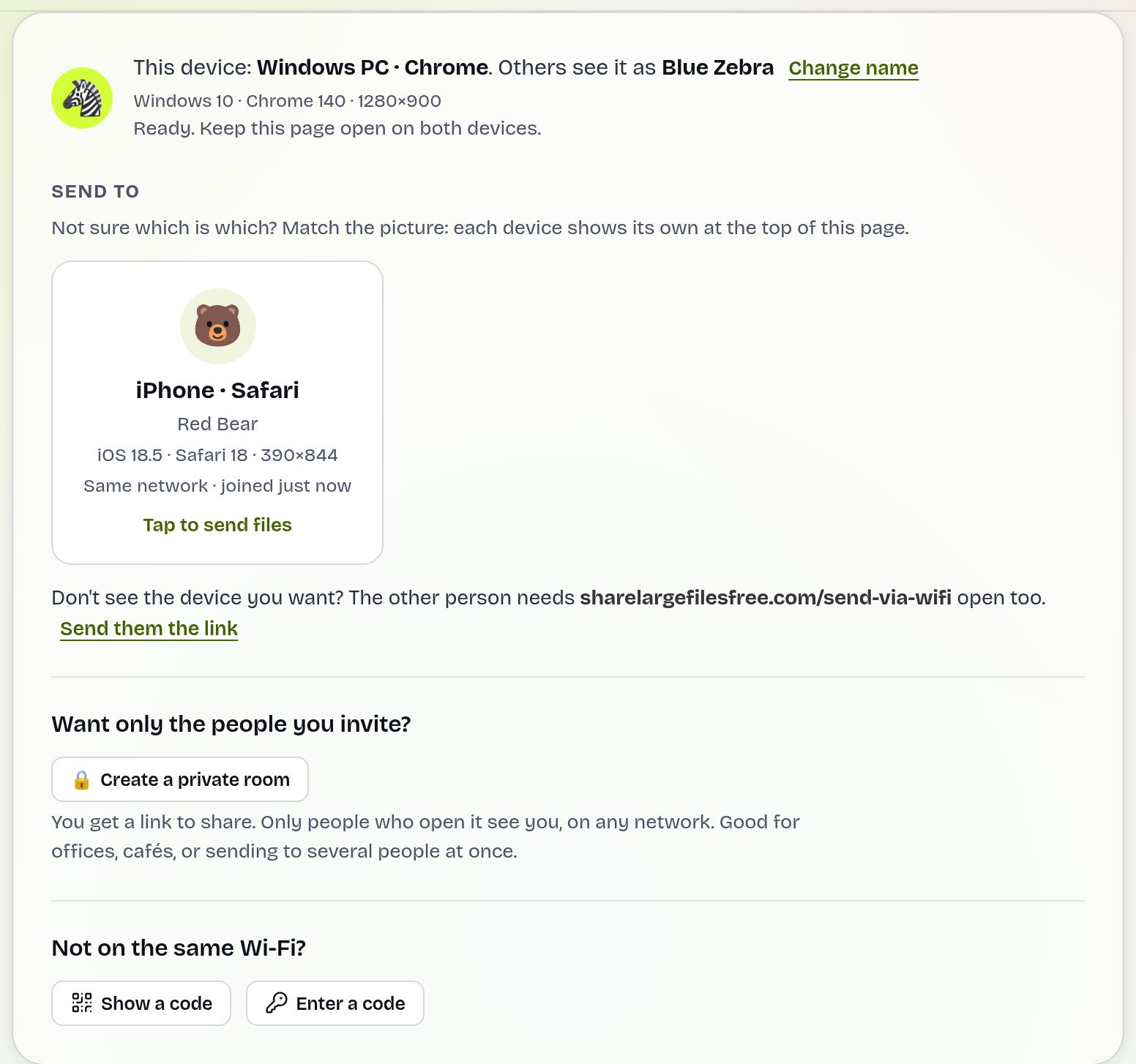
- Open sharelargefilesfree.com/send-via-wifi in Chrome, Firefox or Edge on both phones.
- Each phone appears with a name, an animal avatar and details such as "Android · Chrome". Tap the other one.
- Pick the files. You can select as many as you like; there is no size or count limit.
- Tap Accept on the receiving phone. Keep both screens on and the pages open until it is done.
- The files are saved in the receiving phone's Downloads folder.
Files go directly between the two phones over an encrypted connection and are never uploaded to a server, so on the same Wi-Fi the speed is set by your local network. Sharing a whole album with several people? Create a private room and use Send to everyone; each phone accepts on its own.
For a large folder, such as a WhatsApp media folder or a music collection, it is often easier to compress it first: in the Files app, long-press the folder and choose Compress or Zip if your file manager offers it, then send the single ZIP file and extract it on the other phone.
Moving to a new Android phone
If you are replacing your phone, do not send files one by one:
- Google's copy tool: when you set up a new Android phone, choose to copy apps and data from your old phone, using a cable or Wi-Fi when offered. This brings over apps, photos, messages and settings.
- Samsung Smart Switch: on a new Samsung phone, Smart Switch can copy from any Android phone wirelessly or by cable. Install it on the old phone from Google Play if needed.
Both work best during setup. If you skipped that step, Smart Switch can usually still be run later on Samsung phones; on others, use Quick Share or Send via Wi-Fi for what was missed.
USB cable and USB OTG
- Connect the phones with a USB-C to USB-C cable that supports data.
- On the phone you are copying from, tap the USB notification and choose File transfer. Phones differ in which one acts as host, so if nothing appears, swap the roles in the USB settings.
- Open the Files app on the other phone and copy folders across.
A USB-C flash drive does the same job: copy to the drive on one phone, plug it into the other. This is handy for big folders when there is no Wi-Fi at all.
Which should you use?
Two phones with Quick Share and a handful of photos: Quick Share. A new phone: the setup copy tool or Smart Switch. Phones of different brands where Quick Share does not see the other phone, a big batch of files, or sending to several phones at once: Send via Wi-Fi. No network at all: a cable or flash drive. The other phone is not with you: a download link.
Sending to an iPhone instead? See Android to iPhone.
Share Large Files Free is independent and is not affiliated with Google or Samsung. Android and Quick Share are trademarks of Google LLC; Samsung and Smart Switch are trademarks of Samsung Electronics.
Troubleshooting
- Quick Share does not show the other phone. Turn on Bluetooth, Wi-Fi and Location on both phones, unlock them, and set visibility to Everyone. If it still fails, use Send via Wi-Fi.
- Send via Wi-Fi shows no devices. Both phones need the same network and an internet connection. Guest and company Wi-Fi can block direct connections; switch to a hotspot or use the 6-digit code.
- The transfer pauses. Battery savers can freeze background tabs. Keep the browser in front and the screen on.
- The cable does nothing. Some cables only charge. Try another one and check that File transfer is selected.
- Received photos are missing from the gallery. Look in the Downloads folder in the Files app; some gallery apps show it only as a separate album.
Frequently asked questions
Is Nearby Share the same as Quick Share?
Yes. Google renamed Nearby Share to Quick Share in 2024 and combined it with Samsung's version.
Can I send files between a Samsung and a Pixel?
Usually yes with Quick Share. If it does not find the other phone, Send via Wi-Fi in the browser works on any brand.
Is there a size limit for Android to Android over Wi-Fi?
No. Send via Wi-Fi has no file size or count limit; only the receiving phone's free space matters.
What is the best way to move everything to a new Android phone?
Use the copy tool during setup, or Samsung Smart Switch on a Samsung phone.
Can I transfer without Wi-Fi?
Yes. Use one phone's hotspot, Quick Share, or a USB-C cable or flash drive.
Ready to send?
Drop your files, get a link, done. Free up to 20 GB — no account needed.
Send files free