Quick answer: On the upload page press From a link, paste a Google Drive, Dropbox or OneDrive share link set to "Anyone with the link", or a direct download link, into Link to the file and press Add. The file is fetched, shown with progress and added to your transfer like any other file. Where the site shows them, Dropbox and Google Drive buttons under "Or pick from" let you choose files from your account. Then send as usual, up to 20 GB per transfer.
What it does and when to use it
"From a link" fetches a file from the web and adds it to your transfer, so you can send it on without saving it to your device first.
- On a phone with little free space, you need to forward a 3 GB video that lives in Google Drive.
- A colleague shared a Dropbox link that your client cannot open because of sign-in prompts or a company firewall.
- You want to combine sources: a Drive file, a Dropbox file and photos from your phone in one transfer, with one password.
Add a file from a link, step by step
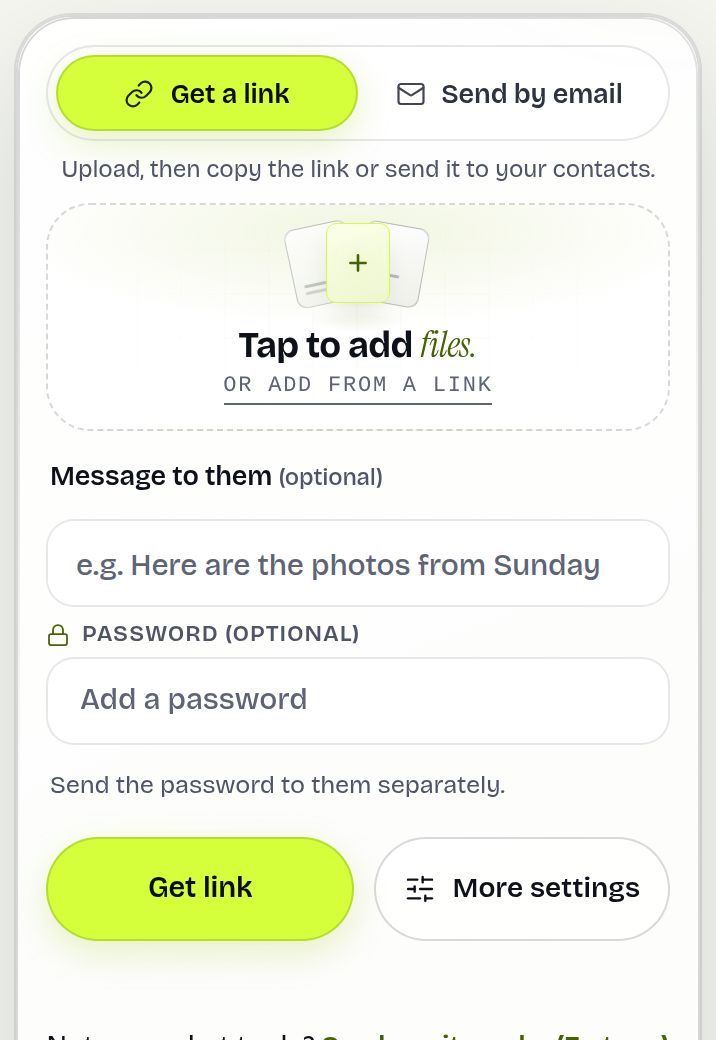
- On the upload page, press From a link (under the drop area, or in the Add more menu once files are added). A window, Add files from a link, opens.
- Paste one or more links into Link to the file and press Add. Several links can be pasted at once.
- Or, if you see Dropbox or Google Drive under Or pick from, press it and choose files in the window from Dropbox or Google. Only the files you choose are shared with us.
- Each file appears in your list with progress and uploads like a file from your device. Add local files too if you like.
- Choose Get a link or Send by email, set options and send.
Which links work
| Link | Works? |
|---|---|
| Google Drive file shared with "Anyone with the link" | Yes |
| Google Docs, Sheets or Slides | Yes, added as a Word, Excel or PowerPoint file |
| Google Drive folder | No: share single files, or pick them with the Google Drive button |
| Dropbox share link (Share, then Copy link) | Yes |
| OneDrive personal share link | Yes |
| Direct https download link | Yes |
| WeTransfer link | No: download the files first, then add them |
| Links with a user name and password, or to private networks | No, refused for security |
A worked example
Lena is at a café with her phone. Her agency's 2.6 GB showreel sits in Google Drive, and the client's office blocks Drive. She opens Drive, chooses Share, sets access to "Anyone with the link", copies it, then on the upload page presses From a link, pastes it and presses Add. She adds a password, presses Get link and sends the link by email. The client downloads the original file from an ordinary download page.
What the recipient sees
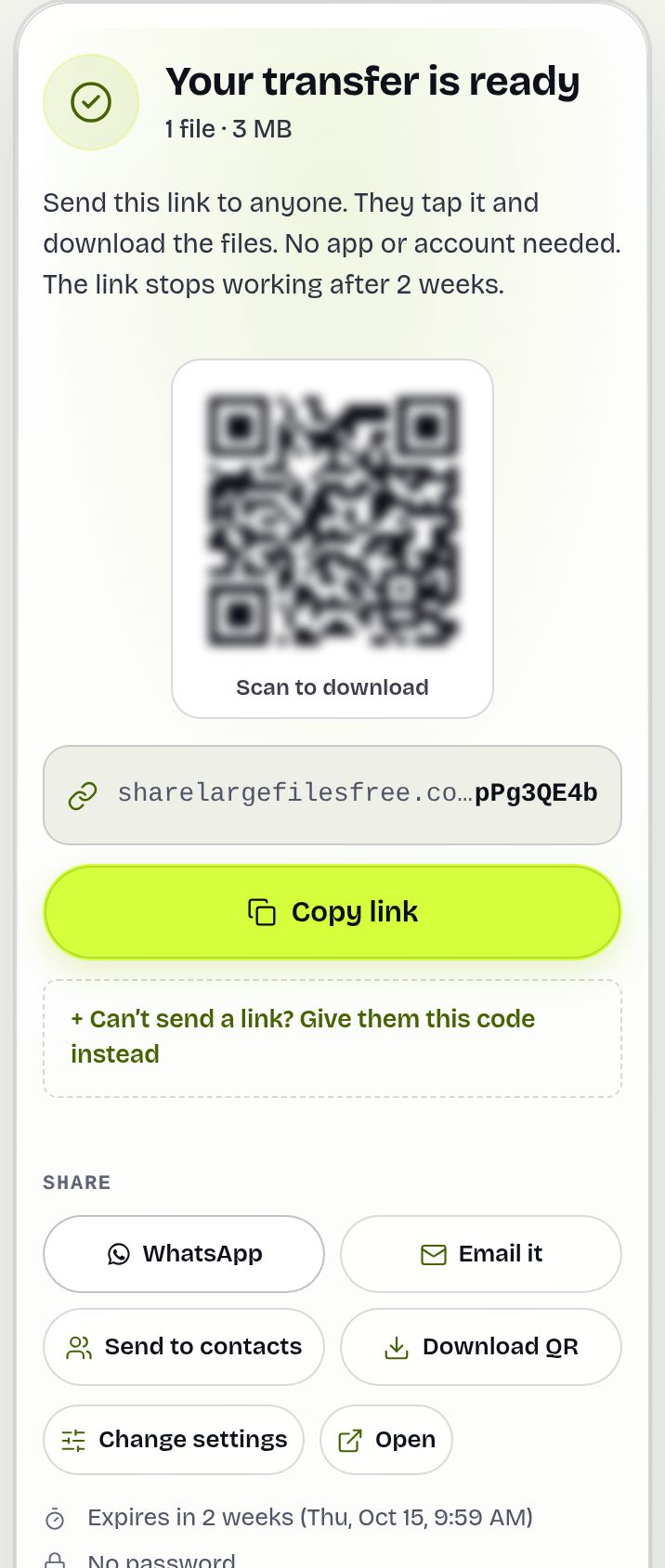
An ordinary download page with the file, its size and your message. There is no sign-in prompt, no "You need access" and no hint of where the file came from. The file is the same bytes as the original in Drive or Dropbox, and its SHA-256 checksum is shown once worked out. Changing or deleting the original afterwards does not affect the copy you sent.
Limits and what it does not do
- Our server fetches the file and streams it to your browser, which then uploads it. The file therefore passes through your own connection twice; on metered data it counts double.
- Each file counts toward the usual 20 GB and 1000-file limits, and bigger files are refused before they are fetched.
- There is a cap on how many links one visitor can add per hour. If you hit it, wait or add the files from your device.
- It sends a copy, not a live link: later edits in Drive or Dropbox are not reflected. Use replace a file for a new version.
- The Dropbox and Google Drive buttons appear only when the site has them switched on; pasting a link always works.
Troubleshooting
- "That's a Google Drive folder": share single files, or zip the folder in Drive first.
- Google Drive link fails: the file is shared only with specific people. Set it to "Anyone with the link".
- "That's a link to your own Dropbox": you copied the address bar. In Dropbox use Share, then Copy link.
- Very slow: the source server is slow; keep the page open, or download the file and add it directly.
- A Google Doc arrived as .docx: that is expected. Docs, Sheets and Slides are exported as Word, Excel and PowerPoint files.
- "WeTransfer links can't be added directly": download those files first, then add them from your device.
Frequently asked questions
Can I send a file from Google Drive without downloading it?
Yes. Paste its share link in From a link and press Add. It is added to your transfer without you saving it first.
Why does my Google Drive link fail?
The file is probably shared only with specific people. Set it to "Anyone with the link". Folder links are not supported.
Can I add a Dropbox file?
Yes. In Dropbox choose Share and Copy link, then paste that link in From a link.
Does the Google Drive button see all my files?
No. Only the files you pick in the Google window are shared with us.
Does it use my mobile data?
Yes, about twice the file size: the file comes into your browser and is then uploaded. Use Wi-Fi for big files.
Is there a size limit?
Yes, the same as a normal upload: up to 20 GB per transfer.
Ready to send?
Drop your files, get a link, done. Free up to 20 GB — no account needed.
Send files free