Quick answer: The best way to send a large file from Android depends on where the other person is: use Quick Share for a nearby device, and a download link for anyone else. Share Large Files Free makes that link from Chrome with no app or account, up to 20 GB per transfer and with no compression.
Why big files are awkward to send from a phone
Android phones record high-resolution video, take large photos and download big documents, so it is easy to end up with a file of several gigabytes. Most of the obvious ways to share it were built for small things. Email attachments are capped at a few tens of megabytes, chat apps have their own size caps and often compress photos and videos, and cloud storage fills up quickly on a free plan.
There is no single best method for every case. The right choice depends on three questions: is the other person in the same room, how big is the file, and does it need to arrive in original quality?
Android sharing methods compared
| Method | Works over | Size | Quality | Recipient needs |
|---|---|---|---|---|
| Quick Share | Short range, nearby devices | Large files are fine | Original | A compatible device close by |
| Download link (Share Large Files Free) | The internet, any distance | Up to 20 GB per transfer | Original | Only a browser |
| Google Drive link | The internet | Limited by your storage quota | Original download | A browser, sometimes a Google account |
| Gmail attachment | Small; bigger files become a Drive link | Original | An email address | |
| WhatsApp or Telegram | Chat | Capped by each app | Media may be compressed unless sent as a file | The same app |
| USB cable | A cable to a computer | Limited only by storage | Original | Your own computer |
Limits for other apps and services change from time to time, so check their own help pages for current figures. Our file size limits reference keeps a quick table for popular apps.
Nearby: use Quick Share
If the other person is next to you, Quick Share is usually the fastest option. It is built into most current Android phones and sends files directly between nearby devices, without using your mobile data. It works with other Android phones and Chromebooks, and Google also offers a Quick Share app for Windows PCs.
To use it, open the file in your gallery or file manager, tap Share, choose Quick Share, and pick the nearby device. The other person accepts the transfer and the file arrives in original quality. Both devices need Bluetooth and location or Wi-Fi switched on, and the receiving device has to be visible to you, so check its Quick Share visibility setting if it does not appear.
Quick Share does not help when the person is somewhere else, or when they use a device it does not support. For that, you need a link.
Anyone, anywhere: send a download link
A download link works for anyone with a browser, on any phone or computer, and you can paste it into any app. Here is how to make one from Android without installing anything:
- Open Share Large Files Free in Chrome, or any modern Android browser.
- Tap the upload area and choose your files. Pick the original from your file manager or gallery. You can add up to 1000 files, up to 20 GB in total.
- Choose how to share. Get a link to paste into WhatsApp, Messages or Slack, or send by email (you confirm your own address with a 6-digit code first).
- Add a password if you like, or set the transfer to delete after its first download.
- Keep the screen on and the browser in front while the upload finishes, then tap Share to hand the link to any app, or show the QR code.
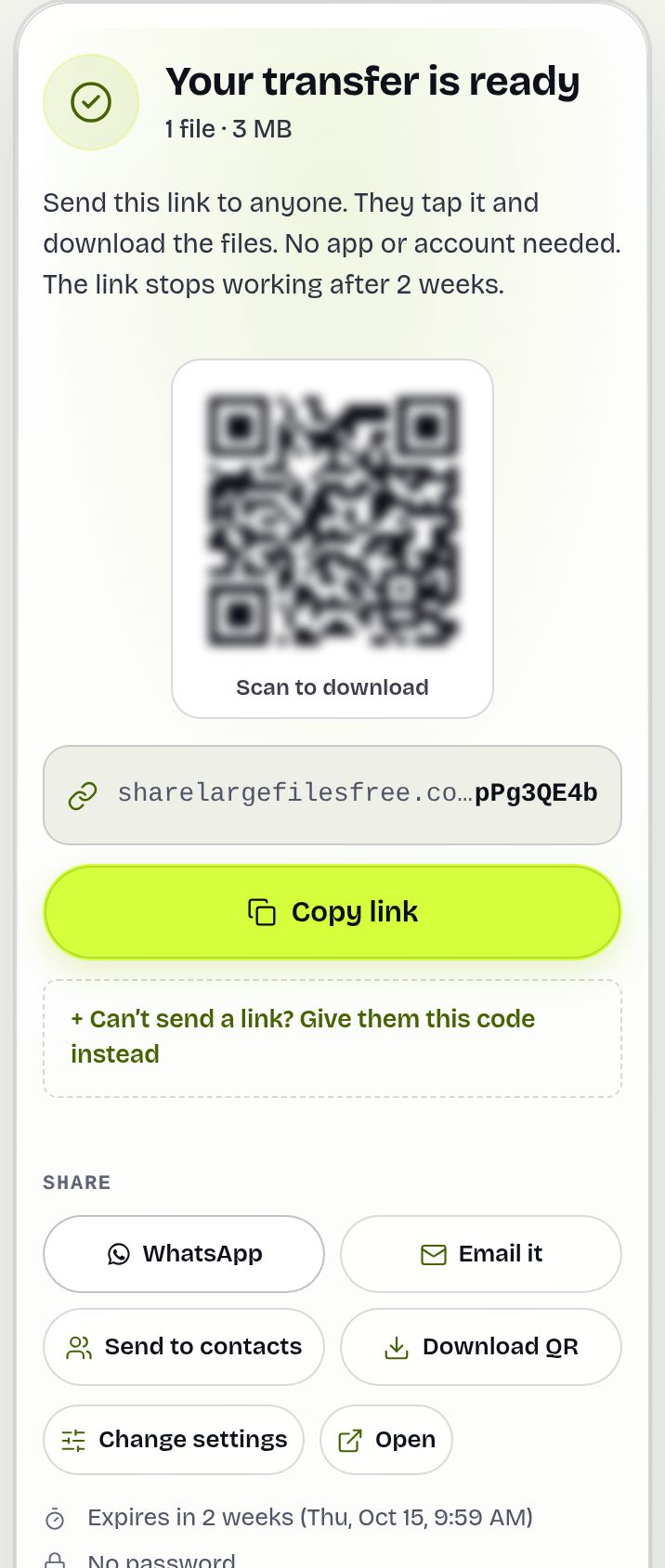
The person you send it to opens the link and downloads the original file. They do not need an account or an app. The link expires after 1 day, and you can extend it or delete it early from the Transfers page.
If you send files often, you can install the site as an app. On Android it then shows up in your gallery's Share menu, so a video goes from the gallery to a link in a couple of taps.
When Google Drive, Gmail or a chat app makes sense
- Google Drive is a good fit when the file should stay stored, or when you will keep updating it. Uploads count against your Google storage, which is shared with Gmail and Google Photos, and the person you share with may need to request access unless you set the link to Anyone with the link. More on the Google Drive alternative page.
- Gmail is fine for small attachments. Larger files are offered as a Drive link instead, so the Drive points above apply. See sending large files with Gmail.
- WhatsApp and Telegram are convenient when the person is already in the chat. Sending a video as a document or file, rather than as a gallery video, usually avoids compression, but each app still has its own size cap. See the guides for WhatsApp and Telegram.
- A USB cable is the most reliable way to move very large folders to your own computer. Connect the phone, choose File transfer in the USB notification, and copy the files across.
Tips for sending big files from Android
- Use Wi-Fi for large uploads if your mobile plan has a data cap. Our upload time calculator estimates how long a transfer will take.
- Make sure the full file is on the phone. If a photo or video only lives in a cloud backup, download the original first, so you do not send a smaller copy.
- Keep the browser in front. Phones may pause background tabs to save battery. Uploads are sent in chunks and short drops are retried while the tab stays open, and if the tab does close, you can resume the upload in the same browser.
- Need a smaller copy for chat? The free video compressor for WhatsApp runs in your browser, and you can still send the original by link.
Sending video specifically? The step-by-step guide to sending large videos from Android covers picking the original file from the gallery.
Which method should you choose?
As a rule of thumb: if the other device is within a few metres, use Quick Share. If the file is going to your own computer and is very large, use a cable. If the file should live in the cloud for months, use Google Drive. For everything else, such as sending a video to a relative abroad, delivering work to a client or passing a big folder to a colleague, a download link is the simplest choice, because the other person needs nothing but a browser.
Share Large Files Free is independent and is not affiliated with Google. Android, Google Drive, Gmail and Quick Share are trademarks of Google LLC.
Frequently asked questions
What is the fastest way to send a large file from Android?
For a device in the same room, Quick Share is usually fastest because it sends directly between devices. For anyone else, upload the file and send a download link.
How do I send a file that is too big for Gmail or WhatsApp?
Upload it at Share Large Files Free in Chrome, up to 20 GB per transfer, and paste the download link into the email or chat instead of attaching the file.
Do I need to install an app?
No. The site works in Chrome and other Android browsers. You can optionally install it as an app so it appears in your Share menu.
Will my photos and videos be compressed?
Not with a download link. Files are delivered exactly as uploaded, byte for byte. Chat apps may compress media unless you send it as a file.
Ready to send?
Drop your files, get a link, done. Free up to 20 GB — no account needed.
Send files free