Quick answer: LocalSend is excellent for offline sharing on a local network, and it is the better choice when there is no internet. Send via Wi-Fi needs no install: it runs in any modern browser, sends directly and encrypted between devices, and adds private rooms, a pairing code for different networks, and download links for people who are not nearby.
What LocalSend does well
LocalSend is an open-source app available for Windows, macOS, Linux, Android and iPhone. Devices on the same network find each other and send files directly, encrypted, with no account and no cloud server. Because everything stays on the local network, it keeps working when the internet is down, which many browser tools cannot do.
It is free, has no ads, and its code is public, which matters to people who like to know exactly what software does. If you already use it on all your devices, there is little reason to switch.
Send via Wi-Fi works differently in one important way. A browser cannot search the local network for other devices on its own, so our server briefly introduces the two browsers to each other. After that the files go directly between them and never touch the server. The trade-off is simple: no app to install, but both devices need an internet connection for that first handshake.
When a browser tool is easier
- You cannot install software. Work laptops, school computers and borrowed phones often block installs.
- It is a one-off transfer. Asking someone to install an app to receive one video is a big ask.
- You are on different networks. LocalSend is built for one local network. Send via Wi-Fi can pair two devices anywhere with a 6-digit code.
- The other person is not online right now. The same site can make a download link that waits for them.
LocalSend and Send via Wi-Fi compared
| Question | LocalSend | Send via Wi-Fi |
|---|---|---|
| Install needed | Yes, the app on each device | No, any modern browser |
| Works with no internet | Yes, on the local network | No, both devices need internet to find each other |
| Open source | Yes | No |
| Encrypted, direct transfer | Yes | Yes, WebRTC with DTLS |
| Size limit | None stated by the app | None beyond free space on the receiver |
| Different networks | Not its main use | 6-digit code, QR code or private room |
| Recipient not online now | No | Download link, up to 20 GB |
LocalSend details reflect its public pages at the time of writing and may change between versions.
How to send with Send via Wi-Fi
- Connect both devices to the internet, ideally on the same Wi-Fi or one on the other's hotspot.
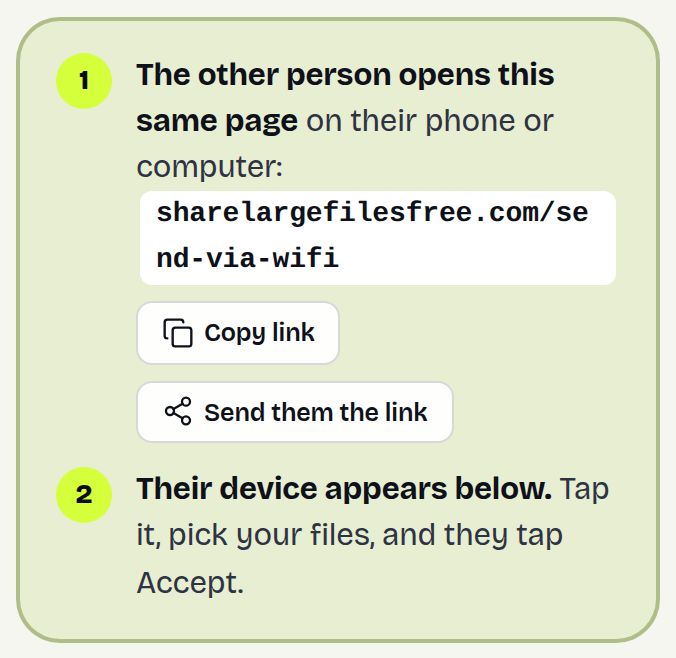
- Open sharelargefilesfree.com/send-via-wifi on both. Each device gets a name and an animal avatar.
- Tap the other device, shown with details such as "Windows 11 · Edge", and pick files.
- Tap Accept on the receiver and keep both pages open until it finishes.
On different networks, tap Show a code on one device and type the 6 digits under Enter a code on the other. Files are never uploaded to our server and land in the Downloads folder.
Sending to a whole room
For a workshop or a family gathering, tap Create a private room and share the link. Only people who open it see each other, even on a busy shared network. The creator can lock the room and remove devices. With two or more devices in the list, Send to everyone sends the same files to all of them, and each person accepts on their own. See sending to several devices at once.
Which should you use?
If there is no internet, LocalSend is better, plainly. It also suits people who want open-source software and share often between the same devices. If installing is not possible or not worth it for one transfer, or the devices are on different networks, use Send via Wi-Fi. If the other person cannot be online at the same time, send a download link that lasts 1 day.
Device guides: PC to PC, Mac to PC, PC to iPhone.
Share Large Files Free is independent and is not affiliated with, endorsed by or sponsored by LocalSend or its developers. LocalSend is the name of its project; other product names are trademarks of their respective owners.
Troubleshooting
- No internet on the network. Send via Wi-Fi cannot pair devices without it. Use LocalSend, a cable, or a hotspot with mobile data on.
- The other device does not appear. Turn off any VPN, check both pages are open, or use the 6-digit code.
- Transfer never starts on office Wi-Fi. The network may block device-to-device traffic. Use a hotspot or a link.
- Large file to iPhone fails. Safari holds incoming files in memory; send a download link instead.
- Transfer stopped when the phone locked. Keep the screen on and the browser in front.
Frequently asked questions
Is there a LocalSend alternative that needs no app?
Yes. Send via Wi-Fi runs in Chrome, Edge, Firefox and Safari on both devices.
Does Send via Wi-Fi work offline?
No. Both devices need internet to find each other. LocalSend is the better choice offline.
Are files uploaded to a server?
No. They go directly between the two browsers over an encrypted connection.
Is it open source?
No. If open source matters to you, LocalSend is a good choice.
Are you part of LocalSend?
No. Share Large Files Free is an independent service.
Ready to send?
Drop your files, get a link, done. Free up to 20 GB — no account needed.
Send files free