Quick answer: To transfer files from a Mac to an iPhone, AirDrop them from Finder, drag them onto an app in Finder's Files tab with a cable connected, or save them to iCloud Drive. If AirDrop fails, open sharelargefilesfree.com/send-via-wifi on both devices on the same Wi-Fi and send directly; files arrive in Files > Downloads.
Where files end up on the iPhone
An iPhone has no open folder structure like a Mac, so where a file lands depends on how you send it. Photos and videos sent with AirDrop usually go straight into the Photos app. Documents, ZIP files and most other files go to the Files app, normally Downloads, or iOS asks which app should open them. Files you copy with a cable go into a particular app's folder, and browser downloads go to Files > Downloads.
It helps to decide first: if the video should appear in Photos, AirDrop or Save Video from Files will do it. If it is a film for a player app such as VLC, the cable route puts it right inside that app. Moving files the other way? See iPhone to Mac.
Methods compared
| Method | Best for | Size | Lands in |
|---|---|---|---|
| AirDrop | Everyday files, photos and videos | No published limit; very large items can stall | Photos, or Files > Downloads |
| Finder with a cable (file sharing) | Big films and documents for one app | Limited by iPhone storage | Files > On My iPhone > that app |
| iCloud Drive | Documents you want on every device | Your iCloud storage plan | Files > iCloud Drive |
| Send via Wi-Fi (browser) | When AirDrop will not show the iPhone | No limit on our side; see the memory note | Files > Downloads |
| Download link | An iPhone that is somewhere else | Up to 20 GB per transfer | Files > Downloads |
AirDrop from Finder
- On the iPhone, open Settings > General > AirDrop and choose Contacts Only, or Everyone for 10 Minutes if the Mac uses a different Apple Account.
- On the Mac, select the files in Finder, then right-click and choose Share > AirDrop (or open AirDrop in the Finder sidebar and drop the files on the iPhone).
- Click the iPhone. Keep it unlocked and nearby, with Wi-Fi and Bluetooth on.
- If both devices use the same Apple Account, the files are accepted automatically. Otherwise, tap Accept on the iPhone.
If the iPhone does not appear, turn off Personal Hotspot on it, wake the screen and try again. Work Macs sometimes have AirDrop turned off by the IT department.
Send via Wi-Fi when AirDrop will not cooperate
Send via Wi-Fi runs in the browser, so it does not depend on AirDrop settings or Apple Account details.
- On the iPhone, open sharelargefilesfree.com/send-via-wifi in Safari and keep the screen on.
- Open the same page on the Mac in Safari, Chrome or Firefox, on the same Wi-Fi network.
- The iPhone appears with a name, an animal avatar and details such as "iPhone · Safari". Click it.
- Choose files, or drag them from Finder onto the iPhone.
- On the iPhone, tap Accept and keep Safari in front until it finishes. The files are in Files > Downloads.
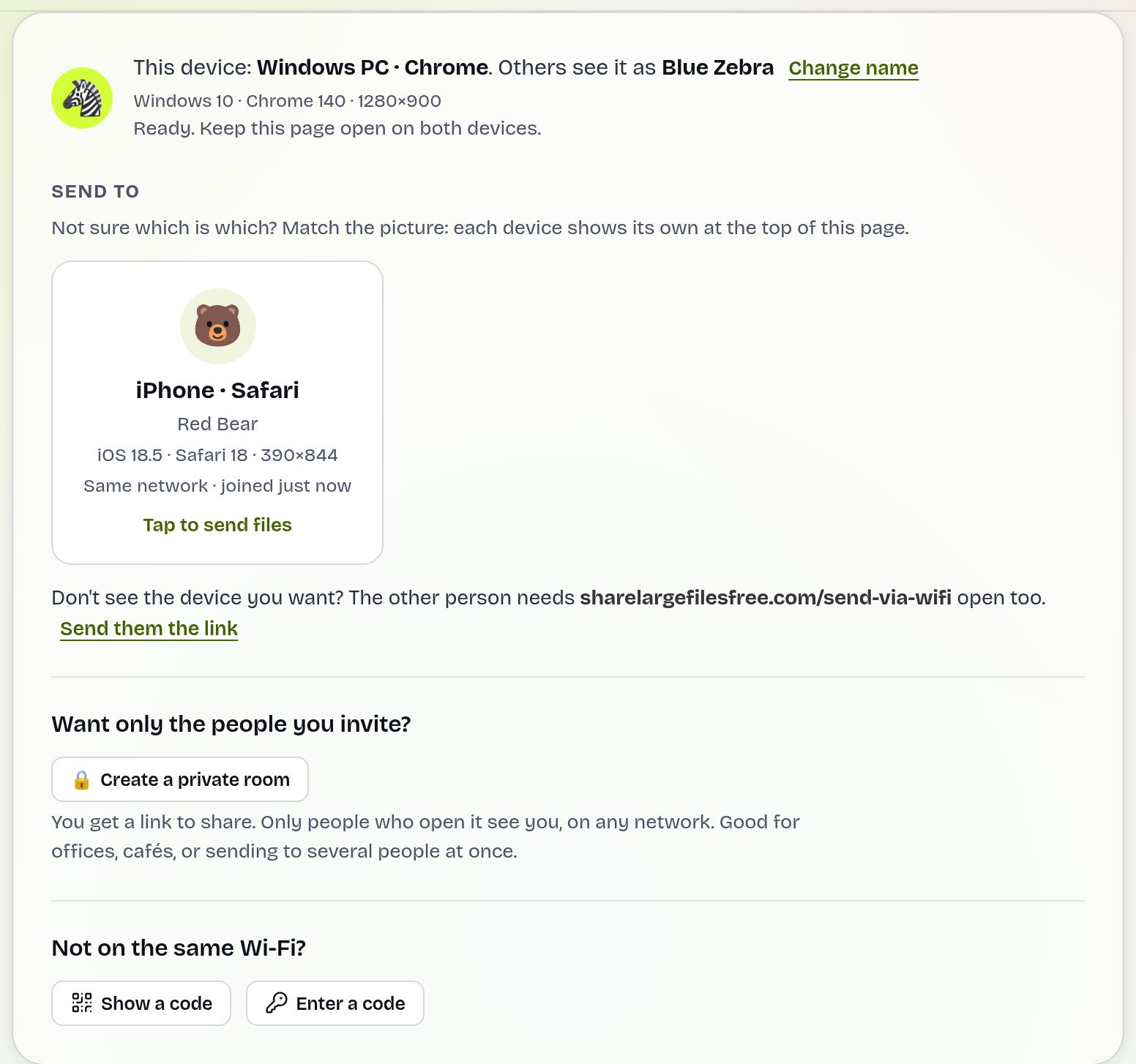
Files go straight from the Mac to the iPhone over an encrypted connection and are never stored on a server. Both devices need internet access so our server can introduce them. One iPhone caveat: Safari keeps each incoming file in memory until it is complete, so a file of several gigabytes may fail on a phone with little free memory. For a huge video, use the cable method below or a download link. If the devices are on different networks, use Show a code on one and Enter a code on the other.
Finder and a cable for large files
- Connect the iPhone to the Mac with a cable, unlock it and tap Trust if asked.
- Select the iPhone in the Finder sidebar, under Locations.
- Open the Files tab. It lists apps that accept files, such as VLC, Pages or a PDF reader.
- Drag files from a Finder window onto the app name. Wait for the copy to finish before unplugging.
On the iPhone, open that app, or go to Files > On My iPhone > the app's folder. Because this uses the cable and writes straight to storage, it is the safest way to put a multi-gigabyte film on the phone. Only apps that support file sharing appear in the list. To put photos in the Photos app with a cable, the Photos tab in Finder can sync a folder or album, though synced items are managed from the Mac. On recent macOS and iOS versions, iPhone Mirroring may also let you drag files to the iPhone; availability varies by region and version.
iCloud Drive
Save or drag a file into iCloud Drive in Finder on the Mac. Once it has uploaded, it shows up in the iPhone's Files app under iCloud Drive, as long as both devices use the same Apple Account. It is handy for documents you edit on both devices. The free iCloud tier is small, so large videos usually need an iCloud+ plan, and the file downloads to the iPhone only when you open it.
Which should you use?
Use AirDrop for everyday files. For a long film or a stack of files for one app, connect a cable and drag them onto the app in Finder. Keep using iCloud Drive if your documents already live there. When AirDrop will not show the iPhone, open Send via Wi-Fi on both devices. For an iPhone in another place, upload on the homepage (up to 20 GB, kept for 1 day) and send the link or a download code; downloading a link writes to storage rather than memory, so it also suits very large files. For more, see sending large files from a Mac and our AirDrop alternative guide.
Share Large Files Free is independent and is not affiliated with Apple. Mac, iPhone, AirDrop, iCloud, Finder and Safari are trademarks of Apple Inc.
Troubleshooting
- The iPhone is not in the AirDrop list. Unlock it, set AirDrop to Everyone for 10 Minutes, and turn off Personal Hotspot.
- No Files tab in Finder. Install an app on the iPhone that supports file sharing, such as VLC, then reconnect.
- A large browser transfer stops partway. Close other apps on the iPhone and retry, or use the cable or a link.
- Save Video is missing in Files. The format (for example MKV) is not supported by Photos. Open it in a player app instead.
- The devices do not see each other in Send via Wi-Fi. Guest or office Wi-Fi may block it. Use a 6-digit code or the iPhone's hotspot with mobile data on.
Frequently asked questions
Where do AirDropped files go on an iPhone?
Photos and videos go to the Photos app. Most other files go to the Files app, usually Downloads, or open in a matching app.
Can I copy files to an iPhone with a cable from a Mac?
Yes. Select the iPhone in Finder, open the Files tab and drag files onto an app that supports file sharing.
Why does a big file fail when sent in the browser?
Safari on iPhone holds incoming files in memory until they finish. Use a cable or a download link for very large files.
Do I need iCloud to move files from Mac to iPhone?
No. AirDrop, a cable with Finder and Send via Wi-Fi all work without iCloud storage.
Ready to send?
Drop your files, get a link, done. Free up to 20 GB — no account needed.
Send files free